Key takeaways
- PlayStation Accessories — free official Windows app. Required for Sony’s PC firmware workflow; it displays firmware status, supported controllers and available updates.
- Compatible USB-C data cable — use one you already own. A practical wired fallback when Bluetooth detection is unreliable. You do not need to buy an expensive specialty cable for the standard update process.
- Windows Settings — included with Windows. Useful for confirming Windows version, available storage, and Bluetooth pairing. No extra driver manager or paid firmware utility is required.
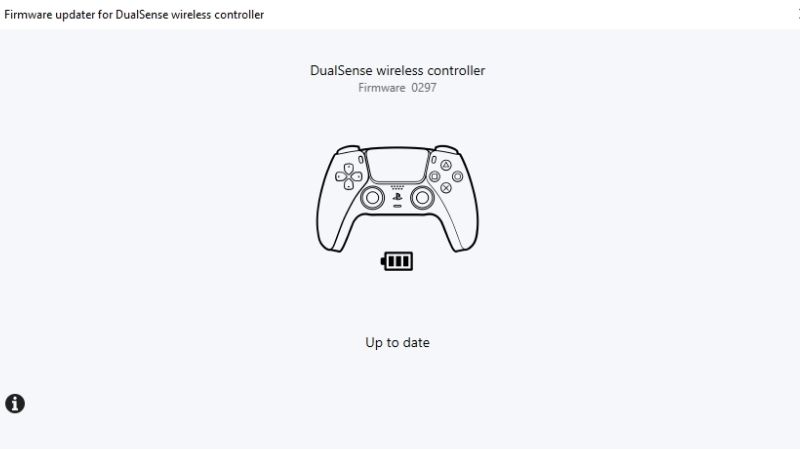
To update DualSense firmware on PC, install Sony’s free PlayStation Accessories app on Windows, connect your DualSense or DualSense Edge controller by USB or Bluetooth, and select Update beside the firmware information when the app offers a newer version. Keep the controller connected and the PC powered on until the update finishes. You do not need a PS5 console for this process. Sony’s current official tool is named PlayStation Accessories; older guides referring to the standalone Firmware updater for DualSense wireless controller may lead you to outdated instructions.
Quick answer: What you need to update a DualSense on PC
Use the checklist below before you download or change anything. These are the requirements Sony lists for PlayStation Accessories, which is a Windows application, not a Mac, Android, or iOS firmware-updating utility.
| Item | Confirmed requirement or support | What to do |
|---|---|---|
| PC operating system | Windows 10 (64-bit) or Windows 11 | Open Windows Settings > System > About and confirm your operating system before installing. |
| Free storage | At least 250 MB | Leave additional room for normal Windows operation and downloads. |
| Display | 1280 × 800 resolution or higher | Use a display at or above the app’s published requirement. |
| Connection | USB cable or Bluetooth; a USB port or Bluetooth-capable PC | Use a compatible USB-C connection for the simplest first test, or pair the controller wirelessly. |
| Supported hardware | DualSense and DualSense Edge wireless controllers | Do not assume DUALSHOCK 4 or a third-party controller uses this update utility. |
| Software | Official PlayStation Accessories installer | Download from Sony’s PlayStation Accessories page, not from a driver mirror. |
Sony’s own compatibility table confirms both supported controllers can receive firmware updates. It also distinguishes controller customization: DualSense Edge supports customization in this app, while the standard DualSense does not. Sony’s online page currently lists app version 2.2.1, but version strings change. Treat the installer and in-app update prompt as the current authority rather than attempting to match a version mentioned in an older article.
Download and install Sony’s PlayStation Accessories app
- Open the official download page. On your Windows PC, navigate to controller.dl.playstation.net/controller/lang/en/2100004.html, titled PlayStation Accessories. The PlayStation Support controllers page also links to this Sony-hosted destination under its PC update instructions.
- Select Download for Windows. Download the installer supplied by Sony. Do not use firmware files, unofficial drivers, third-party updaters, or videos that instruct you to flash the controller manually.
- Run the installer. Open the downloaded application installer from Windows Downloads or your chosen folder. Review any Windows security prompt and make sure the publisher corresponds to Sony Interactive Entertainment. Follow the installer prompts and allow installation to finish.
- Start PlayStation Accessories. Open Windows Start, search for PlayStation Accessories, and launch it. Keep the application available while you connect the controller.
- Check the app itself for updates. Sony recommends keeping both the application and the controller current. If the app offers its own update, finish it before attempting a controller firmware update.
Expected result: The PlayStation Accessories interface opens and can display connected controllers, their battery information, and firmware status once a supported controller is detected. You do not need PS Remote Play, a Steam controller configuration tool, or the separate PlayStation Link PC Driver for this job. The PlayStation Link driver serves compatible headset and adapter devices, not DualSense firmware updates.
Connect DualSense to your Windows PC by USB
A USB cable is a straightforward starting point if this is your first update, and it helps distinguish a Bluetooth pairing problem from an issue with the app. Sony’s PlayStation Accessories guide explicitly supports a wired USB connection.
- Close any game that is currently using the controller. If a game or streaming app is running, exit it so you can focus on the updater rather than input or audio behavior inside that game.
- Connect the USB-C end to the controller. Plug a compatible USB cable into the USB Type-C port on top of the DualSense or DualSense Edge.
- Connect the other end to a compatible USB port on the PC. Use the computer’s own port for the initial test rather than an unverified hub or extension. Check that the cable and port physically match.
- Look at PlayStation Accessories. The app should identify the controller and show a controller panel. Sony notes that disconnecting the cable disconnects and powers off a controller using its wired connection.
- If nothing appears, change one variable. Try another compatible USB port, then a known working USB cable that supports data transfer. A charging-only cable may supply power while failing to establish a usable data connection. Restart the app after reconnecting.
Expected result: You can see the connected controller and its firmware information in the app. A charging light alone is not sufficient proof that Windows and the PlayStation Accessories app can communicate with the device. If the app still cannot detect it, use the troubleshooting section before attempting a firmware update.
Connect DualSense by Bluetooth instead
Older firmware updater instructions sometimes insist on USB-only updating. The current PlayStation Accessories documentation explicitly supports USB and Bluetooth controller connections. For a wireless connection, use Sony’s pairing procedure; do not leave a USB cable connected while entering wireless pairing mode.
- Disconnect the USB cable. If the controller’s light bar or player indicator is on, hold the PS button until the lights turn off.
- Enter pairing mode. Hold the Create button and the PS button together for at least three seconds. Sony says the light bar and player indicator flash twice.
- Add a Bluetooth device in Windows. On Windows 11, open Settings > Bluetooth & devices > Add device > Bluetooth. On Windows 10, open Settings > Devices > Bluetooth & other devices > Add Bluetooth or other device > Bluetooth. The exact labels can vary slightly with Windows updates.
- Select the controller. Choose the detected controller in Windows and complete pairing. Sony says the light bar and player indicator illuminate when the connection succeeds.
- Return to PlayStation Accessories. Verify that the controller is visible and that the app shows its firmware information.
For a firmware session, use a reliably charged controller and a stable connection. If pairing is intermittent, a compatible USB cable is a reasonable fallback. Sony cautions that not every commercially available Bluetooth USB adapter is supported. Its instructions do not guarantee every PC radio or third-party dongle will perform identically.
Install the DualSense firmware update
Once the controller appears in PlayStation Accessories, the firmware area is the critical part of the interface. Sony labels it Firmware for your controller in the official guide, and the current version is displayed there. A button labeled Update appears when a newer firmware version is available.
- Find the controller panel. In PlayStation Accessories, identify your DualSense or DualSense Edge. If more than one is connected, choose the intended unit and confirm its displayed controller information.
- Check the firmware field. Read the installed firmware version in the firmware section. If the app does not offer an Update button, do not invent a manual installation step or download an unverified firmware package. It may already be current.
- Select Update when offered. Click Update in the firmware area and follow the exact on-screen prompts. Keep the app open and let the update run to completion.
- Do not interrupt the process. Sony explicitly warns not to turn off Windows or disconnect the controller during an update. If you are updating more than one controller, update one at a time.
- Verify the result. When the update finishes, return to the firmware area and check that the app reports the installed version and no longer offers the same pending update. Only then disconnect or switch to your preferred connection method.
Success check: PlayStation Accessories recognizes the controller after updating, its firmware field can be read, and the update prompt you just completed is gone. Sony does not provide a universal, permanent firmware version number for every controller revision on that screen; the app’s reported status is more useful than a static number copied from a tutorial.
What if PlayStation Accessories shows no Update button?
No Update button does not automatically mean the updater is broken. The official user guide says the control appears when a new version is available. Work through the following checks rather than forcing a reinstall or loading unknown firmware files.
- Confirm the controller is detected. You should see its firmware information, battery status, or controller panel. If the device isn’t listed at all, this is a connection problem, not proof that firmware is unavailable.
- Confirm you installed the current app. Open the Sony-hosted download page and compare with the app’s information area. Install any official app update offered.
- Reconnect the controller. Power it off, then reconnect by a stable USB or Bluetooth connection. Reopen the app and look again at the firmware section.
- Distinguish controller models. Sony officially supports firmware updating on standard DualSense and DualSense Edge. The customization panels differ; do not mistake the absence of Edge profiles on a standard DualSense for an update problem.
- Stop when firmware is current. If a supported controller appears correctly and no update is offered, there is no verified reason to downgrade or try unofficial firmware installation.
Troubleshooting: Fix a controller the app cannot detect
Start with reversible checks. A device can pair to Windows for gameplay yet still fail to appear in a utility session because the connection has dropped, another application is interfering, or the app itself needs updating.
| Symptom | Likely area to check | First safe action | Verify success |
|---|---|---|---|
| App shows no controller over USB | Cable, port, or incomplete data connection | Reconnect directly to a different USB port and try a known data-capable cable | Controller panel appears in the app |
| Controller pairs over Bluetooth but disappears | Radio link or adapter compatibility | Reconnect close to the PC or try USB; check the Sony warning about unsupported adapters | Controller remains visible long enough to read firmware |
| App opens but Update is missing | Already current, or controller connection not recognized | Read firmware field, update app, reconnect once | Current firmware is displayed or Update becomes available |
| Update download or installation fails | Interrupted connection, app state, or Windows conditions | Leave the controller connected until the app stops, then follow its error instructions | Successful completion after a safe retry |
| Game behaves incorrectly after update | Game’s controller support or app running in background | Close PlayStation Accessories before launching the game and verify game-specific controller support | Inputs work in a supported title |
If the USB connection repeatedly fails, avoid repeated physical plugging while an update is actively progressing. Wait for the app to finish or explicitly report an error. After it has stopped, restart the utility and test a reliable port/cable combination. If a controller works in another verified supported environment but not one PC, you have narrowed the problem to that computer’s connection or app configuration rather than proven faulty controller firmware.
What to do if the firmware update fails
Do not power-cycle the PC, disconnect USB, or hold the controller reset button while the update screen is still in progress. Sony’s official warning is explicit about maintaining power and connection. If the app has actually exited the update process and displayed an error, you can use a controlled recovery sequence.
- Record the error. Note the full message or code and whether the update failed while downloading, transferring, or completing. A screenshot of the displayed error can help Sony Support later.
- Follow the onscreen instructions. Prefer Sony’s message to generic advice. If the software offers a safe retry after the failed attempt has stopped, use that workflow.
- Check the PC. Confirm Windows is responsive and has enough free storage; Sony lists at least 250 MB for the app itself, but normal updates can require working space.
- Reconnect only after the process stops. If the app has closed or clearly reported failure, try a stable direct USB connection, reopen PlayStation Accessories, and inspect the firmware field before retrying.
- Escalate if the controller no longer responds. Use Sony’s PlayStation Support or Repairs tools if the app repeatedly fails, the controller cannot be detected on compatible equipment, or the firmware state remains inaccessible.
Do not attempt to manually flash a firmware binary, edit Windows registry keys, install random USB filter drivers, or downgrade controller firmware based on forum anecdotes. Sony’s public consumer documentation does not authorize such steps as general recovery procedures.
Can you update DualSense Edge firmware on the same PC?
Yes. PlayStation Accessories supports firmware updating for both the DualSense wireless controller and the DualSense Edge wireless controller. Their update workflow is essentially the same: connect the controller, locate the firmware section and select Update if available. Sony’s compatibility table additionally permits customizing DualSense Edge profiles on the PC; that is a distinct capability, not a required stage of updating firmware.
If the controller is a DualSense Edge, identify the right controller panel before pressing Update when multiple devices are connected. Sony supports up to four connected controllers in the app, but its update instructions still say to update them individually. Profile adjustment and firmware installation should not be confused with game-level remapping or performance testing.
Do not use the PlayStation Link PC Driver for a DualSense or DualSense Edge firmware update. Sony specifically describes that driver as serving compatible PlayStation Link headsets and USB adapters, while PlayStation Accessories handles DualSense controllers.
Update DualSense on PS5 if the PC method is unavailable
If you have access to a PS5 console, Sony provides an alternative official firmware path. This is helpful when you cannot install PlayStation Accessories on a compatible Windows PC or when you are trying to isolate a PC connection problem.
- Pair the controller to PS5. Turn on the console and connect the controller with a compatible USB cable as needed. Use the PS button to connect if prompted.
- Open the controller settings. From the PS5 home screen, choose Settings > Accessories > Controller (General) for a standard DualSense.
- Check the firmware entry. Select DualSense Wireless Controller Device Software and follow any official update instructions shown on the console.
- Use the Edge-specific path when needed. For DualSense Edge, Sony lists Settings > Accessories > DualSense Edge Wireless Controller > DualSense Edge Wireless Controller Device Software.
- Verify and reconnect. After the console finishes, check that the controller works on PS5. If you want to use it on PC, reconnect or pair it to your Windows device as appropriate.
Sony says PS5 system-software updates include controller software updates when applicable. Do not assume the presence of a controller-update menu means there must be a newer release on every visit.
Tools That Help
- PlayStation Accessories — free official Windows app. Required for Sony’s PC firmware workflow; it displays firmware status, supported controllers and available updates.
- Compatible USB-C data cable — use one you already own. A practical wired fallback when Bluetooth detection is unreliable. You do not need to buy an expensive specialty cable for the standard update process.
- Windows Settings — included with Windows. Useful for confirming Windows version, available storage, and Bluetooth pairing. No extra driver manager or paid firmware utility is required.
Frequently asked questions
Do I need a PS5 to update DualSense firmware?
No. Sony officially supports updating DualSense and DualSense Edge firmware from a compatible Windows PC with PlayStation Accessories. A PS5 is an alternative, not a prerequisite.
Can PlayStation Accessories update a DualSense through Bluetooth?
Its current documentation supports both USB and Bluetooth connections and provides wireless pairing instructions in the same workflow that displays the firmware Update action. Keep the connection stable during an update. If the wireless link is unreliable, switch to USB before starting a new attempt.
Can I use a Mac to run the firmware updater?
Sony’s published PlayStation Accessories system requirements list Windows 10 64-bit and Windows 11. A DualSense can connect to certain Mac systems for supported games, but that does not mean Sony provides this particular Windows firmware-updating application for macOS.
Does firmware updating unlock adaptive triggers in every PC game?
No. A controller firmware update and game support are separate matters. Sony notes that haptic feedback, adaptive triggers, microphone support and other capabilities depend on the device and the individual game; some PC haptic features may require USB. Keep the firmware current but check each title’s controller support separately.
Should I download the old Firmware updater for DualSense app?
Use the official PlayStation Accessories download link that Sony currently provides on its controller support page. Avoid relying on old installer screenshots or software copies advertised by third-party sites, even when they use Sony’s older product naming.
Will updating firmware erase my DualSense Edge profiles?
Sony’s published app guide does not describe profile deletion as a routine result of a normal firmware update. Nevertheless, note any important custom settings before changes and verify them afterward. Do not confuse the controller reset instructions with intentionally deleting or editing custom profiles.
Final thoughts
Start by installing PlayStation Accessories directly from Sony and connecting one DualSense controller through a reliable USB connection. Check the firmware field: if Update appears, run the official update without interrupting power or connection; if it does not, verify the controller is recognized and avoid unnecessary flashing. This single check tells you whether you actually have a pending firmware update—and gives you a safe next step without risking a working controller.