Key takeaways
- Modern Warfare 4 Test Stick Deadzone and Firing Range — free, built into the game: use the live controller-input test when available and a quiet practice area to judge drift, small movements, and trigger consistency. No additional purchase is needed.
- Xbox Accessories or PlayStation Accessories — free official controller utilities: use the matching app only for supported Xbox controllers or DualSense Edge devices when a controller-level response needs verification. Features differ by device; do not assume standard DualSense has Edge profile controls.
- A notes app or a saved photograph — free: preserve original Left/Right Stick Min/Max and trigger thresholds before experimenting, then compare one controlled change at a time.
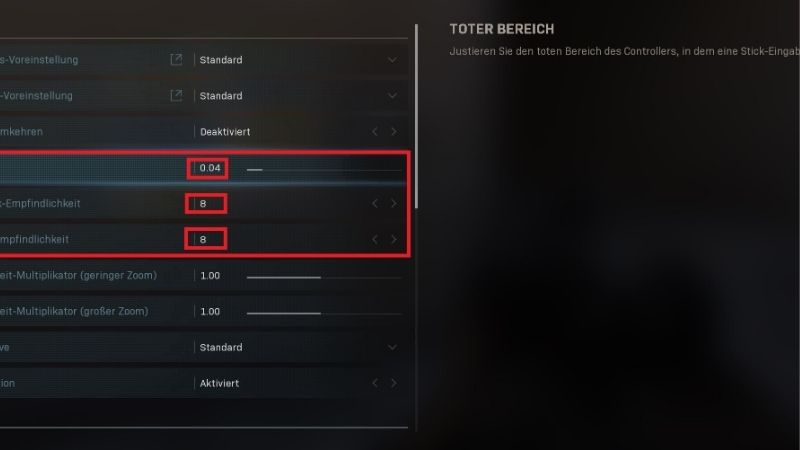
Modern Warfare 4 controller deadzone settings should be tuned to the controller you actually use, not copied blindly from a streamer. Start by opening Settings > Controller > Deadzone Inputs, testing both sticks at rest, and reducing each minimum only as far as it remains stable. A smaller minimum can register gentler aiming or movement; one that is too small can expose unwanted stick drift. A larger minimum hides more resting noise but may make the first part of a deliberate movement feel unresponsive. This guide explains the setting names, a repeatable calibration process, sensible starting points for PS5, Xbox, and PC, and when software adjustments cannot solve a hardware problem.
Quick answer: The deadzone settings to start with
For a healthy controller, the practical objective is the lowest minimum deadzone that produces no unwanted movement while the stick rests. Keep the two sticks separate: the left stick controls character movement, while the right stick controls camera and aiming. Do not set both to zero or both to a recommended number without testing. A beta-era SCUF Gaming guide suggested 3 for each stick minimum, 65 for Left Stick Max, 99 for Right Stick Max, and 0–5 for trigger deadzones. Those are optional trial values, not official Activision launch defaults or verified best-performing settings for every controller.
| Control | Purpose | Good first decision | Warning sign |
|---|---|---|---|
| Left Stick Min | Ignores small movement around neutral on the movement stick | Lower gradually until unintended walking appears, then raise until it stops | Character creeps while hands are off the stick |
| Right Stick Min | Ignores small movement around neutral on the aiming stick | Keep as low as reliably stable, tested while standing still | Camera pans or reticle moves without input |
| Left Stick Max | Changes when movement reaches its maximum registered input | Leave at the current setting until minimum deadzone is solved | Full-speed movement engages too early or feels inconsistent |
| Right Stick Max | Changes when camera-stick input is considered fully deflected | Leave close to the current/default setting during initial tests | Small changes cause abrupt maximum turning |
| Left and Right Trigger | Controls how far a trigger travels before an input registers | Lower only if you need earlier ADS/fire activation and no accidental presses occur | Unintended firing or delayed ADS |
On October 17, 2026, AllThingsHow documented a Steam PC Controller screen with Left/Right Stick Min at 15, both maximums at 99, and triggers at 13. That third-party capture is evidence of one observed setup, not a platform-wide Activision specification: another player’s saved profile, build, controller, or updates may show different values. Read your own live numbers before changing them.
Understand minimum, maximum, and trigger deadzones
Minimum deadzone: a neutral zone, not a sensitivity setting
An analog stick seldom returns to a mathematically perfect center. Sensors have tolerances; used sticks may also have wear or physical play. Minimum deadzone tells the game how much motion around that neutral point to ignore. With a wide deadzone, small corrections disappear until the stick crosses the threshold. With a very narrow deadzone, small intended corrections may register sooner, but any resting noise may also become visible as slow movement or camera drift.
This is why the same value can feel excellent on one controller and unusable on another. Left Stick Min should be judged by whether the player walks unintentionally and whether deliberate strafing begins predictably. Right Stick Min should be judged by whether the view remains motionless at rest and whether a small aim correction registers. These are different outcomes, so an identical number is not necessary or inherently superior.
Maximum deadzone: a different part of the input range
The maximum control affects the far end of stick travel: how far the stick must be pushed before the game treats it as full input. Reducing a maximum can make peak movement or turning register earlier, but it does not repair a noisy neutral position. It may also compress the useful range over which the player can make progressive inputs. If a guide tells you to change Left Stick Max to 65, understand that it is an aggressive movement preference from a beta-era profile, not a drift cure.
For a first calibration, leave both maximum controls as you found them and solve minimums first. Afterward, test one maximum at a time using identical movement. Do not lower maximum and minimum simultaneously; otherwise you cannot tell which adjustment caused an improvement or a loss of control.
Trigger deadzone: activation distance instead of thumbstick drift
Trigger deadzones govern how much pressure or travel is needed before ADS or firing begins. Reducing the value can make the action start with less travel, helpful when a controller has a long pull. Yet a controller that rests with slight trigger pressure may generate accidental activation if the threshold is too small. DualSense adaptive trigger effects and adjustable trigger stops can further change the way the input feels, without changing the stick’s neutral deadzone.
Use short deliberate press-and-release checks for LT/L2 and RT/R2 separately. If aiming or firing triggers unexpectedly while you rest your fingers, restore a slightly larger threshold. If an action seems delayed, compare the same controller outside a live match before deciding the game setting is at fault.
Find Modern Warfare 4 deadzone inputs in the game
Modern Warfare 4 launched October 23, 2026. A third-party controller-menu walkthrough identifies the on-screen path as Settings > Controller > Controller tab > Deadzone Inputs, with a Show More (+) expander and an option named Test Stick Deadzone. SCUF’s guide independently describes the Left/Right Stick Min, Max, and trigger variables, but Activision’s reviewed post-launch support and patch notes do not publish a complete numerical controller-default specification. Treat the menu path as documented third-party guidance that should be verified against the installed game version.
- Open Settings. From the game’s main menu, enter the settings interface and select Controller. If you are on PC, make sure the active aiming input device is your controller before testing controller-specific behavior; a keyboard-and-mouse profile is not a valid controller baseline.
- Stay on the Controller tab. Scroll to Deadzone Inputs and expand it using the visible + or Show More control. If the tab names have changed after an update, find the grouping that contains Left Stick Min and Right Stick Min rather than assuming an obsolete screenshot is accurate.
- Record the existing values. Write down Left Stick Min/Max, Right Stick Min/Max, and both trigger thresholds or take a photo for personal reference. This provides a rollback point, especially when the menu differs from an online guide.
- Enable Test Stick Deadzone if the installed build shows it. Observe the readout with your thumbs completely off the sticks. The initial goal is to detect unwanted neutral input, not to chase an unusually low number.
- Calibrate minimum values first. Follow the separate left-stick and right-stick methods below, saving or applying changes according to the current game’s interface. Recheck after every small adjustment.
- Practice in a controlled environment. Use the Firing Range or another available practice area rather than a ranked match. Keep sensitivity, response curve, aim-assist preferences, and controller hardware unchanged during the initial deadzone test.
If Test Stick Deadzone is missing, do not invent a secret toggle. Use a stationary in-game test, confirm the controller is recognized, and review the game’s current patch notes. Menu labels and advanced controls can vary by platform and update; copying a 2026 beta screenshot is less reliable than using the visible controls in your version.
Calibrate the left-stick minimum without unintended movement
Measure unwanted movement before you lower the value
Choose a quiet area with a fixed wall or floor reference and no directional movement on screen. Put the controller on a stable surface, remove your thumb from the left stick, and watch the character for several seconds. If the player moves without input, note whether it is continuous or intermittent. A brief movement caused by a game animation should not be confused with persistent walking input. Repeat the observation at least twice.
If there is no drift, reduce Left Stick Min one small increment and repeat. Avoid jumping from a fairly large threshold directly to zero. If the character begins creeping, raise the value incrementally until the movement stops. Keep a small stability margin if the result changes after the controller warms up or after several matches. The final number is not a trophy: a stable setting of 7 can be better than a drifting setting of 3.
Check that strafing still begins promptly
After the resting test passes, nudge the stick left and right by a small, repeatable amount. You want intentional strafing to start smoothly rather than arriving in a sudden jump after excessive thumb movement. Test the same motion three times in each direction. A high minimum may hide movement drift but cost fine control when repositioning around cover; a low minimum may move too readily when you only intend to lean on the controller.
Do not tune Left Stick Max during this first pass. A maximum setting that reaches full movement early can make sprinting feel fast, but it can also mask how progressively the stick responds. Once the minimum is stable, experiment with the maximum only when you have a specific movement problem, preserving the original value as a fallback.
Calibrate the right-stick minimum for precise aiming
Run a hands-off camera-drift test
Face a fixed feature on a wall, let the right stick return to center, and release it entirely. If the camera continues turning or slowly walks away from the reference point, the game may be receiving input while the stick should be neutral. Increase Right Stick Min in small increments until the image stays still. Repeat with the controller resting normally rather than squeezed tightly; hand pressure can mask or create a weak drift condition.
If the camera is already stable, gradually lower Right Stick Min until you begin to see unwanted motion, then restore the last stable position. Repeat the test after a few deliberate turns, because some worn sticks return to different resting positions depending on the last direction pushed. Aim for repeatable stability, not the lowest numerical threshold displayed.
Test micro-adjustments separately from sensitivity
With the camera stable, track a stationary mark by making short horizontal and vertical corrections. If you must move the stick noticeably before the camera begins moving, the minimum may be unnecessarily wide. If the view twitches with almost no touch, the minimum could be too narrow or the response curve and sensitivity could be too aggressive. Change only the minimum during this test, then stop and reassess the response curve later.
Aim-response curve and horizontal/vertical sensitivity are not deadzones. Sensitivity controls camera speed once movement is registered; curve selection changes how input grows through the stick’s travel. A deadzone may determine whether an input is recognized at all. Mixing these adjustments together makes it difficult to diagnose why small corrections overshoot. Use a consistent baseline for several trials before deciding the controller feels better.
Should you use the SCUF beta deadzone numbers?
SCUF Gaming’s September 21, 2026 Modern Warfare 4 controller guide gives an explicit beta/pre-launch profile: Left Stick Min 3, Left Stick Max 65, Right Stick Min 3, Right Stick Max 99, and trigger deadzones 0–5. It also suggests Dynamic aim response and 1.65 horizontal/vertical sensitivity, but those are wider controller preferences beyond the central deadzone question. Since the guide predates the October 23 release, its numbers should be described as a testable reference rather than a post-launch performance benchmark.
| Scenario | Better starting approach | Why |
|---|---|---|
| New controller with no observable drift | Try a low minimum and test resting stability first | It may retain small-input precision without accidental movement |
| Older controller with occasional camera drift | Raise Right Stick Min until stable | A lower number exposes neutral noise rather than correcting it |
| Character walks on its own | Adjust Left Stick Min only, then reassess hardware | Movement drift and camera drift are not interchangeable |
| ADS or fire requires too much trigger travel | Test the matching trigger threshold a little lower | Stick settings do not determine trigger activation distance |
| Fast strafing preferred, neutral already stable | Consider testing Left Stick Max as a separate experiment | Maximum response changes full-travel behavior, not center drift |
Do not treat 3, 65, 99, or 0 as universal percentages, milliseconds, or measurements of actual hardware latency. They are positions on the game’s published beta-era configuration scale. A third-party walkthrough captured different default numbers on PC before the final launch, illustrating why profiles and builds should not be conflated. Results from one controller cannot validate another controller’s wear, sensor quality, or profile settings.
Platform-specific controller checks
PS5 and DualSense: tune the game first
For a standard DualSense, begin with Modern Warfare 4’s own Deadzone Inputs. Sony documents custom button assignments at PS5 Settings > Accessibility > Controllers > Custom Button Assignments for DualSense Wireless Controller, but that is button remapping, not a system-wide deadzone slider for every standard DualSense. Do not confuse the two. To check device software, Sony lists Settings > Accessories > Controller (General) > DualSense Wireless Controller Device Software.
If you own a DualSense Edge, Sony additionally documents Settings > Accessories > DualSense Edge Wireless Controller > Custom Profiles > Create Custom Profile > Stick Sensitivity/Deadzone. This is a second layer of tuning. Start with a neutral/default Edge profile while calibrating the game’s sliders, then adjust the Edge profile afterward if there is a specific need. Otherwise stacked deadzones can make aiming feel unresponsive and obscure which setting is responsible.
Sony’s Edge interface includes a playtest for stick response and separate trigger deadzone customization. Save or assign the custom profile according to Sony’s on-screen instructions, and keep the default profile accessible for an A/B comparison. If a regular DualSense persistently drifts in other games, an in-game setting can mask small movement but should not be described as a permanent repair.
Xbox Series X|S: separate MW4 tuning from recalibration
On Xbox, start inside the game’s Controller menu. Microsoft also offers a thumbstick self-calibration tool through the Xbox Accessories app for supported Xbox Wireless Controllers, and expanded it to Elite Series 2 controllers. Microsoft’s Xbox Wire notes explain that this tool can address certain inconsistent inputs but cannot fix every issue, including wear-related drift. It is therefore a hardware-diagnostic option rather than an automatic competitive deadzone optimizer.
Open My games & apps > See all > Apps > Xbox Accessories on the console, select the connected supported controller, and follow the app’s current calibration prompts where offered. The exact button labels and supported options may differ by controller model and app version. Record your game profile first, and do not treat a missing calibration option as proof that the device is defective. Compare a second known-good controller if the same game slider produces radically different behavior.
If you have an Elite controller profile with its own stick adjustment, compare against an unmodified profile when diagnosing drift. The key distinction is whether the unwanted motion appears in multiple games or only with one specific game’s settings. Replacing hardware or buying add-ons is unnecessary when a small reversible in-game adjustment resolves the symptom.
PC: identify extra input-processing layers
On Steam, Battle.net, or Xbox PC, controller behavior can be influenced by the game, the operating system, a manufacturer’s controller utility, and sometimes Steam Input. Begin with one recognized controller and one input-mapping layer. If camera movement is inconsistent, close unnecessary remapping software, disconnect extra controllers, and check whether behavior differs when the same controller is wired. Wired testing helps isolate wireless interference, but it does not prove a deadzone’s numerical quality.
Steam support documents controller calibration tools, but some of its detailed paths refer specifically to the older Steam Controller hardware rather than every modern Xbox or PlayStation pad. In current Steam builds, look under Steam > Settings > Controller for the connected device and its available calibration options; do not assume every device will show the same test screen. Change the game’s deadzone first and avoid simultaneously applying a strong global Steam Input deadzone unless you intentionally want both layers.
For PC DualSense Edge owners, Sony provides the PlayStation Accessories app with a stick sensitivity/deadzone test. For Xbox Wireless Controllers, Microsoft’s Xbox Accessories calibration tool may be available. Do not install unrelated third-party “controller boosters” simply to lower stick deadzone. They add uncertainty and can conflict with a game’s supported input path.
How to diagnose drift, delayed aiming, and accidental firing
The reticle moves even when the right stick is untouched
Raise Right Stick Min a step, let the camera settle, and repeat the hands-off test. If the camera stops drifting but small intentional corrections now require excessive travel, compare the behavior in another game or using a second controller. Persistent drift across games strongly suggests a controller-level issue rather than a Modern Warfare 4-specific sensitivity preference. A factory or controller reset may be appropriate only when supported by its manufacturer; do not open a controller or replace parts as the first action.
The player creeps forward or strafes without input
Use Left Stick Min, not Right Stick Min. Keep sprint assist and automatic movement features at their existing values while testing, because they can be mistaken for direct stick input. A slow walk at rest is a different symptom from a deliberate movement feeling too slow. If you only notice the problem in a game mode with automated movement, isolate that game mechanic first rather than inflating the deadzone until all fine movement disappears.
Small aim movements feel delayed or overshoot
Delayed recognition can come from a minimum deadzone that is too wide, while overshooting can come from higher sensitivity or a steep response curve after the input starts. First test whether the camera begins moving at the expected physical stick distance. If it does but accelerates too quickly, leave the deadzone alone and adjust sensitivity or response curve as a separate experiment. Monitor and display input delay, low frame rate, and wireless connection issues can also change perceived responsiveness without altering the raw stick signal.
The triggers activate too early or too late
Adjust only the affected trigger threshold and run a slow press-release cycle, ensuring the game registers precisely once. If ADS starts while a finger lightly rests on L2/LT, increase that trigger threshold. If firing requires an unusually deep pull with an otherwise healthy trigger, try lowering RT/R2 slightly. Trigger stops on premium controllers can change the physical travel available, so check the hardware setting before attributing everything to the in-game slider.
The controller works in menus but not in a match
This is not automatically a deadzone problem. Confirm the active aiming input device and controller assignment, verify the match accepts controller input, and check for competing input layers on PC. Restore your saved in-game values before troubleshooting a different issue. If the issue started with a patch, consult Infinity Ward’s official Modern Warfare 4 launch notes and Activision’s support and known-issues channels. Do not infer from a general stability patch that it specifically changed deadzone handling.
Build a repeatable five-minute controller test
Make adjustments measurable rather than relying on a memorable single gunfight. Start with an unchanged sensitivity and aim response curve, a fixed location in the Firing Range or another practice area, and a short series of observations. Record left minimum, right minimum, both maximums, trigger thresholds, and controller model. If the build lacks a practice area, use a quiet section of an available mode without risking teammates’ matches.
- Neutral test: release each stick for several seconds. Note unwanted character movement or camera panning separately.
- Micro-movement test: make three small left and right stick movements from center. Check for a dead patch followed by sudden motion.
- Turning test: rotate between two fixed landmarks using the same thumb motion. Do not change sensitivity until the minimum deadzone is stable.
- Trigger test: press ADS and fire slowly three times each. Note accidental activation or inconsistent input onset.
- Repeatability test: release both sticks after a fast turn and recheck neutral behavior. A failing return-to-center can reveal wear that was hidden during the first check.
A useful result is a controller that remains still at rest yet responds consistently to intentional inputs. If the test produces no difference, restore the recorded settings; more aggressive numbers are not automatically beneficial. Retest after a controller firmware update, major game input update, or a hardware change, but avoid resetting everything after an unrelated patch without evidence.
Common deadzone mistakes to avoid
Copying a pro preset as a hardware standard. SCUF’s 2026 beta numbers provide an organized experiment, but those values do not certify another controller’s calibration. Content creators may have new controllers, replacement stick modules, special curves, or different deadzone layers.
Changing both sticks together. The left stick controls movement and the right stick controls aim. Solve the actual symptom. If the camera drifts, reducing Left Stick Max is irrelevant. If the player walks, increasing Right Stick Min will not address the cause.
Confusing a maximum setting with drift repair. The maximum deals with outer travel. Drift is generally a neutral-position problem. An unusually low maximum can hide fine control near the edge and make movement feel binary, even when the neutral test passes.
Stacking game, Steam, and controller-profile deadzones. Different processing layers may apply their own deadzone or curve. Where a device has a configurable profile, compare a default profile before adding more software processing. Avoid treating two different sliders with the same number as necessarily equivalent.
Using aim assist to diagnose hardware drift. Aim assist responds to gameplay conditions and target proximity. It is not a replacement for a hands-off test against a fixed, empty background. Do neutral tests first, then evaluate target tracking under consistent conditions.
Declaring a permanent hardware fix. Raising a minimum can hide modest neutral noise. It does not replace a worn sensor or guarantee the issue will never return. If a controller needs increasingly large thresholds or misbehaves across games, seek manufacturer troubleshooting or warranty help rather than endlessly raising sliders.
Tools That Help
- Modern Warfare 4 Test Stick Deadzone and Firing Range — free, built into the game: use the live controller-input test when available and a quiet practice area to judge drift, small movements, and trigger consistency. No additional purchase is needed.
- Xbox Accessories or PlayStation Accessories — free official controller utilities: use the matching app only for supported Xbox controllers or DualSense Edge devices when a controller-level response needs verification. Features differ by device; do not assume standard DualSense has Edge profile controls.
- A notes app or a saved photograph — free: preserve original Left/Right Stick Min/Max and trigger thresholds before experimenting, then compare one controlled change at a time.
Frequently asked questions
What is the best Modern Warfare 4 right-stick deadzone?
The best minimum is the lowest value that keeps the camera reliably still when the stick is released. SCUF suggested 3 in its September 2026 beta-era profile, but a worn stick may need a higher number. Test the resting camera after several turns rather than judging only one short observation.
Should Left Stick Min and Right Stick Min be the same?
No. Their mechanical wear and intended tasks can differ. Separate calibration avoids sacrificing precise aiming because the movement stick is noisy, or accepting involuntary walking because the aiming stick is healthy.
Does lowering deadzone reduce input lag?
It can reduce the physical stick travel required before the game recognizes a small input, which often feels more immediate. It does not by itself reduce network latency, display processing delay, or the controller’s electronic polling delay. Compare like-for-like tests before describing the change as an input-lag improvement.
Can changing deadzone fix controller drift permanently?
No. It can hide some uncommanded input around center. Hardware wear or a faulty sensor can persist and may worsen. Compare the controller across games and use manufacturer-supported diagnostics if the issue requires an unusually high threshold.
Should I copy Left Stick Max 65 and Right Stick Max 99?
Those values are from SCUF’s beta guide, not official launch requirements. Keeping maximums unchanged while fixing minimums gives a clearer baseline. Test 65 for movement only if you prefer earlier maximum movement and can still modulate the stick consistently.
Why does my PS5 DualSense Edge feel different from a normal DualSense?
DualSense Edge has a separate Sony-supported custom profile with stick sensitivity and deadzone controls. The standard DualSense does not have the same Edge profile interface. Compare the Edge’s default profile against the game’s settings to avoid overlapping adjustments.
Final thoughts
The right Modern Warfare 4 controller deadzone is a measured setting, not a fixed number borrowed from another player’s screenshot. Begin with your current configuration, test for hands-off left- and right-stick drift, reduce minimums cautiously, and keep the last stable values. Leave maximums and aiming sensitivity unchanged until the neutral test passes. Your next action is simple: record both minimums today, run a five-minute stationary and micro-aim test, and change only the stick that shows a repeatable issue. If a controller still drifts across games, use its manufacturer’s diagnostics instead of hiding increasingly severe hardware faults with software sliders.