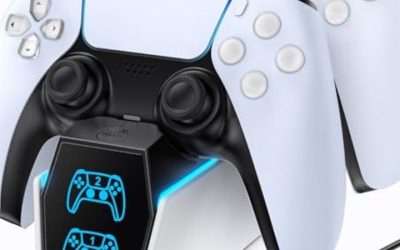
The best accessible gaming controller attachments are the ones that place a usable input where you can reliably reach it—not necessarily the ones with the most buttons. For an Xbox Adaptive Controller on Xbox or Windows, Logitech’s Adaptive Gaming Kit is the strongest general-purpose expansion. On PS5, the separate Logitech kit for the Access controller is the better starting point. A single compact switch, large activation button, relocated analog stick, or wired Xbox Adaptive Joystick may solve a more specific problem for less money. This guide compares eight real products and identifies the base controller, connection type, mounting needs, and buying limitations for each. It covers physical accessories, not standalone adaptive-controller hubs or unsupported console adapters.
Quick verdict: choose the attachment that solves one access barrier
Best multi-input kit for Xbox and Windows: Logitech G Adaptive Gaming Kit for Xbox Adaptive Controller. Its twelve external buttons and triggers make sense when several standard gamepad actions are hard to reach, and its boards and ties provide a starting point for arranging them. It does not include the Xbox Adaptive Controller or a dedicated analog joystick.
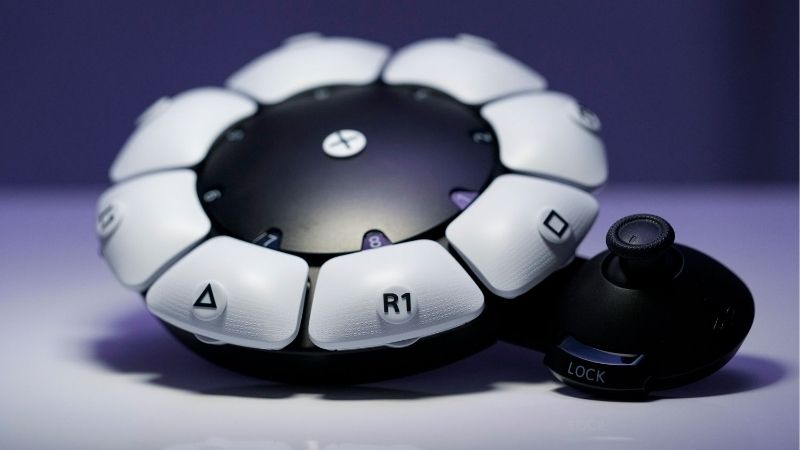
Best multi-input kit for PS5: Logitech G Adaptive Gaming Kit for Access Controller. Its eight external buttons and triggers connect to the PlayStation Access controller; the Access controller and PS5 are separate purchases. Do not confuse this product with Logitech’s twelve-input Xbox kit.
Best compact single-button purchase: Evil Controllers XAC & PlayStation Access Mini Button. It gives you a small independently placed switch instead of a complete kit. Check its chosen cable-length surcharge and activation-force option before ordering.
Best remote analog stick for either adaptive hub: Evil Controllers Mini Thumbstick 3.5mm. It offers separate mounting bases and optional stick-tension or extension changes, but the product page explicitly limits it to Xbox Adaptive Controller and PlayStation Access—not the maker’s one-handed controllers.
Best purpose-built wired Xbox companion: Xbox Adaptive Joystick. It works differently from a passive 3.5mm switch: it connects by USB and can be combined with compatible Xbox input devices. The Microsoft Store currently offers an Add to Cart option, but the page does not provide a nationwide in-stock confirmation.
Best low-profile angled switch: Pretorian Smoothie Switch. Best smaller target with replaceable colors: AbleNet Jelly Bean. Best very large activation target: AbleNet Big Red. These address distinctly different physical layouts; none should be treated as a universal answer for every player’s motion, fatigue, or positioning needs.
These picks are based on published hardware specifications and observed US store listings, not hands-on trials or a clinical evaluation. Start with a comfortable, repeatable movement and the device you already use. More ports, larger buttons, or lower advertised activation force do not automatically produce better control for every person.
Comparison table: eight accessible gaming controller attachments
| Attachment and role | Verified connection and host | What it adds | US observed price (seller; research Oct. 29, 2026) | Stock status (same research session) | Main drawback |
|---|---|---|---|---|---|
| Logitech G Adaptive Gaming Kit, Xbox version — best Xbox expansion kit | External inputs for Xbox Adaptive Controller on supported Xbox/Windows setups | 12 buttons/triggers plus flexible placement materials | $99.99, Logitech G US | In stock; ready to ship | Xbox Adaptive Controller and analog joystick not included |
| Logitech G Adaptive Gaming Kit for Access Controller — best PS5 expansion kit | Compatible external controls for PS5 Access controller | 8 buttons/triggers, rigid board and PlayStation labels | $79.99, Logitech G US | In stock; ready to ship | Access controller and PS5 sold separately |
| Evil Controllers XAC & PlayStation Access Mini Button, SKU ABLE-XACPSAccessMB — best small switch | 3.5mm switch input on Xbox Adaptive Controller or PS5 Access | One external button; standard or sensitive tactile option | $24.98 promotional listing, Evil Controllers US; selectable cable lengths show +$4.48 | In stock | One input only; configure cable/placement before ordering |
| Evil Controllers Mini Thumbstick 3.5mm, SKU XACPSAccessTS — best remote analog stick | 3.5mm thumbstick input on Xbox Adaptive Controller or PS5 Access | Physically relocates analog input; base/tension choices | $59.98 promotional listing, Evil Controllers US; selectable cord lengths show +$4.98 | In stock | Optional bases/tension/extensions cost more; not for ordinary gamepads |
| Xbox Adaptive Joystick — best Xbox wired companion | USB-C accessory for compatible Xbox Adaptive Controller, consoles and Windows 11 x64 PCs | Analog stick and seven configurable buttons | $29.99, Microsoft Store US | Orderable: Add to Cart shown; stock not explicitly labeled | Not a 3.5mm accessory or a complete stand-alone gamepad |
| Pretorian Smoothie Switch, single/pack variants — best angled surface | 3.5mm switch connection; explicitly supported with Xbox Adaptive Controller | Low-profile, 3-inch or 5-inch angled activation surface | $55.00–$195.00 displayed range, InclusiveTLC US; exact variant price not checked | Orderable listing; exact variant stock unclear | Size, color and single-vs-pack selection change the price |
| AbleNet Jelly Bean, product 10033400 — best medium-size target | Wired adaptive switch; verify matching 3.5mm single-switch connection in your setup | 2.5-inch activation area, interchangeable colored tops | $75.00, AbleNet US | Add-to-cart listing; stock not explicitly confirmed | Less useful if you need a substantially larger or angled target |
| AbleNet Big Red, product 10033500 — best large target | Wired adaptive switch; verify matching 3.5mm single-switch connection in your setup | 5-inch activation area, audible/tactile feedback | $65.00, Infogrip US; manufacturer separately lists $75.00 | In stock on Infogrip listing | Large footprint, with higher published actuation force than some light-touch designs |
Price and availability note: All amounts were displayed on the named US product or seller pages during the October 29, 2026 research session (October 28–29 depending on US seller time zone). They are snapshots, not guaranteed checkout quotes. Evil Controllers displayed promotional prices, not permanent everyday prices; its configuration selectors add charges. Smoothie pricing is a range across variants, not a verified $55 quote for a specifically configured item. “Add to Cart” does not guarantee nationwide stock or shipping to your ZIP code. Recheck base controllers, shipping, return terms, configuration surcharges and stock at checkout.
Compatibility comes before button size or price
Xbox Adaptive Controller: a hub for switches, joysticks and other external inputs
Microsoft’s Xbox Adaptive Controller is a dedicated hub for Xbox Series X|S, Xbox One and Windows gaming. Its published specification includes nineteen 3.5mm ports and two USB 2.0 ports for external input devices. The large built-in A/B buttons do not replace the need for appropriate directional controls in a game. External switches and other input hardware are purchased separately, so a seller’s attractive kit price is rarely the full cost of a new adaptive setup.
A single-action 3.5mm switch behaves differently from a proportional analog joystick. It is typically best for an individual button action, such as jump, interact or menu navigation. To achieve directional motion with separate digital switches, you may need several inputs and a supported mapping. An analog stick accessory carries directional information and needs the correct host port and wiring. Never assume that plugging an ordinary USB joystick into a 3.5mm jack will work, or that every 3.5mm audio plug carries the right signals.
The first question is therefore not “Which accessory is most accessible?” but “Which physical action is missing from my current control scheme?” If movement already works and pressing one face button does not, a single switch may be a better use of money than a twelve-piece kit. If thumbstick movement is the barrier, look at a properly compatible external stick rather than a bigger button.
PlayStation Access: PS5-only, with four 3.5mm expansion ports
Sony’s Access controller is a separate customizable controller for PS5. It has four expansion ports labeled E1–E4 that can connect certain external buttons, switches and other compatible devices. Its USB-C connection is for charging and device software work; Sony specifically states that this port does not support USB-based third-party accessories. That means an Xbox accessory’s USB connection does not become a PS5 Access input just because you have a cable adapter.
Sony’s compatibility documentation also distinguishes different 3.5mm plug specifications for button devices versus analog trigger and stick devices. For this reason, a seller saying “3.5mm” is only the first compatibility check. Confirm the input type, wiring, assigned Access port, and product-specific support. Evil Controllers lists both its Mini Button and the 3.5mm Mini Thumbstick as compatible with Access. Logitech has a dedicated Access kit with the correct platform focus. Other generic assistive switches may work, but Sony explicitly does not promise compatibility with every commercially available device.
Your PS5 also needs an Access controller, and some games may require a second controller to perform all actions comfortably. Accessories do not grant PC or Xbox support to the Access controller itself. If PS5 is your only platform and you already have an Access controller, start by trying the button and stick caps included in its original box before purchasing external switches.
Windows, Nintendo Switch and standard controllers are not interchangeable hosts
An Xbox Adaptive Controller can provide a Windows gaming interface, but your chosen game still has to recognize the configured inputs. Microsoft’s wired Xbox Adaptive Joystick has its own narrower Windows specification: Microsoft Store lists Windows 11 on compatible x64 PCs. Do not extend that claim to every Windows 10, Linux, Mac or mobile gaming device. Nintendo Switch compatibility is not established for any of the eight specific accessories merely by their inclusion here; if Switch is your platform, first choose an appropriate Switch-compatible adaptive interface rather than improvising unsupported adapters.
Likewise, a passive switch normally does not plug into a regular Xbox Wireless or DualSense controller unless that controller has a compatible external-input system. A standard controller with a 3.5mm headset jack is not the same thing as an adaptive hub with a 3.5mm switch input. This distinction prevents one of the easiest and most expensive mistakes in accessible-gaming shopping.
The eight attachments reviewed in depth
Logitech G Adaptive Gaming Kit for Xbox: best complete switch assortment
The Xbox-specific Logitech G Adaptive Gaming Kit is the most sensible one-box expansion when a player needs to reposition several functions rather than solve one isolated button-reach problem. Logitech describes twelve plug-and-play buttons and triggers and supplies hook-and-loop gaming boards or ties so the controls can be arranged around a usable movement path. The kit includes four light-touch buttons, two variable triggers and smaller mechanical buttons among its options. The variable triggers are particularly important when the game needs more than an on/off action, although trigger force and positioning still need to be adjusted for the player.
What makes this kit valuable is the combination of input variety and a way to mount it. A single premium switch can work beautifully for one action, but buying ten mismatched switches individually can create a cable and layout problem. With the Logitech set, you can begin with a small arrangement and progressively add actions, keeping the most frequently used inputs nearest the easiest movement. Hook-and-loop placement also permits experimentation before you commit to a permanent board or chair attachment.
Who should buy: Someone who already has an Xbox Adaptive Controller and needs several buttons or triggers reachable from different positions. Who should skip: Someone who can already operate most commands and only needs one single switch; a one-input accessory would likely be cheaper and simpler. The Xbox Adaptive Controller, dedicated stick solutions, mounting furniture and other hardware may still need separate purchases. The official Logitech G US listing displayed $99.99 and “In stock. Ready to ship” when checked.
Logitech G Adaptive Gaming Kit for Access Controller: best PS5 expansion kit
The PlayStation-oriented Logitech G Adaptive Gaming Kit is not a different package size of the Xbox kit; it is a distinct product designed for the PS5 Access controller. PlayStation Direct documents two light-touch buttons, two small buttons, two large buttons and two variable triggers, for eight inputs in total. The package adds a rigid hook-and-loop game board, PlayStation symbol labels, blank labels and cable-management materials. Each of these details matters: the purpose is not merely to acquire more buttons, but to build a repeatable control map that another player or support person can understand.
For example, a player who can move a wrist sideways but cannot reliably press two nearby face buttons might put two large buttons on separate regions of the board and label them with their assigned PlayStation symbols. Another player may prefer the light-touch pair for frequently repeated actions. Variable triggers could be useful when the game reads gradual trigger input; do not assume a simple push switch can substitute for those functions. Since Access offers customizable assignments, test which actions the game actually needs before deciding where to place every unit.
Who should buy: A PS5 owner who already uses an Access controller and needs additional physical controls outside its circular body. Who should skip: Someone using the Xbox Adaptive Controller, or someone expecting the kit alone to connect to PS5. Logitech showed a US price of $79.99 and an in-stock shipping label. The PS5 console and Access controller are additional costs.
Evil Controllers XAC & PlayStation Access Mini Button: best for one hard-to-reach input
The Evil Controllers Mini Button is the more targeted purchase if one button is the obstacle. It is listed as SKU ABLE-XACPSAccessMB, a compact single-switch attachment using a 3.5mm input on the Xbox Adaptive Controller or the PlayStation Access controller. The US product listing provides a standard tactile or sensitive tactile choice, a base housing thickness of 16 mm, and several selectable cable lengths. The manufacturer also says alternative housing heights can be discussed for more specialized placement.
There is no need to buy twelve buttons just because one action—say, jump, confirm, or a defensive ability—cannot be reached reliably. A small switch can be fixed near an elbow, finger, palm or other comfortable movement, provided it is securely mounted and does not activate accidentally. The right sensitivity is the one that produces intentional presses without fatigue; “sensitive” is not automatically better if resting on the button causes unwanted actions.
At the October 29 research check, Evil Controllers displayed $24.98 as a promotional base price and an “In stock” label. Its option selector showed +$4.48 for listed cable-length choices. The product description refers to a tethered 3.5mm cable while the configurator charges for length selection, so treat the final cable configuration and total price as a checkout item rather than assuming every length is included. Buy for one well-defined action; skip if you need analog movement, because this is a button switch, not a thumbstick.
Evil Controllers Mini Thumbstick 3.5mm: best for relocating analog control
The Evil Controllers Mini Thumbstick is one of the more directly relevant solutions when the standard analog stick is too far away, too awkwardly oriented or uncomfortable to operate. The product page identifies SKU XACPSAccessTS and states support for the Xbox Adaptive Controller and PlayStation Access controller via its 3.5mm version. Options include a flat base for an external surface, a handle-style base for an alternative attachment location, and different stick tension and extender lengths. This is a properly designed analog-input extension, not an ordinary replacement cap.
The buying decision should start with position and available movement, not the longest possible extender. A longer lever can make a small applied force easier to convert into movement, but it can also magnify unintended motion and complicate centering. Begin with the standard tension and a neutral layout unless you know you need a lower-force configuration. Test the direction of movement across the full usable range and confirm it returns to neutral before using it in a fast-paced game. Secure the base so it cannot slide while the player is pushing it.
The vendor’s FAQ specifies X1 for the left thumbstick and X2 for the right thumbstick on the Xbox Adaptive Controller. Confirm the appropriate Access-controller analog expansion input and setup in Sony’s own configuration guidance instead of transferring that Xbox port naming to PS5. The same manufacturer explicitly says this product is not compatible with its one-handed controllers, despite the availability of handle-mount options. The listed US promotional base price was $59.98, with selected cord lengths adding $4.98 and other upgrades costing more. The page displayed “In stock.” Buy when remote analog direction is the actual access issue; skip for a missing digital button.
Xbox Adaptive Joystick: best low-price wired Xbox companion
Microsoft’s Xbox Adaptive Joystick is a different kind of attachment. It is a configurable wired accessory with a thumbstick and seven buttons: four front buttons, two back buttons and a stick-press input. Microsoft’s US technical page specifies a USB-C port, an included nine-foot braided USB-C-to-USB-A cable, a 1/4-20 mounting interface and a weight of 106.2 g. It can work alongside the Xbox Adaptive Controller or other compatible Xbox controllers, and Microsoft describes connecting it to a supported console or PC and linking it with another controller for full functionality.
This design is valuable to someone who can operate a compact control surface with one hand or another movement but does not want to build an entire station from separate analog-stick hardware and switches. Physical mounting is important: simply leaving a wired joystick loose on a desk may create instability, cable tug, or inconsistent reach. Before buying, choose a safe location, check that the USB cable path will not be trapped in moving furniture, and confirm that your system meets Microsoft’s current compatibility rules.
Do not confuse this with a 3.5mm switch for the PlayStation Access controller. Sony’s Access USB-C port does not accept third-party USB inputs, and Microsoft does not list native PS5 support. Microsoft Store’s US listing displayed $29.99 with Add to Cart; it did not supply an explicit nationwide stock label. It also lists updated compatible Xbox consoles and Windows 11 x64, not guaranteed support for every operating system. Buy for an Xbox-focused wired companion and a suitable USB setup; skip if the requirement is a direct 3.5mm PS5 input or a fully standalone controller.
Pretorian Smoothie Switch: best for a low-profile, angled press
Pretorian’s Smoothie is a purpose-built accessible switch with an angled, low-profile activation surface. InclusiveTLC lists a three-inch Smoothie 75 and a five-inch Smoothie 125; both use the common 3.5mm switch interface. The retailer specifically describes the product as compatible with the Xbox Adaptive Controller and explains that the angle can let a user roll a hand toward the switch rather than press straight down. A switch that suits the available movement path can be more practical than a traditional tall round button even when both can be activated with a similar force.
The Smoothie makes sense on a desk, tray or other stable surface where forward or sideways movement is easier than downward tapping. Its low lip and mounting holes are meaningful in this scenario: they help you place the activation plane closer to the user’s starting position. But an angled switch can also be less suitable if a player’s resting hand brushes it accidentally. Test one representative action repeatedly with the actual mounting location before expanding the setup.
InclusiveTLC shows a $55.00–$195.00 range across sizes and packs, with an Add to Cart control but no clear stock guarantee for one selected variation in the retrieved page. The table therefore does not invent a single-Smoothie checkout price. Buy for directional rolling or low-profile access on a compatible switch input; skip if you need an analog axis rather than a binary button. On PS5, verify the precise switch wiring with the Access controller before purchase rather than interpreting the Xbox approval as universal certification.
AbleNet Jelly Bean: best 2.5-inch activation target
AbleNet’s Jelly Bean offers a middle ground between tiny switches and very large target pads. Manufacturer product 10033400 has a published 2.5-inch (6.4 cm) activation surface and interchangeable colored tops; a clear cap can hold a graphic or symbol. A medium, obvious target can help someone who needs a predictable position without dedicating a large section of a desk to a five-inch button. Visual labels are also useful for setups with several adjacent inputs, although every player should choose symbols and colors that are meaningful to them.
This switch is worth considering for an Xbox Adaptive Controller layout when a medium-size press target is the right fit. The relevant compatibility step is to check the exact 3.5mm switch connector on the version you purchase and the destination hub. A seller’s 3.5mm plug description is helpful, but the player’s overall device still determines what button can be assigned in software. For PS5 Access, Sony does not guarantee every third-party switch, so connector fit and correct mapping still need validation.
AbleNet’s US store displayed $75.00 and a cart/quantity interface on the review date, but not an unambiguous stock count or “In Stock” badge. That is orderable listing, stock unconfirmed, not a basis to claim it is ready to ship to every address. Buy when a 2.5-inch target is easier to use than a compact button; skip if the player needs a clearly larger surface, rolling motion or directional control.
AbleNet Big Red: best five-inch target
AbleNet’s Big Red has a larger five-inch (12.7 cm) activation surface, tactile and audible feedback, and interchangeable colored switch tops. Its manufacturer lists product 10033500 and an activation force of 5.5 ounces (156 gram-force). The large area helps when reliably hitting a small target is the main barrier. But the force requirement is important: a bigger surface does not inherently mean lighter operation. A person who can touch a small switch softly may find a low-force alternative more manageable than a large button that takes more pressure.
A five-inch target occupies real space. Before ordering, lay out a paper circle of approximately that diameter on the intended surface, then check that it does not collide with another control, interfere with a wheelchair tray or require an awkward reaching movement. A big button is especially worth evaluating for a frequently used function such as confirm or an action that needs a broad target. It is less ideal where a compact kit must travel frequently or where several buttons must be tightly grouped.
Infogrip’s US listing for Big Red Twist, manufacturer SKU 10033500, showed $65.00 and “In stock,” while AbleNet’s own product page listed $75.00 for the same manufacturer number. These are seller-specific observations, not a guarantee that the cheaper seller will remain available. Reconfirm the exact version and cable before ordering. Buy for a large, distinct target when the specified force works for the player; skip if low force and minimal reach matter more than target size.
Which kind of input should you buy first?
A single-button switch is not a joystick or a trigger
The function of the input matters as much as its size. A standard momentary switch is typically on or off. It is useful for jump, select, attack or a single directional action assigned by the adaptive hub. A variable trigger can represent gradual throttle or braking when both the accessory and host support it; replacing it with a click-only switch removes that analog gradation unless the game provides another control option. A proportional joystick carries multiple directional values for movement or camera control. Choosing the wrong signal type can leave the player with a physically accessible button that still cannot perform the intended action well.
Make a two-column list before checkout: the game action you need and the body movement that currently works reliably. For each entry, decide whether it needs a binary press, held action, proportional trigger or analog direction. Buy the fewest accessories needed for a workable first layout, then add more only after a successful in-game test.
Activation force, target size and fatigue are separate questions
A large button is easier to locate in some layouts; a light-touch switch is easier to actuate with some movements; an angled surface may fit a rolling motion. These are separate traits. If force is the primary barrier, ask for a manufacturer’s force specification for the exact variant rather than assuming “large” or “accessible” means low force. If accidental activation is the problem, the lowest-force switch may make matters worse. For people with changing fatigue or positioning, removable mounting and retrievable profiles can be as important as the hardware itself.
The goal is predictable control during a complete play session, not one successful demonstration press. Test a dozen or more repetitions of the actual intended input under realistic body positioning and take breaks as needed. Watch for unintended activations, unreachable secondary actions, movement of the mounting surface, cable pull and discomfort. If a configuration causes pain or strain, stop and change the layout rather than continuing to test it.
Mounting surfaces, cable strain and accessible packaging affect total cost
A switch on a sliding desk can be harder to use than an inexpensive switch fixed at the right height. Logitech’s boards, the Smoothie’s mounting points, Evil Controllers’ flat-base options and Microsoft’s 1/4-20 joystick mount solve different parts of this problem. You may still need a compatible table mount, clamp, tray, adhesive material, cable management or professional assistive-technology input for a complex installation. Do not improvise a sharp or unstable mounting point near skin or moving mechanisms.
Count the actual purchase: base adaptive controller + accessory + selected cable or mounting option + any additional controller needed for game features + shipping/tax. Avoid assuming that a product labeled compatible with a hub includes that hub. When feasible, prefer a seller that lets you confirm the precise force, cable and return process before spending significant money.
Practical setup: map one control, verify it and expand safely
On Xbox Adaptive Controller with Xbox or Windows
- Start with an Xbox Adaptive Controller connected to a supported Xbox console or Windows PC and confirm it already responds as an input device. Connect one compatible single-action switch to the correct labeled 3.5mm input on the Adaptive Controller; for a USB-based accessory such as the Xbox Adaptive Joystick, follow its own documented USB and linking requirements instead.
- Open the Xbox Accessories app on the Xbox or supported Windows system. Select the connected controller, open its supported configuration/mapping area and choose the action that the physical input should perform. Microsoft documents remapping and profile storage, but the screen labels can vary between controller models and app versions; use the on-screen connected-device diagram to verify you are editing the correct controller and physical input. Do not assume the USB joystick behaves like a passive switch port.
- Save a clearly named profile if the app offers that control for your device, then return to the Xbox interface or a low-pressure game menu. Press the new physical input once and confirm that only the intended action happens. For an analog stick, check full directional travel and neutral return rather than just registering a button press.
- Test the same action repeatedly with the device placed in its actual playing position. If the game does not respond, first check whether the host detects the switch or joystick at all, then review the mapping and game-specific input options. If a switch fires twice or unintentionally, revise force, placement or assigned action before adding other accessories.
- Keep the prior working profile intact while experimenting. If the new setup fails, select the original mapping or unplug the newly added switch; do not modify firmware, drivers or system security settings just to compensate for a possible wiring or placement mismatch.
Expected result: the chosen movement reliably generates exactly the action assigned to it. If not: test one control at a time, identify the precise product and port, and use Microsoft’s or the accessory manufacturer’s model-specific support instructions. If a game has no suitable control-remapping method, hardware alone may not make its full control scheme accessible.
On PlayStation Access controller with PS5
- Connect the Access controller to the PS5 and complete its official initial setup. Before purchasing or attaching a new device, check whether one of the included button or stick caps already meets the need.
- For a compatible external button or 3.5mm thumbstick, use the appropriate E1–E4 expansion port and fully insert the plug. Check the accessory manufacturer’s instructions to confirm its plug and signal type. Do not connect a USB-based third-party accessory to the Access controller’s charging USB-C port expecting it to function as a game input.
- From the PS5 home screen, go to Settings > Accessories > Access controller > Profile Library > Create Profile. Follow the on-screen controller orientation and button-assignment process. Sony’s support steps identify Button Assignments within the profile workflow. Pick the intended external input and assign an action that can be tested safely.
- Assign the new configuration to one of the Access controller’s three profile slots, leaving a known-working profile available. Return to a harmless menu or supported game and verify that the external input works consistently. For a remote analog stick, test neutral, opposite directions and the player’s actual operating position.
- If something fails, return to Settings > Accessories > Access controller > Profile Library, edit the assignments or reselect a previously working slot. The menu path was checked against PlayStation’s US support material for this research. If the external device remains undetected, verify plug type and wiring with its maker instead of adding unapproved USB adapters.
Expected result: the same physical action produces the intended mapped PS5 control every time without accidental neighboring inputs. Safe fallback: unplug the trial accessory and restore the original profile. Sony says the Access controller itself is PS5-only, so do not expect this workflow to configure Xbox or PC games.
Common buying mistakes that can make an adaptive setup unusable
Buying the wrong Logitech kit
Both Logitech kits are called Adaptive Gaming Kit, but the Xbox edition contains twelve inputs and is designed for the Xbox Adaptive Controller; the Access edition contains eight inputs and is designed for PlayStation’s Access controller. The product names, platform identification and included labels matter more than how similar the promotional photos look. Confirm the exact kit in the store cart before paying.
Mistaking a 3.5mm headset jack for an adaptive input
A regular controller’s headset port is not the same as the Xbox Adaptive Controller’s input bank or PS5 Access E1–E4 expansion ports. An adaptive switch cannot be assumed to map into a face button through a standard audio jack. Likewise, ordinary three-conductor audio splitters are not proven substitutes for manufacturer-supported adaptive input wiring.
Treating a listed sale price as a permanent configuration price
Evil Controllers displayed promotional prices and separately selectable cable lengths, bases and tension options. InclusiveTLC’s Smoothie price was a multi-variant range. Never add a presumed $0 shipping fee or claim the sale will continue after publication. If price is decisive, configure the exact variation and recheck the checkout total and return terms first.
Choosing the largest or softest switch by default
Large targets help some movements, while compact or angled targets are better for others. Very light actuation can lead to accidental presses when resting a hand or arm; higher actuation force may be tiring. Match force, size, positioning and game action to the actual user. Seek input from an occupational therapist or assistive-technology specialist when the mounting, positioning or repeated-force requirements are difficult to assess safely; the product rankings are not medical advice.
Skipping an in-game test
A connected accessory is not necessarily a workable game control. Verify one chosen action in the actual game, check whether the game supports all required commands, and test the configuration for sustained use. The best first purchase is often a single validated switch rather than a complete untested board of controls.
Frequently asked questions
Can I connect the Logitech Xbox Adaptive Gaming Kit directly to a normal Xbox controller?
No. The Xbox kit is designed as external inputs for the Xbox Adaptive Controller, which acts as the hub. A standard Xbox Wireless Controller’s 3.5mm headset jack is not a replacement for the adaptive input ports. You need the correct host and a compatible overall setup.
Will the PlayStation Access controller accept an Xbox Adaptive Joystick through USB-C?
No supported USB accessory connection is documented for that arrangement. Sony states the Access controller’s USB-C port is used for charging and firmware work, not USB-based third-party inputs. The Xbox Adaptive Joystick is a USB companion in the Xbox ecosystem. For PS5, use accessories explicitly designed for Access or verify 3.5mm expansion compatibility.
What is the best starting point for a single action I cannot reach?
Try a compatible single switch such as the Evil Controllers Mini Button, or one other correctly sized switch if its form better matches your usable movement. Confirm the base controller and input port first. One reliably mapped button may be more practical than an entire kit, especially when the remaining controls already work.
Can a 3.5mm push button replace analog thumbstick movement?
Not by itself. A normal switch produces a discrete input; a thumbstick carries proportional directional movement. Multiple switches might approximate some directional commands under a supported configuration, but they are not equivalent to a full analog stick in every game. Choose a purpose-built analog accessory when continuous control matters.
Does the Xbox Adaptive Joystick work without another controller?
Do not plan on it as a fully self-contained gamepad. Microsoft describes it as a companion and notes external devices are required for full gameplay functionality. It is intended to link with a compatible controller or adaptive setup. Confirm the current operating-system and console requirements before purchase.
Can I use an AbleNet or Smoothie switch with PS5 Access?
Potentially, if its exact 3.5mm connector and input behavior meet Sony’s Access expansion-port specifications. Sony explicitly says not all third-party devices are guaranteed to work, so do not assume that Xbox approval or a 3.5mm listing guarantees PS5 compatibility. The Logitech Access kit and the Evil Controllers accessories listed for PlayStation Access are clearer documented choices.
Are 3D-printed thumbstick toppers worth considering instead of a new controller?
Yes, when the existing stick position is reachable but the cap shape is not. Microsoft offers free digital files for several adaptive thumbstick topper shapes for specified Xbox controllers and the Xbox Adaptive Joystick through Xbox Design Lab; printing is not free unless you already have suitable equipment or support. Sony also provides Access-controller 3D-printing information, with explicit warnings that self-made caps are not guaranteed. They are supplemental customization routes, not in-stock retail hardware picks in this roundup.
Final thoughts
For an existing Xbox Adaptive Controller, choose Logitech’s twelve-input kit when you need a broad new layout, or choose a single switch when only one action is missing. For PS5 Access, use Logitech’s dedicated eight-input kit for multiple controls or the Access-compatible Evil Controllers accessory that addresses your specific missing input. If the problem is analog movement, prioritize a correctly wired and mounted remote stick; if the problem is target size or activation angle, compare the Jelly Bean, Big Red and Smoothie switches. Before checking out, write down the host controller, exact port, one game action and comfortable mounting position, then verify one control works before expanding the setup.