Key takeaways
- Record the current version. Open NVIDIA Control Panel and choose System Information to find Driver Version, as NVIDIA documents. If Control Panel will not launch, open Device Manager, select the NVIDIA display adapter, and read the version and date on its Driver tab. These interfaces may display version numbers in different formats; record exactly what you see.
- Identify your exact GPU. In Device Manager > Display adapters, write down the model, including whether it is a laptop GPU. On hybrid-graphics laptops, you may also see an Intel or AMD integrated GPU; do not accidentally change that device.
- Keep your rollback target specific. Prefer the driver that worked immediately before the problem started. A much older driver may lack support for a newer GPU, game, Windows build, or security fix.
- Save work and close games. Exit capture, tuning, and GPU-accelerated applications before making changes. NVIDIA warns that background software and concurrent Windows Update activity can interfere with driver installation.
- Prepare a recovery route. Back up important work. If Windows System Protection is enabled, search for Create a restore point and create one. A restore point helps reverse system changes but is not a replacement for a file backup.
- Use reliable power. Plug in a laptop and do not interrupt the installation or reboot sequence. If the machine is managed by work or school, contact the administrator before replacing its driver.
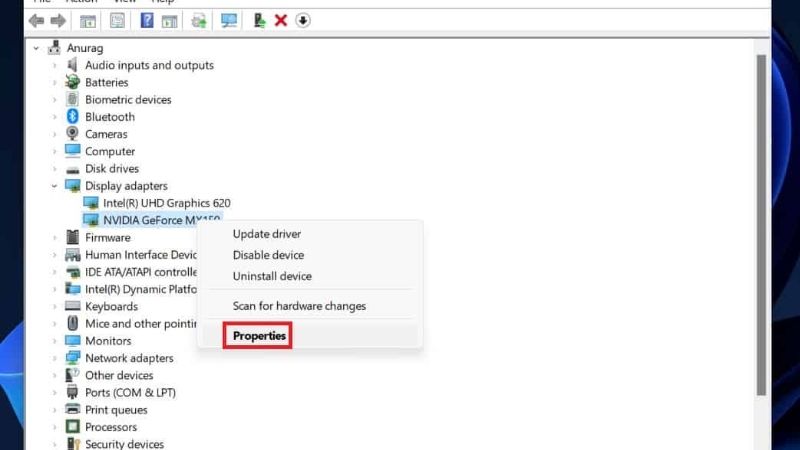
If a graphics update caused crashes, stuttering, flickering, or a black screen, knowing how to roll back Nvidia drivers on Windows 11 can help restore a working version without immediately uninstalling everything. First, open Device Manager > Display adapters > your NVIDIA GPU > Properties > Driver and try Roll Back Driver. If that button is unavailable, check the NVIDIA app’s Drivers section for its previous-driver option. If neither tool has a saved version, download a compatible earlier driver from NVIDIA’s official Advanced Driver Search and install it manually. Restart afterward and verify that the driver version actually changed.
Which rollback method should you use?
A driver rollback is useful when a particular update coincides with a new, repeatable problem. It is not a guaranteed cure: an unstable game patch, damaged shader cache, overclock, display cable, or Windows update may be the real cause. Choose a method based on what your PC still has available.
| Situation | First method | What it can restore |
|---|---|---|
| Windows has a previous display driver saved | Device Manager: Roll Back Driver | The previous driver package Windows retained |
| You installed drivers through the modern NVIDIA app and its rollback entry is available | NVIDIA app: Drivers | The previous NVIDIA app-installed driver, if preserved |
| Both rollback controls are missing or disabled | NVIDIA Advanced Driver Search | A specifically selected, compatible older driver |
| Windows cannot show a usable desktop | Windows Recovery / Safe Mode | Access to diagnose or reverse a problematic display driver |
Do not treat rolling back the graphics driver as rolling back Windows 11 itself. The Settings > System > Recovery > Go back feature is for a Windows version upgrade, not for reverting one NVIDIA driver.
Before you change the NVIDIA driver
Applies to: Windows 11 PCs with supported NVIDIA GeForce or other NVIDIA graphics hardware. The NVIDIA app method is relevant only when that app and its driver-history feature are installed. On a gaming laptop, the notebook maker may supply customized drivers, so check the manufacturer’s support page before choosing a generic package.
- Record the current version. Open NVIDIA Control Panel and choose System Information to find Driver Version, as NVIDIA documents. If Control Panel will not launch, open Device Manager, select the NVIDIA display adapter, and read the version and date on its Driver tab. These interfaces may display version numbers in different formats; record exactly what you see.
- Identify your exact GPU. In Device Manager > Display adapters, write down the model, including whether it is a laptop GPU. On hybrid-graphics laptops, you may also see an Intel or AMD integrated GPU; do not accidentally change that device.
- Keep your rollback target specific. Prefer the driver that worked immediately before the problem started. A much older driver may lack support for a newer GPU, game, Windows build, or security fix.
- Save work and close games. Exit capture, tuning, and GPU-accelerated applications before making changes. NVIDIA warns that background software and concurrent Windows Update activity can interfere with driver installation.
- Prepare a recovery route. Back up important work. If Windows System Protection is enabled, search for Create a restore point and create one. A restore point helps reverse system changes but is not a replacement for a file backup.
- Use reliable power. Plug in a laptop and do not interrupt the installation or reboot sequence. If the machine is managed by work or school, contact the administrator before replacing its driver.
Expected result: you know the GPU model, current version, likely last-working version, and which installation method is available. These checks also make it easier to undo the experiment if the old driver performs worse.
Roll back an NVIDIA driver through Device Manager
Microsoft’s Update drivers through Device Manager in Windows and Troubleshoot screen flickering in Windows articles document this native Windows method. It requires administrator privileges and a prior driver that Windows can restore.
- Open Device Manager. Right-click the Windows Start button and select Device Manager.
- Locate the NVIDIA graphics adapter. Expand Display adapters. Right-click the relevant NVIDIA GPU, not the Intel or AMD adapter, and choose Properties.
- Open the Driver tab. Record the displayed date and version. Select Roll Back Driver if the button is active.
- Follow the Windows prompts. If Windows asks why you are rolling back, select the most accurate reason and confirm the change. Windows may briefly flicker or turn the screen black as its display driver reloads.
- Restart the PC. Even if the desktop returns, use Start > Power > Restart so the driver change can finish cleanly.
- Verify the result. Reopen the same Driver tab or NVIDIA Control Panel’s System Information. Confirm the version changed, then reproduce the exact game, monitor, or application problem that led to the rollback.
Success looks like: Windows starts normally, the intended older driver is installed, your expected monitor resolution and refresh rate are available, and the original failure is no longer reproducible under the same conditions. If the symptoms remain, avoid repeated blind rollbacks and review the troubleshooting section below.
Why is Roll Back Driver grayed out?
According to Microsoft, an unavailable button means Windows does not have a previous driver to restore through that control. This can occur after a first driver installation or when the earlier driver was removed. It does not mean your GPU is unsupported or that no older NVIDIA download exists. Move to the NVIDIA app history if available, or use NVIDIA’s official driver archive. Do not repeatedly uninstall the device hoping the button will become active.
Use the rollback option in the NVIDIA app
NVIDIA added driver rollback support to the NVIDIA app and documents it in its release highlights and NVIDIA app feature guide. The original feature description says the option appears at the bottom of the Drivers window after an eligible NVIDIA app driver installation. Availability depends on whether the app retained an earlier driver. It is not a promise that every older release is stored locally.
- Open NVIDIA app. Launch the installed NVIDIA app and go to its Drivers section.
- Check the previous-driver control. Look toward the bottom of the Drivers view for a rollback or reinstall-previous-driver option. Its wording and position can vary with app version. If it does not appear, do not assume that a hidden rollback is possible.
- Inspect the offered version. Confirm that the version is the one you intend to restore, rather than a driver that also caused trouble.
- Run the offered rollback. Follow the app’s prompts, close software that uses the GPU, and let the installation finish. Avoid starting a second installer simultaneously.
- Restart and verify. Check the installed driver version and retest the affected game or display feature.
When this route is best: the problem started right after an NVIDIA app update and the app still offers the immediately previous driver. When to skip it: the rollback entry is absent, the app is broken, or the available historical version is not compatible with your GPU or target workload. In those cases, downloading the correct earlier package is more controlled.
Install a previous NVIDIA driver manually when rollback is unavailable
NVIDIA’s Advanced Driver Search lets you find previously released certified or beta drivers. Use the official NVIDIA website rather than third-party driver mirrors. For a notebook, follow the manufacturer’s tested driver recommendation when it differs from a generic package; NVIDIA explicitly identifies the notebook OEM as its primary source for laptop drivers.
- Identify the exact card and system. Note whether you have a GeForce desktop GPU, GeForce laptop GPU, or a professional NVIDIA graphics product. Confirm Windows 11 and its 64-bit architecture, as applicable.
- Open NVIDIA Advanced Driver Search. On NVIDIA’s official Advanced Driver Search page, choose the appropriate product type, series, exact model, operating system, and offered driver-type choices. If you have a laptop, compare the available result against the laptop maker’s support downloads.
- Select an appropriate previous release. Prefer the most recent driver known to work on your machine, not simply the oldest result. Read its release notes and supported-products list. Choose a certified release unless you specifically need a beta and understand its limitations.
- Download the package from the official source. Save the installer locally and ensure it matches the GPU, Windows version, and intended Game Ready or Studio branch. Switching branches is a separate decision from returning to an earlier version.
- Close running applications. Save documents and exit games, recording applications, GPU monitoring utilities, and other apps that may interfere with the installer. Check that Windows Update is not currently completing another driver installation.
- Run the driver installer. Approve the Windows administrator prompt, confirm that the installer recognizes compatible NVIDIA hardware, and follow the package’s displayed steps. If the installer offers Custom (Advanced) and Perform a clean installation, reserve the clean option for situations where a normal install fails or existing driver settings may be corrupted.
- Restart Windows. Once installation completes, restart normally. The display may flash during the update; do not interpret a brief screen flicker as a permanent failure.
- Check the exact installed version. Open NVIDIA Control Panel’s System Information or your preferred verified driver-information screen. Confirm that the earlier version is active, then repeat the same test that previously triggered the problem.
Important clean-install trade-off: NVIDIA’s manual clean-install procedure resets NVIDIA driver settings. Custom profiles, game-specific 3D settings, and display preferences may need to be configured again. A clean installation is not required for every ordinary rollback. Avoid third-party driver updaters or unverified driver packages, especially if an installer asks you to disable Windows security protections.
How to tell whether the rollback actually fixed the problem
Only compare results under similar conditions. If a specific game began crashing after a driver update, test the same scene or launch sequence with the same game build, graphics settings, resolution, overlays, and other background applications. If a monitor started flickering, check the same cable, port, refresh rate, variable-refresh-rate setting, and power conditions as before.
- Driver state: the installed version corresponds to your intended earlier release and Device Manager does not show a persistent warning icon.
- Display function: the expected native resolution, refresh rate, and display arrangement are available after restart.
- Application function: the game or app runs through the step that previously failed, without an immediate driver reset or crash.
- Stability: the issue does not recur during a reasonable repeat test. A single successful launch is encouraging, but it cannot establish long-term stability.
- Reversibility: you know which driver version was installed before rollback and where to obtain its official installer if needed.
A game may rebuild shader caches after a driver change, so one brief initial stutter is not enough evidence that the rollback failed. NVIDIA also warns that a clean installation can temporarily reduce performance while cached shader data is recreated. Wait for a comparable workload before drawing conclusions.
Troubleshoot problems after the rollback
Windows installs the newer driver again
Windows Update can supply recommended video drivers automatically, as Microsoft explains in Automatically get recommended and updated hardware drivers. First confirm which version is actually installed after the next reboot. If a pending Windows Update is installing during your manual rollback, finish or resolve that update before trying again. Microsoft also offers a temporary Settings > Windows Update > Pause updates option when you need a short troubleshooting window. Pausing updates affects Windows security updates too, so do not leave them paused indefinitely or disable Windows Update permanently just to keep an old graphics driver.
The installer reports an incompatible driver
Recheck the GPU model, notebook versus desktop package, Windows version, and supported-products list. An older package may predate your graphics card entirely. For gaming laptops, check the manufacturer driver portal before retrying with a different generic installer. Do not force an INF modification or bypass Windows driver-signature enforcement to make an unsupported package install.
Installation fails or stops midway
NVIDIA’s Solving NVIDIA Installer Issues document recommends rebooting and retrying before more invasive work. Close competing applications and verify that Windows Update is not simultaneously replacing the driver. If the official normal installation repeatedly fails, consider NVIDIA’s documented Custom (Advanced) > Perform a clean installation procedure and expect your NVIDIA settings to reset. A full third-party driver cleanup utility should be an escalation step for a diagnosed persistent issue, not the routine first action.
The screen stays black after a driver change
First check the monitor’s selected input, display cable, and whether the system is otherwise responsive. If Windows still cannot display a usable desktop, follow Microsoft’s Troubleshooting blank screens in Windows guidance rather than guessing at firmware changes. Windows Recovery can provide Troubleshoot > Advanced options > Startup Settings > Restart, then Safe Mode or low-resolution video options for diagnosis. A BitLocker-encrypted device may request its recovery key before certain recovery actions; obtain that key before relying on advanced startup steps. If you are uncomfortable with recovery procedures, seek device-manufacturer support.
Rolling back makes performance worse or breaks a game
Return to your documented previous/current driver using an official NVIDIA or OEM installer, then investigate game patches, overlays, temperatures, graphics settings, and Windows changes separately. Reverting indefinitely to an older driver is not ideal: later releases can carry security fixes, new-game support, and stability corrections. Prefer a supported newer fixed release once the underlying issue has been addressed.
Frequently asked questions
Will rolling back my NVIDIA driver delete games or personal files?
A normal graphics-driver rollback is not a Windows reset and should not remove installed games or personal documents. Still, save work beforehand. A clean NVIDIA installation can reset graphics-driver settings, and using a Windows restore point can also reverse certain application or system changes made after that restore point.
Is an NVIDIA driver rollback the same as uninstalling NVIDIA app?
No. NVIDIA app is management software, while the display driver enables graphics hardware functions. The app can offer a previous-driver option, but uninstalling the app itself does not necessarily restore an earlier display driver. Verify the driver version rather than inferring success from the app’s installation status.
Can I choose any old NVIDIA driver?
No. Older releases must support your exact GPU and operating system. Even a compatible old release may predate particular game updates, hardware features, or security fixes. Choose the last known-good version and update again when a suitable corrected driver becomes available.
Do I need Display Driver Uninstaller to roll back?
Usually not. Device Manager, NVIDIA app’s available rollback control, and an official manual installer are more conservative first choices. Use a more invasive cleanup only if ordinary methods fail and you understand the risks and recovery requirements.
Final thoughts
To roll back NVIDIA drivers on Windows 11, start with Device Manager because it uses Windows’ retained previous driver. If that option is disabled, look for the previous-driver option in NVIDIA app. If neither can restore the version you need, obtain an exact compatible older package from NVIDIA Advanced Driver Search or your laptop manufacturer’s support site. Record the version before and after, restart, and verify the actual symptom rather than assuming a successful installer means the problem is solved. Microsoft’s Device Manager documentation and NVIDIA’s driver search, app release notes, and installer guidance are the best reference points for these steps.