Key takeaways
- Write down the exact behavior: does the splash screen stay visible, is the whole window blank, or does only Drivers, Graphics, or Settings fail? Note whether the issue happens on every launch and whether it started after an update.
- Record system context: Windows 11 version, NVIDIA GPU model, driver version, approximate NVIDIA App version if visible, and whether the system is a laptop or desktop. Include any error text or the event’s approximate time.
- Check whether Windows has a broader problem: if multiple unrelated Windows apps fail, Microsoft’s Use the System File Checker tool to repair missing or corrupted system files describes running DISM followed by SFC in an administrator Command Prompt. This is a system-integrity check, not an NVIDIA-specific first-line fix.
- Collect logs using NVIDIA’s tool: the official support article Collecting NVIDIA app logs provides NvApp_LogCollector.bat. When requested by NVIDIA Customer Care, download it from that support article, reproduce the issue, run the collector, and compress the output. Follow NVIDIA’s instructions for sharing the diagnostic package.
- Submit a useful report: if the app works enough to access the feedback control, use its exclamation-mark feedback option. If it will not open, NVIDIA’s log-collection article also documents a route for sending logs and a Microsoft System Information report to its driver-feedback team. Inspect diagnostic archives for personal information before sending them.
A practical Nvidia App stuck loading fix on Windows 11 starts by closing the frozen app and restarting your PC when its window spins indefinitely or stays blank. Then determine whether the problem is a temporary first-launch delay, a sign-in or network issue, or an application that consistently fails to initialize. If restarting does not help, check for a Windows repair option, then uninstall NVIDIA App itself and reinstall it from NVIDIA’s official website. Do not begin by deleting random NVIDIA folders, registry keys, or your display driver: those changes can create additional problems without identifying why the app is stuck.
Identify where NVIDIA App gets stuck
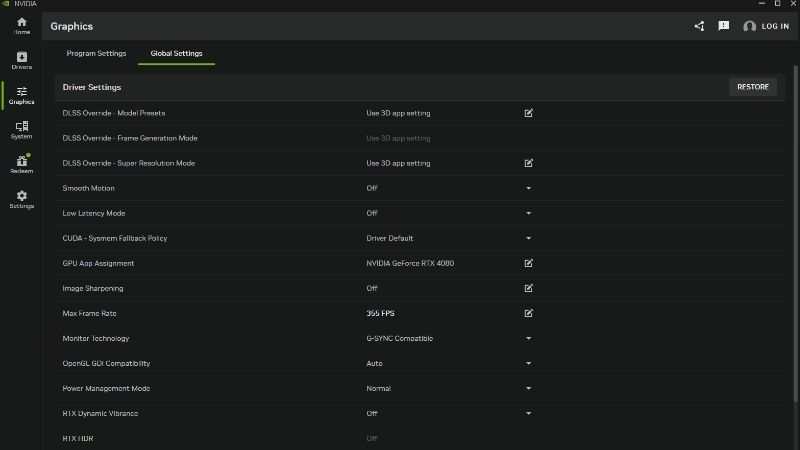
NVIDIA App is separate from the graphics driver. It provides driver updates, game settings, recording features, and an overlay, but a frozen management window does not by itself prove that your GPU has failed. NVIDIA’s NVIDIA App FAQ describes the application’s supported hardware and optional account login. Its article Why does NVIDIA App take a long time to check for updates? also explains that the first run may need time to download game settings and images. An unfamiliar loading screen is therefore not always an infinite loop.
| Symptom | Possible explanation | Safest next check |
|---|---|---|
| App is slow only on its first launch | Game data or settings may still be downloading | Keep an internet connection and allow initial loading to finish |
| Window stays blank or spins every time | Unresponsive app process, damaged installation, or another unresolved fault | Close NVIDIA App, restart Windows, and reopen |
| Only Drivers or Graphics remains stuck | Feature-specific loading problem; not enough evidence to blame the GPU | Check other app sections and note the exact page |
| Login in progress never completes | Authentication may still be waiting in a browser tab | Return to your default browser and complete the NVIDIA login |
| Installer fails after you remove the app | Conflicting processes or incomplete install state | Follow NVIDIA’s official installer troubleshooting instructions |
How to tell if it is truly stuck: note whether the loading indicator changes, whether any page becomes usable, and whether the same screen freezes again after a normal restart. NVIDIA does not publish a universal number of seconds after which every loading animation should be considered a failure. Avoid treating an arbitrary timer as proof of corruption.
Start with a safe application restart
Applies to: a Windows 11 desktop or laptop where the NVIDIA App window will not finish opening, but Windows itself is responsive. Save work before restarting; a PC restart closes other running programs too.
- Exit NVIDIA App normally if possible. Close its window and, if its notification-area icon offers an exit command, use it. Do not assume closing the window always terminates all supporting processes.
- End the unresponsive app task. Press Ctrl + Shift + Esc to open Task Manager. Under Processes, identify NVIDIA App or its clearly associated foreground process, select it, and choose End task. Close only the app process you can identify. Do not indiscriminately terminate every NVIDIA process, particularly while a driver installation or recording is running.
- Launch the app again. Open Start, search for NVIDIA App, and launch it. If the window opens, visit the same page that previously hung to see whether the problem is resolved.
- Restart Windows if the issue persists. Select Start > Power > Restart. Sign back in and run NVIDIA App once, rather than repeatedly launching multiple instances.
Expected result: the home view and its navigation controls respond, and the previously failing page eventually displays useful content. If it freezes immediately after every restart, move to the next section. NVIDIA’s Solving NVIDIA Installer Issues recommends rebooting as an initial response to failed installations as well; a normal reboot is lower risk than a blanket cleanup.
Check internet access and NVIDIA account sign-in
Some NVIDIA App screens obtain information from online services. A delayed update check, an incomplete sign-in, and a frozen application can look similar, but they require different actions. Do not disable Windows Firewall or antivirus protection just to see whether a loading animation disappears.
- Confirm basic connectivity. Open your regular browser and load a reliable website and NVIDIA’s official NVIDIA App download page. If those fail, address the connection before reinstalling software. A working browser does not guarantee that every NVIDIA service is available, but it helps identify a broader outage.
- Distinguish first-run delay from repeated failure. On a fresh installation, allow the app to obtain game data while connected. NVIDIA says initial settings and screenshot downloads can take several minutes and that server maintenance can occasionally slow updates.
- Finish browser-based login if prompted. NVIDIA’s NVIDIA App FAQ explains that clicking Log In opens the default browser. If NVIDIA App says Login in Progress, check the browser for an unfinished NVIDIA authentication tab, including a second Sign in with NVIDIA tab. Complete the login only on NVIDIA’s official authentication site.
- Test without a problematic network intermediary if appropriate. If a VPN or managed network blocks NVIDIA services and you are permitted to change it, briefly try another trusted connection. Re-enable your normal network privacy setup afterward. On a work or school device, contact IT rather than bypassing organizational restrictions.
Expected result: online app sections load, or the browser authentication completes and returns you to the app. Remember that NVIDIA account sign-in is optional for many basic application functions; inability to redeem account-linked rewards is not the same issue as the app failing to open at all.
Try Windows’ app repair controls, if available
Microsoft’s Repair apps and programs in Windows explains how Windows 11 can repair or reset certain installed apps. However, not every desktop application exposes an Advanced options, Repair, or Reset button. Do not invent a repair menu for NVIDIA App if Windows does not display one.
- Open Start > Settings > Apps > Installed apps and locate NVIDIA App.
- Select its three-dot menu and check whether Advanced options appears. If it is absent, skip directly to a controlled reinstall instead of searching for an undocumented menu.
- If Advanced options and Repair are offered, select Repair, let it finish, and try launching NVIDIA App.
- If a Reset option is available but Repair fails, read the warning before resetting: reset actions can remove an app’s stored preferences or sign-in state. Note important settings first, then retest.
Verify: launch the app again and revisit the page that was stuck. If Windows provides no repair controls or they do not change the behavior, reinstalling NVIDIA App from NVIDIA is the next supported path. Do not confuse Windows’ app reset with Reset this PC, which is a much more disruptive operating-system recovery action.
Uninstall and reinstall NVIDIA App from the official download
NVIDIA’s January 2026 Solving NVIDIA Installer Issues recommends uninstalling an existing version, rebooting, and reinstalling when a simple restart does not resolve an NVIDIA software installation problem. This is also a reasonable escalation for a persistently broken NVIDIA App installation; it is not a guaranteed fix for every endless-loading bug.
Before you begin: finish any active driver update, close games and capture sessions, and record any custom overlay, recording, or optimization preferences you may need to restore. Check where your existing captures are saved; do not delete capture folders or saved videos while troubleshooting. Have a normal administrator account or appropriate authorization for software installation.
- Download the official installer. In a browser, visit NVIDIA’s Download NVIDIA App for Gamers and Creators page on nvidia.com. Save the installer locally. Avoid driver-bundle sites, mirror downloads, and advertisements that resemble NVIDIA’s official download button.
- Remove only the app first. Go to Settings > Apps > Installed apps > NVIDIA App. Choose the three-dot menu and Uninstall. Follow the prompts. Do not uninstall the separate NVIDIA Graphics Driver just because the app is unresponsive.
- Restart the PC. Use Start > Power > Restart after removal to release files or processes associated with the previous installation.
- Install NVIDIA App again. Launch the installer downloaded from NVIDIA and follow its prompts. Do not run competing NVIDIA driver or app installers at the same time. If Windows requests administrator approval, verify the publisher before proceeding.
- Open NVIDIA App and test the same operation. Check the home screen, then the exact tab or feature that had been stuck. If first-run data needs downloading, allow it to complete without repeatedly closing the app.
Success looks like: the reinstall finishes normally, the application opens after a fresh Windows restart, and its affected page loads again. Some preferences may need to be reconfigured. If the installer fails, stop here and use NVIDIA’s installer-specific support steps instead of deleting unrelated folders.
What if the NVIDIA App installer fails too?
The official Solving NVIDIA Installer Issues article first recommends rebooting and retrying, then uninstalling the previous version and reinstalling. For stubborn installation failures, NVIDIA also documents troubleshooting its Windows services, NVIDIA application processes, and system restrictions. Because manipulating service states and registry entries can affect driver components and other NVIDIA features, those advanced steps belong with NVIDIA Support or an experienced administrator. The article contains registry-editing instructions, but changing the registry is not a required general fix for a loading screen; avoid editing it without a confirmed installer-related reason and a recovery plan.
Check driver compatibility only when the evidence points there
A broken application window is not automatically a broken display driver. NVIDIA’s February 2026 NVIDIA App FAQ lists GeForce driver 551.52 or later in its app requirements and specifically warns that some features, such as the in-game overlay, may not work correctly with older drivers. That is a compatibility check, not proof that a driver update will cure an infinite spinner.
- Right-click Start, choose Device Manager, and expand Display adapters. Verify that your NVIDIA GPU is listed without a persistent warning indicator.
- Open the NVIDIA adapter’s Properties > Driver tab and record the version. Graphics driver versions shown by Device Manager may use a different numbering format from NVIDIA’s marketing release number, so confirm the correspondence rather than comparing the numbers blindly.
- If the driver is unsupported for your NVIDIA App feature, obtain a compatible package from NVIDIA’s official driver download site or, on some laptops, your manufacturer’s support site. Select the correct desktop/laptop GPU and operating system.
- Update only when warranted by compatibility, a documented known issue, or a separate driver fault. Restart and verify both the app and a normal graphics workload.
Do not perform a clean graphics-driver installation solely because NVIDIA App’s home page has a spinner. NVIDIA’s NVIDIA App driver installation failed. How do I manually clean install the NVIDIA driver for my graphics card? is a procedure for driver installation problems. A clean install can reset graphics settings and add unnecessary risk when the display driver is otherwise stable.
If it still freezes, gather evidence before deeper changes
A loading loop that survives a reinstall may depend on a particular Windows account, program conflict, GPU setup, security policy, or app version. Those are possibilities, not confirmed diagnoses. Save evidence so support can distinguish them rather than trying destructive fixes at random.
- Write down the exact behavior: does the splash screen stay visible, is the whole window blank, or does only Drivers, Graphics, or Settings fail? Note whether the issue happens on every launch and whether it started after an update.
- Record system context: Windows 11 version, NVIDIA GPU model, driver version, approximate NVIDIA App version if visible, and whether the system is a laptop or desktop. Include any error text or the event’s approximate time.
- Check whether Windows has a broader problem: if multiple unrelated Windows apps fail, Microsoft’s Use the System File Checker tool to repair missing or corrupted system files describes running DISM followed by SFC in an administrator Command Prompt. This is a system-integrity check, not an NVIDIA-specific first-line fix.
- Collect logs using NVIDIA’s tool: the official support article Collecting NVIDIA app logs provides NvApp_LogCollector.bat. When requested by NVIDIA Customer Care, download it from that support article, reproduce the issue, run the collector, and compress the output. Follow NVIDIA’s instructions for sharing the diagnostic package.
- Submit a useful report: if the app works enough to access the feedback control, use its exclamation-mark feedback option. If it will not open, NVIDIA’s log-collection article also documents a route for sending logs and a Microsoft System Information report to its driver-feedback team. Inspect diagnostic archives for personal information before sending them.
If NVIDIA App breaks only after the next Windows restart despite reinstalling successfully, emphasize that reproducible sequence in the support report. It is more informative than saying only that the app is broken. On a managed computer, ask the administrator to review group policies or application restrictions before any service changes.
Confirm the fix and know when to stop
Reopen NVIDIA App after a normal PC restart, not just immediately after setup. Then check the specific feature that failed previously, followed by a basic display or gaming task to confirm that normal graphics operation remains intact. If any step fixes the issue, stop there; repeating reinstall or cleanup procedures introduces risk without benefit.
- NVIDIA App launches and its main navigation responds.
- The formerly stuck section now displays data or a clear, actionable error instead of spinning indefinitely.
- Optional NVIDIA account authentication finishes in the official browser flow when needed.
- The GPU appears normally in Device Manager, and games or other graphics applications still open.
- The app continues working after at least one regular Windows restart.
If the issue returns: do not keep deleting cache directories of uncertain ownership or replacing drivers in a loop. Preserve logs, document the affected page and installation sequence, and escalate to NVIDIA Support with the actual failure details.
Frequently asked questions
Can I keep using my NVIDIA graphics card if NVIDIA App will not open?
Often, yes. NVIDIA App is a management program, not the entire graphics driver. If Windows detects the GPU and games still render normally, the loading issue may be isolated to the app. This does not rule out a separate driver problem; check Device Manager and the actual symptom rather than assuming either outcome.
Should I delete NVIDIA cache or AppData folders to fix a loading loop?
Not as the first step. Online suggestions may refer to folders with different names across app versions, and deleting the wrong data can remove settings or create new faults. NVIDIA’s published general installer guidance instead begins with restart and controlled uninstall/reinstall. Use version-specific cleanup instructions from NVIDIA Support only when applicable.
Does reinstalling NVIDIA App require reinstalling my GPU driver?
Not automatically. Windows lists the NVIDIA App and graphics driver as distinguishable software components. Start by reinstalling the app itself. Consider the display-driver package separately only if you find a relevant incompatibility, driver warning, or installation failure.
Why does NVIDIA App load slowly right after installation?
NVIDIA says the initial run can download game settings and screenshots, and update checks can be affected by temporary server maintenance. A slow first run that eventually finishes is different from a reproducible freeze after every startup. Check connectivity and repeated behavior before reinstalling.
Is NVIDIA account login required to solve the loading problem?
No universal sign-in requirement applies to the app’s basic functions. NVIDIA describes login as optional for rewards and bundles. If the only stuck screen is Login in Progress, follow the official browser-tab authentication instructions rather than resetting all graphics software.
Final thoughts
For an NVIDIA App stuck loading fix, start with the least disruptive actions: verify whether it is simply downloading initial data, close the frozen app, restart Windows, and resolve any obvious network or browser sign-in issue. Try Windows repair controls only if they are actually available for the installed app. If the problem continues, uninstall NVIDIA App and reinstall it from NVIDIA’s official download page without removing a working graphics driver. Reserve driver changes and system repairs for evidence of related problems. For an unresolved loop, NVIDIA’s app log collector and support process offer a safer next step than undocumented registry or cache cleanup.