Key takeaways
- Compatible hardware: a supported AMD Radeon graphics product, or supported AMD processor with Radeon graphics. Confirm its exact model and product support page.
- Compatible Windows: AMD’s installation guide lists Windows 11 version 21H2 or newer and Windows 10 64-bit version 1809 or newer as broad minimums, but actual support depends on the GPU and driver release. Microsoft’s standard support for Windows 10 ended October 14, 2025; Windows 11 is the preferred supported Windows platform for an ordinary new installation in 2026.
- Internet and storage: internet access to obtain the official installer; adequate free disk space for downloading and extracting files. AMD does not provide a single universal free-space figure that applies to every package.
- Permissions and power: a Windows account authorized to install software and a stable power source. Plug in a laptop before starting.
- Preparation: save your work, close games and capture applications, and note any custom AMD settings you may need to recreate. If the PC is already stable, keep the existing installer or recovery option available in case the new version causes trouble.
Here’s how to install AMD Adrenalin on Windows without guessing which driver to use: identify your Radeon graphics hardware, download the matching package from AMD’s Drivers and Support website, and run AMD Software Installer. Choose Default if you want the complete gaming controls, Minimal for basic controls, or Driver Only if you do not need the Adrenalin interface. Complete the setup, restart when required, and verify that Windows recognizes the Radeon GPU. On laptops, all-in-one PCs, and gaming handhelds, check the device manufacturer’s driver instructions before installing a generic AMD package. This guide follows AMD’s 2026 installation documentation and distinguishes ordinary updates from more disruptive clean-install options.
What you need before installing AMD Adrenalin
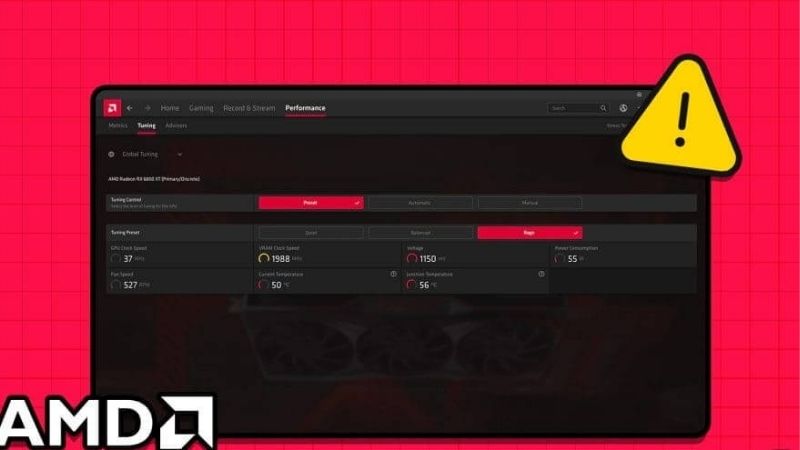
AMD Software: Adrenalin Edition is the Radeon graphics driver package plus, when selected, a software interface for display settings, game profiles, performance monitoring, recording, and other features available on your GPU. It is not a universal driver for every product containing an AMD chip. Owning an AMD CPU, for example, does not by itself establish that your PC has supported Radeon graphics hardware.
- Compatible hardware: a supported AMD Radeon graphics product, or supported AMD processor with Radeon graphics. Confirm its exact model and product support page.
- Compatible Windows: AMD’s installation guide lists Windows 11 version 21H2 or newer and Windows 10 64-bit version 1809 or newer as broad minimums, but actual support depends on the GPU and driver release. Microsoft’s standard support for Windows 10 ended October 14, 2025; Windows 11 is the preferred supported Windows platform for an ordinary new installation in 2026.
- Internet and storage: internet access to obtain the official installer; adequate free disk space for downloading and extracting files. AMD does not provide a single universal free-space figure that applies to every package.
- Permissions and power: a Windows account authorized to install software and a stable power source. Plug in a laptop before starting.
- Preparation: save your work, close games and capture applications, and note any custom AMD settings you may need to recreate. If the PC is already stable, keep the existing installer or recovery option available in case the new version causes trouble.
Important for laptops: AMD’s current release notes recommend OEM-provided drivers on laptops and all-in-one PCs because manufacturers may customize packages for power, display switching, and other features. AMD also directs gaming handheld owners to device-maker-specific drivers rather than assuming the standard Adrenalin package supports their device. Follow that route first when your manufacturer provides it.
Check your graphics model and Windows version
Do this before downloading anything. A desktop Radeon RX card, an integrated Radeon GPU, an older legacy GPU, and a workstation Radeon PRO card may need different driver packages.
- Right-click the Start button, choose Device Manager, and expand Display adapters. Write down the full displayed Radeon model, not simply the word AMD. If there are two adapters, record both; switchable graphics on a laptop can be normal.
- If Windows shows Microsoft Basic Display Adapter, the vendor driver may not yet be installed. Do not guess the GPU model from that label. Consult the PC specifications or AMD’s hardware-identification guidance, which explains how to use hardware IDs.
- Open Settings > System > About. Under Windows specifications, confirm your Windows edition and version; under Device specifications, check the system type. Microsoft’s device-information instructions document this path.
- For an assembled desktop, check whether the display cable is connected to the graphics card rather than a motherboard port if you intend to use a discrete Radeon card. This connection check is optional and should only be done safely with equipment powered down if moving cables.
Expected result: you have identified the installed GPU and Windows version well enough to select the correct driver. If you cannot determine the hardware, stop and use your computer manufacturer or AMD support before trying multiple random packages.
Download the official AMD Adrenalin installer
The official starting point is https://www.amd.com/en/support/download/drivers.html. AMD documents two supported ways to get a package: its Auto-Detect and Install tool and the product selector.
Option A: Use AMD Auto-Detect and Install
- On the PC you intend to update, open AMD Drivers and Support in your browser.
- Choose the Windows auto-detect option, when offered for your operating system. Download the tool directly from AMD.
- Run the downloaded installer. It checks compatible AMD graphics hardware, supported chipset components, and your Windows version, then offers compatible drivers for detected products.
- Review the identified Radeon driver and any additional component selections before accepting them. A chipset driver is not the same as Adrenalin; avoid changing unrelated components if your goal is only the graphics package.
Best for: a conventional Windows desktop with AMD hardware that the auto-detect tool recognizes. If the tool does not recognize a legacy, embedded, OEM-customized, or handheld configuration, do not force it; use the manual product page or your device manufacturer’s support site.
Option B: Select the exact Radeon model manually
- Visit the AMD Drivers and Support page and use its product search or selector to find your exact graphics family and model.
- Open the corresponding Windows driver section and compare the listed compatible operating system and supported-products information with your PC.
- Review the applicable driver release notes before downloading, especially known issues, notebook restrictions, and product-specific exceptions. Do not presume a release number shown on another Radeon model’s page is appropriate for yours.
- Download the Windows driver package from AMD, or use your laptop/handheld manufacturer’s approved driver when AMD directs you to do so.
Expected result: the installer corresponds to the actual GPU and Windows version. Never download a driver from a page that simply promises a “Radeon driver updater” or a third-party mirror. Official AMD files and verified OEM support sites reduce the risk of wrong, outdated, or modified packages.
Install AMD Software: Adrenalin Edition step by step
The following flow matches AMD’s Install AMD Software: Adrenalin Edition guidance, updated February 9, 2026. That document illustrates AMD Software 26.1.1 on a Radeon RX 9070; exact labels and optional bundles can change with the GPU, version, and installation method.
- Run the file. Open the folder where the AMD installer was saved and double-click it. Approve the Windows User Account Control prompt only if the publisher and file are the expected AMD package.
- Let setup unpack. The installer asks to unpack its files. AMD recommends the default installation location rather than an arbitrary custom folder. Wait for AMD Software Installer to open and complete compatibility detection.
- Review the license and package. Read the license and any additional optional-package terms shown. Do not accept an AI-related bundle or other extra component unless it is offered for your system and you actually want it.
- Choose the normal installation or review options. For most first-time Radeon users who want the full software interface, choose Accept & Express Install when available. To tailor the result, open Additional Options and choose the software type described in the next section.
- Leave Factory Reset off for routine installation. AMD marks Factory Reset as optional. It removes previous AMD Software versions, restarts the PC during cleanup, and prevents rolling back to the immediately previous driver through the usual rollback route. Use it only for a specific justified repair after preparing recovery options.
- Start installation. Select the relevant acceptance/install control. The screen may flicker or briefly go black while the graphics driver is replaced; AMD identifies momentary flicker as expected. Do not interrupt the installation simply because of a brief display change.
- Finish and restart when required. Follow any reboot prompt. When setup completes, select Close. With a Default or Minimal installation, the installer may offer to launch AMD Software immediately.
Expected result: setup completes without an unresolved error, and Windows returns with normal display output. Some custom-install screens offer additional components such as an AI Bundle on supported 2026 systems. Those optional components are not a prerequisite for ordinary Radeon display-driver installation.
Default vs Minimal vs Driver Only: which installation should you choose?
| Install type | What you receive | When to choose it |
|---|---|---|
| Default | Driver and the full available AMD Software interface, including supported gaming, recording, streaming, and tuning controls | You want normal Adrenalin gaming features and configuration tools |
| Minimal | Driver and a reduced interface for basic AMD settings; advanced tuning and capture tools are omitted | You need basic display controls without the full feature set |
| Driver Only | Graphics driver without an AMD Software user interface | You want the driver itself, or your PC’s software environment is managed another way |
These are the installation types documented in AMD’s February 2026 guide. If your goal is to open the AMD Adrenalin interface after installation, do not choose Driver Only. Seeing no Adrenalin window after a successful Driver Only installation is expected behavior, not evidence that the driver failed.
If you primarily need frame-rate settings, per-game graphics profiles, performance metrics, or recording tools, start with Default and then check which features your hardware actually supports. Choosing Default does not unlock features that are absent from your GPU or driver.
Verify that Adrenalin and the Radeon driver installed correctly
Do not rely only on the installer’s completion message. Check both Windows device recognition and, if installed, the AMD Software app.
- Restart Windows if setup asked you to. Save and close any remaining setup dialogs.
- Open Device Manager > Display adapters. Confirm the expected Radeon model is present. Right-click it, select Properties, and check Device status for an error; use the Driver tab to record the installed driver version.
- If you selected Default or Minimal, search Start for AMD Software: Adrenalin Edition and open the application. Its appearance and available menu sections can differ by release and GPU. A Driver Only installation will not have this app interface.
- Check that Windows can display at the desired supported resolution and refresh rate. Launch one familiar game or GPU-accelerated app and confirm that there are no new display artifacts, crashes, or missing-device errors.
- Keep a brief record of the version and whether normal graphics functions worked after the update. This makes future rollback or troubleshooting easier.
Success check: the correct Radeon GPU appears without a warning, normal display output is stable, and AMD Software opens when an interface-bearing install was chosen. If Windows reports an error after an apparently successful installer run, the next section explains how to identify the relevant failure path.
Fix AMD Adrenalin installation errors without risky shortcuts
Start with the exact error code rather than repeatedly uninstalling drivers. AMD maintains a list of installer error codes linked to its support articles. The first step is to record the full message and your GPU/Windows details.
| Error or symptom | What it usually means | First safe action |
|---|---|---|
| Error 182 | Detected graphics hardware is not supported by the selected package, including certain legacy, embedded, or OEM-customized products | Verify the exact hardware and use the correct product-specific or OEM driver |
| Error 202 | Windows Update is actively installing software | Let Windows Update finish, restart, then rerun the AMD installer |
| Error 206 | A Windows installation or update is still pending completion | Restart Windows and try again after pending changes finish |
| Error 205 | Installation succeeded, but Windows Update may have replaced the installed graphics-driver version | Check the actual version in Device Manager before taking action |
| Error 1603 | General installation failure with several possible causes | Check Windows updates and AMD’s specific 1603 recommendations; do not assume one cause |
| Adrenalin app missing | Driver Only chosen, software excluded, or a software-install problem | Check install type and rerun the supported installer with Default or Minimal if you need the interface |
When the GPU model is unsupported or the installer reports error 182
AMD documents error 182 for graphics devices that the selected package does not support, including some embedded, legacy, and OEM-customized Radeon products. Recheck the model in Device Manager and the AMD support page, or get the device-specific driver from the laptop or PC manufacturer. Installing a newer driver for a different card does not solve missing hardware compatibility.
When Windows Update is in progress or pending
For errors 202 and 206, Microsoft’s Windows Update mechanism may still be applying changes. Open Settings > Windows Update, allow updates to complete, and restart. Then run the original official AMD installer again. Do not permanently disable Windows Update or remove security software as a routine installation step.
When Windows replaces the driver or Adrenalin stops matching it
AMD’s error 205 documentation identifies situations in which Windows Update changes the Radeon driver version after an installation. First confirm the installed adapter and version in Device Manager. If the package is mismatched, consult AMD’s error 205 instructions and the PC manufacturer’s support guidance. AMD documents a temporary device-installation-setting change as a troubleshooting measure; treat it as an exceptional workaround rather than a permanent recommendation, and restore normal automatic-driver settings afterward. Microsoft’s Windows Update documentation confirms that Windows can deliver both recommended and optional hardware drivers.
When you see a general error such as 1603
AMD lists multiple possible causes for error 1603, including conflicting software, missing Windows updates, and corrupted Windows components. Apply the recommended supported Windows updates, restart, and retry the correct installer. If the failure remains, use AMD’s 1603 support page or customer support with the error text rather than guessing at registry edits or force-removing system components.
When a clean reinstall is actually justified
A normal driver update generally does not call for clearing every existing AMD component. Consider advanced cleanup only if you have a specific persistent installation conflict, a driver downgrade that AMD’s release notes say requires cleanup, or official technical guidance for your case. Before doing so, save work, back up important data, and obtain the appropriate known-good driver package or OEM recovery instructions.
AMD’s installer has an optional Factory Reset feature, and AMD also offers an official Cleanup Utility for supported repair scenarios. These can remove existing driver/software versions and reset configurations. They can affect your ability to revert automatically, so do not recommend them as the first step for a new user installing Adrenalin normally. Do not disable driver-signature checks, blindly delete registry keys, or download “cleanup tools” from unrelated websites.
Frequently asked questions
Is AMD Adrenalin the same as an AMD graphics driver?
Not quite. The graphics driver enables Windows to communicate with the Radeon GPU. AMD Software: Adrenalin Edition can include that driver plus an interface for hardware- and version-dependent graphics features. The Driver Only install type provides the driver without the software interface.
Should I remove an existing NVIDIA or Intel driver first?
Do not remove other graphics drivers merely because your PC has an AMD processor or a second GPU. Hybrid laptops and multi-GPU desktops may legitimately use more than one vendor’s driver. Follow the applicable hardware manufacturer’s instructions and only remove conflicting or obsolete packages when a specific issue justifies it.
Can I install AMD Adrenalin on a gaming handheld?
Do not assume the generic package applies. AMD’s 2026 driver release notes specifically tell gaming handheld users to check with their device manufacturer for supported drivers. Handheld OEM software and controls may rely on a validated device-specific package.
Why can I not find the Adrenalin app after the driver installed?
Confirm that you did not select Driver Only. On Default or Minimal, check Start search for AMD Software. If Windows recognizes the GPU but the expected interface is absent, rerun the official installer for your model and review the selected software type and any reported errors.
Do I need the newest optional AMD driver?
Not automatically. Choose a driver that officially supports your specific GPU and Windows version and addresses your needs. Read known-issue notes before replacing a stable driver, especially on OEM desktops, laptops, or systems used for work as well as gaming.
Final checklist
- The GPU model and Windows version match the download’s supported products.
- The package came directly from AMD or the approved PC/handheld manufacturer.
- You chose Default or Minimal if you wanted the Adrenalin interface.
- You did not use Factory Reset unnecessarily or weaken Windows security to install a driver.
- Device Manager shows the correct Radeon GPU without a new error.
- Games and display functions work, and AMD Software opens when it was installed.
If those checks pass, the installation is complete. Keep the driver version in your notes, review AMD release notes before major updates, and use the exact AMD installer error code if future troubleshooting becomes necessary.