Key takeaways
- The exact Intel Arc GPU and Windows version match the downloaded package.
- The installer came from Intel or the device manufacturer’s official site.
- You chose DSA or the manual method rather than an unverified driver-updater tool.
- The installer completed, and any required Windows restart finished.
- Device Manager recognizes the intended Intel Arc device and shows a suitable driver version.
- Windows display settings and a familiar game work normally.
- You did not perform an unnecessary clean install, registry edit, or BIOS modification.
On Windows 11, learning how to install Intel Arc graphics drivers starts with identifying your exact GPU, downloading a compatible package from Intel or your PC manufacturer’s support page, and running the official installer before restarting. Intel Driver & Support Assistant (Intel DSA) offers an easier automatic route on supported PCs; Intel Download Center provides a manual option if you know your model. After setup, check Device Manager > Display adapters > Properties > Driver to confirm the installed version and test your display. For most users, a normal installation is enough; do not begin with driver-removal utilities, BIOS changes, or a clean Windows installation.
Before installing: confirm your Intel Arc model
“Intel Arc” describes more than one type of graphics hardware. Intel Arc A-Series and B-Series desktop cards, mobile Arc graphics, and Intel Arc graphics integrated into certain Core Ultra processors can have different hardware, OEM configurations, and support requirements. A general search for an “Intel GPU driver” can also return packages intended for older Intel UHD or Iris Xe graphics. The Intel List of Drivers for Intel Graphics and the Arc download’s supported-products list are your safeguards against choosing the wrong package.
- Find the adapter. Right-click the Windows Start button and select Device Manager. Expand Display adapters and record the complete Intel device name. If multiple adapters appear, keep a note of each; a gaming laptop can legitimately have both integrated and dedicated graphics.
- Check the PC model. Open Settings > System > About to confirm the device model and Windows edition/version. Microsoft documents this path. For an assembled desktop, also identify the discrete Arc card from its packaging, receipt, or card manufacturer.
- Check what is already installed. In Device Manager, double-click the Intel graphics adapter, select Driver, and note Driver Provider, Driver Date, and Driver Version. The date and version are more informative than assuming the number shown in an unrelated download announcement applies to your system.
- Handle an unidentified device carefully. If only Microsoft Basic Display Adapter is shown, do not guess whether the machine has Arc. Use the manufacturer’s model specification and device-support information to identify the GPU before selecting a download.
Expected result: you have a specific supported Intel Arc product and a Windows version to compare against the release notes. If your PC is a laptop, handheld, mini PC, or an OEM desktop, check its manufacturer’s driver page first. Intel explains that its generic driver can overwrite a customized OEM driver that may include device-specific features.
Choose the correct driver and download source
Download graphics drivers from an official Intel page or the hardware manufacturer’s support website. The current Intel Arc Windows download listing reviewed on October 27, 2026, showed version 32.0.101.9150 WHQL, dated October 2, 2026, for applicable Arc A-Series, B-Series, and Core Ultra products with Arc graphics. That is a dated observation, not a promise that the same driver is newest when you read this guide. Always check the download’s Supported Products, OS compatibility, and release notes immediately before installation.
| Your PC | Best starting point | Why |
|---|---|---|
| Custom-built desktop with an Arc A-Series or B-Series card | Intel Driver & Support Assistant or Intel Arc Windows Download Center | Provides an Intel-supported detection or model-specific installation path |
| Laptop with Intel Arc graphics | Laptop manufacturer’s support page first | OEM graphics packages may include validated power and display-switching behavior |
| Core Ultra PC with integrated Intel Arc graphics | Device maker or a compatible Intel Arc product download | “Arc” in the processor name does not make every generic package suitable |
| Older Intel integrated graphics without Arc branding | Intel’s model-specific graphics driver list | May need a different Intel driver family |
Intel’s official Arc download page is https://www.intel.com/content/www/us/en/download/785597/intel-arc-graphics-windows.html. Its driver list helps you choose between Arc and legacy graphics families. Review file details, Windows compatibility, and the installer publisher. Avoid third-party “driver booster” packages, repackaged archives, and links that cannot be connected to Intel or your computer manufacturer.
Method A: install Intel Arc drivers automatically with Intel DSA
Intel recommends the Intel Driver & Support Assistant for automated detection where the product is supported. Intel DSA is a separate utility from Intel Graphics Software: it scans your PC and offers applicable Intel driver updates. Intel notes that not every Intel product is supported by DSA, so the manual method below remains useful.
- Go to Intel’s official Intel Driver & Support Assistant download page through the Intel support website. Download the setup program, not a similarly named third-party utility.
- Open Intel Driver & Support Assistant Installer.exe, review the license terms, and choose Install. Finish setup using the prompted Windows permissions.
- Choose Launch. Intel documents that DSA opens your default browser to its scan/dashboard, accessible again from the notification-area icon or Start menu.
- Review Available Updates. Check that any offered graphics package matches your adapter and Windows version. Select the applicable Download or download-all option as appropriate; you do not need to install unrelated Intel components merely to update graphics.
- Once downloaded, choose the offered Install action and follow the Intel graphics driver’s installation prompts. If the installer offers customization, do not select clean installation by default.
- Allow the installer to finish, close games and other GPU-heavy work, and restart Windows if requested. Then return to DSA to confirm that the update is no longer listed as outstanding.
Expected result: DSA completes its graphics-driver update and Windows recognizes the Arc device. If the product is not detected, no driver is offered, or DSA reports a failure, do not keep running the same updater in a loop. Identify the exact adapter and use the manual download below, or contact the device manufacturer for OEM-driver guidance.
Method B: install Intel Arc graphics drivers manually
The manual method is useful for a fresh Windows setup, a new desktop Arc card, a PC without DSA support, or a specific Intel release you have confirmed for your hardware. Intel’s installation guide supports downloading the matching driver package and running the executable directly.
- Open Intel Download Center. Navigate to the official Arc Windows driver page, or find your exact product through Intel’s driver list. On an OEM laptop, compare the version and compatibility information with the laptop manufacturer’s guidance.
- Read the release details. Match the hardware family and supported Windows build. If you’re using a notebook, integrated Arc graphics, or an Arc mobile GPU, check for any OEM-driver warning. Do not assume a desktop A770 setup applies unchanged to a mobile Core Ultra device.
- Download the installer. Select the official Windows
.exewhen offered. Save it to a known local folder and confirm that the download completed. Intel also documents a ZIP format for some graphics drivers; extract that format before running itsSETUP.EXE, when the download actually provides one. - Prepare Windows. Save work, close games, streaming software, and graphics configuration tools. Connect laptops to power. Finish pending Windows updates and restarts first rather than installing while Windows is mid-update.
- Run the Intel installer. Double-click the downloaded executable, approve the expected publisher, and follow the presented prompts. Intel’s support example includes Begin Installation, while UI wording and optional features vary with driver release.
- Choose routine setup. Accept the applicable license and review installation options. A clean-install selection, if present, is for resolving specific conflicts and is not necessary for a normal first install or update. Allow the existing supported driver to be updated.
- Finish and reboot. Let the installer complete without interrupting display transitions; a brief screen change may occur when Windows switches graphics drivers. Restart if prompted, and if normal display does not return, use the recovery guidance below rather than repeatedly power-cycling the PC.
Expected result: a completed Intel driver installation, normal display output, and an Arc adapter in Device Manager with the new version. If an Intel package says the platform or device is unsupported, stop and recheck the supported-products list; do not force a mismatched package.
Verify that the Intel Arc driver installed correctly
A completed installer is a useful signal, but it is not the entire verification. Intel and Microsoft both document checking Device Manager for device-driver status.
- Open Device Manager > Display adapters and confirm that the intended Intel Arc device appears without a new warning icon.
- Double-click the device and open the Driver tab. Read the provider, date, and version. Compare the version with the Intel or OEM package you meant to install. A different number after Windows Update may indicate that Windows substituted a driver.
- Open Settings > System > Display to verify the monitor arrangement and available display modes are intact. Check important features such as external display detection or selected resolution if they were previously working.
- Open a familiar game or graphics workload for a brief functional check. This is not a benchmark: the goal is to confirm that applications launch and that no fresh crash, artifact, or unexplained black-screen problem appears.
- If Intel Graphics Software was installed, open it to inspect the available controls. Its presence is useful, but do not mistake a missing optional user interface for conclusive evidence that the Windows graphics driver is absent.
Pass condition: Device Manager identifies the correct GPU and suitable driver, Windows displays normally, and your basic graphics workload runs. If the installed version differs from what you selected, determine whether an OEM or Windows Update driver replaced it before changing anything else.
Intel Graphics Software versus Intel Arc Control
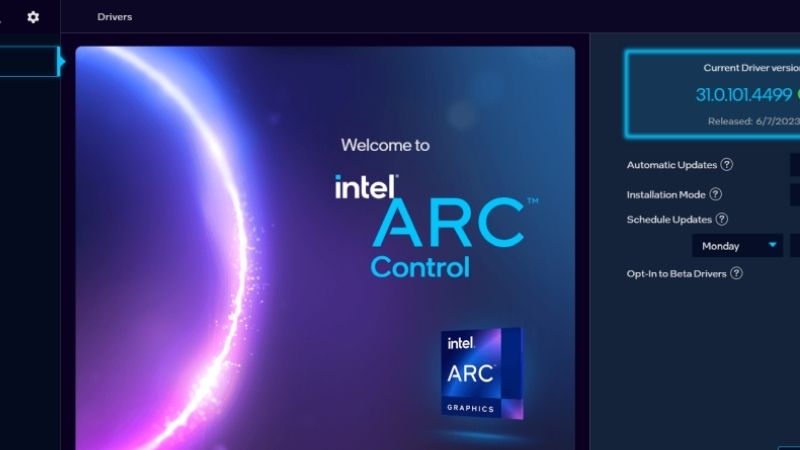
As of Intel’s documentation reviewed for this guide, Intel Graphics Software is the current application for supported Intel graphics features. Intel says the older Intel Arc Control has reached end of life and is no longer receiving active feature development. Therefore, do not treat “Arc Control missing” after a modern graphics-driver installation as automatic proof that the driver failed.
Intel Graphics Software can provide features such as supported graphics tuning, performance monitoring, and driver-related controls, but availability depends on the hardware, software version, and platform. Intel’s FAQ specifies its own software requirements, including Windows 11 version 22H2 or later for that application; the graphics driver’s supported OS list is a separate compatibility check. If a feature or companion app is missing, check the software support requirements before reinstalling the entire graphics driver.
Fix common Intel Arc driver installation errors
Start with the exact error code and the step that failed. Intel’s Graphics Driver Installer Error Codes document is more reliable than treating every failed setup as driver corruption.
| Symptom or code | What Intel identifies | First safe action |
|---|---|---|
| Code 5: PLATFORM_UNSUPPORTED | Device or operating system is not supported by that installer | Verify GPU model, Windows version, and driver package |
| Code 8: DRIVER_FILE_NOT_FOUND | Installer cannot find the required INF files | Download a fresh, complete official installer |
| Code 11: INSUFFICIENT_DISK_SPACE | Not enough free space | Free storage and retry the same correct package |
| Code 13: REBOOT_REQUIRED_BEFORE_SETUP | Windows restart required before setup | Save work, restart, and retry |
| Code 14: REBOOT_REQUIRED | Driver installation completed but restart is required | Restart, then verify version and GPU status |
| Intel DSA shows Installation failed | The automated driver update did not complete | Check hardware and install the matching OEM or Intel executable manually |
| New driver is replaced after reboot | Windows Update or retained driver packages may substitute an older build | Compare version and follow Intel’s rollback-replacement guidance |
Installer stops or reports unsupported hardware
Recheck the exact adapter in Device Manager and compare it with Intel’s supported-products list. Do not use a driver intended for older UHD graphics solely because it is produced by Intel. Some laptops require the vendor-supplied package. If the downloaded file is incomplete, download it again from Intel; Intel associates missing driver INF files with installer code 8.
Intel DSA fails but the standalone installer works
Intel maintains a specific support article for “Installation Failed” in DSA on Windows 11. Its advanced guidance includes selecting an appropriate existing display adapter driver and trying DSA again. For a general user, the safer first move is to stop repeated retries, restart, verify your exact GPU, and download the correct installer directly. Only follow Intel’s manual Device Manager procedure when the article clearly applies to your device and you have a suitable driver source.
Windows Update installs a different Arc driver
Microsoft confirms that Windows Update can provide display drivers and optional driver updates. Intel documents cases where Windows Update replaces a graphics driver with an earlier version. First inspect the Driver tab and check whether there is actually a functional problem. If you need the newer compatible Intel release, Intel advises installing that driver over the current one in certain rollback situations; its May 2026 support guidance says not to perform a clean installation in that particular procedure. Avoid permanently disabling Windows Update merely to preserve a version number.
The screen stays black after installation
Distinguish a brief installation-time display interruption from a persistent black screen after the reboot. Check whether the monitor is on the intended input and whether the cable is securely connected. On a discrete desktop Arc GPU, verify the monitor is connected to the GPU output you intend to use. If Windows still starts but display fails, use known-good ports, cables, or another display where available, and consult Intel’s Arc black-screen guidance. If the problem began with a specific update, Microsoft’s Device Manager Roll Back Driver may help when an earlier version remains available.
Do not improvise BIOS flash procedures or disable security features as your first response to a display failure. Firmware updates have real failure risks and should follow the exact motherboard/OEM documentation if Intel or the hardware manufacturer identifies a platform-specific need.
When should you perform a clean installation?
Intel defines a clean driver installation as removing previous driver files rather than merely updating the existing installation. Its current guidance allows a clean-install checkbox in the installer when available. This can reset graphics settings and clear cached data. It is a repair tool, not a requirement for every Arc update.
Consider it only when a conventional update fails repeatedly, graphics components are corrupted, a known issue requires cleanup, or Intel support instructs you to do so. Before changing the driver state, save work, back up important files, record your known-good version, and obtain the compatible installer. Intel documents more aggressive Display Driver Uninstaller (DDU) procedures for some specific cases, but these can temporarily remove working display drivers and require Safe Mode; they are inappropriate as a universal first step. Leave Windows security protections intact and avoid unofficial driver repacks.
How to roll back or restore a working driver
If a new driver introduces persistent glitches, do not assume another newer download is always the best solution. Microsoft’s Device Manager guidance and Intel’s rollback FAQ provide a straightforward first check.
- Open Device Manager > Display adapters and double-click the Intel Arc graphics device.
- Choose Driver and select Roll Back Driver if the control is available. Windows may ask why you are reverting; follow the on-screen prompts and restart when required.
- Verify the restored driver version and test the original symptom. If Roll Back Driver is unavailable, Intel explains that the previous driver may never have been installed or its files may no longer be retained.
- For an unavailable rollback, obtain a compatible earlier or OEM-recommended installer through official support, if available. Intel announced in April 2026 that some older Intel Arc downloads had been removed from Download Center, so do not assume any historical version remains publicly accessible.
Do not manually splice old DCH and legacy driver files, attempt a random INF install, or use a BIOS downgrade to fix an ordinary driver mismatch. Contact Intel or the PC manufacturer if you cannot recover a supported, stable configuration.
Frequently asked questions
Do I need Intel Driver & Support Assistant to install Arc drivers?
No. DSA is a convenient detection tool for supported systems, but Intel also documents manual installation through Download Center and the graphics-driver executable. Use the exact matching driver and operating system.
Can I use the generic Intel Arc driver on my laptop?
Sometimes, but check your OEM’s driver advice first. Intel warns that installing its generic graphics package can overwrite an OEM-customized driver. If your laptop uses special display switching or power features, the manufacturer’s validated version may be a better starting point.
Does a newer Intel Graphics Software app mean my Arc driver is current?
Not necessarily. The interface and the actual display driver are related but distinct software components. Confirm the driver version in Device Manager and compare it with the supported Intel or OEM release.
Is Windows Update enough for Intel Arc gaming?
Windows Update can install recommended graphics drivers. If a game fix or support requirement needs a newer compatible Intel release, check Intel’s current driver page and release notes. Avoid replacing a stable driver solely because a higher number exists.
Should I enable Resizable BAR or update my BIOS as part of driver setup?
Those are separate platform-configuration decisions, not steps required to run the Intel Windows driver installer. Refer to the graphics-card and motherboard manufacturers’ compatibility instructions if you are investigating performance. BIOS flashing and firmware configuration carry additional risks and should not be bundled casually with a routine driver install.
Final installation checklist
- The exact Intel Arc GPU and Windows version match the downloaded package.
- The installer came from Intel or the device manufacturer’s official site.
- You chose DSA or the manual method rather than an unverified driver-updater tool.
- The installer completed, and any required Windows restart finished.
- Device Manager recognizes the intended Intel Arc device and shows a suitable driver version.
- Windows display settings and a familiar game work normally.
- You did not perform an unnecessary clean install, registry edit, or BIOS modification.
Once those checks pass, the Intel Arc graphics driver is installed. Save the version number and the manufacturer’s support page for future updates. If it does not pass, use the specific Intel installer code or Windows device status to decide the next safe troubleshooting step.