Key takeaways
- The motherboard or prebuilt system model and revision match the official BIOS package.
- The chosen release addresses a relevant need and any model-specific prerequisites have been read.
- The BIOS file is extracted on a FAT32 USB, with its original name and proper root-level placement.
- Power is reliable; important files and BIOS settings have been backed up or recorded.
- BitLocker recovery access is confirmed, and any temporary suspension will be reversed.
- You will not interrupt the flash, remove the USB, or force a restart during the procedure.
- After flashing, the expected BIOS version, boot settings, storage detection, and Windows startup will be checked.
If you’re learning how to update MSI BIOS with M-FLASH, start by confirming your motherboard’s exact model and revision, downloading its matching firmware from MSI, and preparing a FAT32 USB drive before selecting the file in M-FLASH. The process must run with uninterrupted power: never shut down, disconnect the USB drive, or force a restart while firmware is being written. Before you begin, save your BIOS settings, back up important files, and locate your Windows BitLocker recovery key if device encryption is enabled. This guide covers MSI motherboards that provide M-FLASH; MSI laptops and Flash BIOS Button recovery use different instructions.
Decide whether your MSI BIOS actually needs an update
A BIOS update changes the firmware that starts the motherboard and initializes components before Windows loads. MSI may publish updates for processor compatibility, stability, security, or fixes described in a specific release note. A newer version number alone does not prove your PC will run games faster. Unlike a graphics driver, flashing firmware carries a small but consequential risk: an interrupted or mismatched update can leave a computer unable to start.
Before downloading anything, read the release notes for your exact board on MSI’s support page. A relevant CPU-support update, a documented security fix, or a reproducible problem that MSI says the release addresses can justify updating. If the system is stable and no relevant change applies, it is reasonable to leave the BIOS alone. MSI’s motherboard guidance begins with the condition that the computer needs a BIOS update; this is not routine monthly maintenance.
Confirm the exact motherboard model and BIOS revision
MSI sells boards whose names differ only by a suffix such as WiFi, MAX, or a chipset/board generation. In some families, a physical PCB revision also affects compatibility. Use both Windows and the information printed on the board or supplied with the system; do not infer the correct BIOS from a CPU or GPU model.
- Check Windows System Information. Press Windows + R, type
msinfo32, and press Enter. In System Summary, record the BaseBoard Manufacturer, BaseBoard Product, BaseBoard Version (when populated), and BIOS Version/Date. Microsoft’s System Information documentation describes this built-in tool. An OEM can leave some fields generic, so treat them as a cross-check, not the only evidence. - Compare the physical model and revision. Look at the original box, manual, motherboard printing, or the PC manufacturer’s specifications. MSI’s revision FAQ warns that the same BIOS may not work across different board revisions; the revision marking and corresponding support page must agree. Power down and unplug a desktop before opening its case, and avoid touching components unnecessarily.
- Record the current firmware version. Photograph or write down the BIOS version shown in System Information or in the BIOS setup screen. Compare it with the download name, release date, and listed fixes on the exact MSI product-support page.
- Identify a prebuilt system. If this is an MSI-branded finished desktop, a third-party branded gaming PC, or a laptop, check that complete system’s support page first. A board sold inside a prebuilt machine can have an OEM-specific firmware path; a similarly named retail motherboard download may be inappropriate.
Pass condition: you can state the exact board or system name, the board revision if relevant, the installed BIOS version, and the intended version. If two sources disagree, stop and ask MSI or the system vendor which firmware belongs to your hardware.
What you need before using M-FLASH
| Requirement | What to verify | Why it matters |
|---|---|---|
| Compatible BIOS file | Exact MSI model/revision, correct firmware branch, release notes | A similarly named file can be incompatible |
| USB flash drive | Readable drive formatted as FAT32 with the extracted BIOS package | MSI’s M-FLASH instructions use FAT32 removable storage |
| Reliable power | Stable power source; avoid flashing during likely outages | Interruption can corrupt firmware |
| Current configuration record | Photos of BIOS pages and critical boot, storage, fan, and memory settings | Firmware defaults or changed options may require later review |
| Windows recovery access | Important-file backup, BitLocker status, recovery key if encrypted | Firmware changes can trigger drive-recovery checks |
The USB drive does not need to be made Windows-bootable for this M-FLASH procedure. Formatting a USB drive erases its contents, so move any existing files elsewhere first. If Windows does not offer FAT32 for a particular drive, choose a compatible smaller USB drive rather than experimenting with third-party partitioning tools just to force the update.
Protect your files and BitLocker recovery access
Back up your important files before any firmware change. Then check whether Windows 11 uses BitLocker or Device Encryption. Microsoft explains that changes to TPM or UEFI firmware can prompt BitLocker recovery, and that a 48-digit recovery key may be required to unlock an encrypted drive. You should know where that key is stored before leaving Windows for the BIOS update.
- Locate the recovery key if encryption is enabled. Follow Microsoft’s Find your BitLocker recovery key guidance. Depending on how Windows was set up, it may be saved to your Microsoft account, a work or school account, or another location chosen by your administrator. Do not assume that a Microsoft sign-in automatically guarantees access to the key. Never upload or publish a recovery key.
- Check protection status. On Windows editions that expose BitLocker Drive Encryption, open Control Panel > System and Security > BitLocker Drive Encryption. Some Windows 11 devices instead surface Device encryption in Settings. If the machine is managed by an organization, ask its administrator how to prepare the update.
- Temporarily suspend protection when applicable. Microsoft’s instructions for non-Microsoft firmware updates describe the Suspend protection option. This is a temporary suspension of protection, not a command to decrypt the drive or delete the recovery key. Keep the time unprotected as short as possible. If the interface or your organization does not allow suspension, follow the device administrator’s guidance instead of improvising.
- Plan to resume protection. After flashing is complete and Windows starts normally, return to BitLocker management and choose Resume protection if it has not already resumed. Confirm the protection status rather than assuming that a restart re-enabled it. A BIOS update that involves multiple automatic restarts is another reason to verify status carefully.
Important: Microsoft also documents advanced PowerShell suspension options, but a consumer guide does not require running commands that could leave a drive indefinitely unprotected. Do not clear the TPM, disable Secure Boot, or turn off BitLocker permanently as a shortcut to flashing the BIOS. If the recovery key cannot be found, defer the update until recovery access is secure.
Download the matching BIOS package from MSI
For a retail MSI motherboard, the safest starting point is MSI’s [Motherboard] How to update BIOS? support article together with your board’s own product-download page. The instructions below follow MSI’s published M-FLASH method; the exact names and firmware files vary by model.
- Open MSI’s official website at
www.msi.comor your regional MSI site. Search for the complete motherboard name, and open that exact product page. - Choose the product’s Support or Download area and locate the BIOS tab. Compare the board revision, supported CPU notes, release date, release history, and any update prerequisites. An older release may be appropriate when its specific fix is needed, but do not assume you can skip required intermediate or companion steps if MSI lists them.
- Select the intended stable BIOS release where the board provides a choice; use beta firmware only if MSI identifies a reason that applies to your system and you accept its caveats. Download the official compressed file to a local folder.
- Right-click the downloaded ZIP file and choose Extract All. Confirm that you see the extracted BIOS file and any packaged documentation. Never select the ZIP itself in M-FLASH, and do not borrow a BIOS file from another board’s download.
- Read any model-specific included readme instructions before moving on. If the MSI product page specifies additional preparation or a different flash sequence for your board, those specific instructions take precedence over a generic guide.
Pass condition: the downloaded file originates from MSI’s correct product-support page, and you can explain why the selected release is applicable. An unofficial BIOS mirror or a file whose device identifier does not match your board is a stop sign.
Prepare a FAT32 USB drive for M-FLASH
MSI’s motherboard guide specifies a FAT32 USB drive and extracted BIOS content placed at the drive’s root, not buried in extra nested folders. The exact extracted package can differ, so retain the MSI file’s original name and follow the folder layout shown by your board’s current guide.
- Back up the USB’s existing files. Plug a spare USB drive into Windows. If it already uses FAT32 and is readable, you can skip formatting.
- Format only the correct removable drive when needed. Open File Explorer > This PC, verify the USB’s drive letter and capacity, then right-click it and choose Format. Select FAT32 and Start. This erases the selected drive; triple-check you did not choose an external backup disk.
- Copy the extracted package. Place the BIOS file and any MSI-required extracted folder/files directly in the USB’s top-level directory, as shown in the guide for that board. Avoid an extra layer such as
USB:\Downloads\New BIOS\, which can make the file difficult for the firmware browser to locate. - Check the files. Open the USB in File Explorer and confirm that the extracted firmware file is present and readable. Keep its original filename. Do not rename it
MSI.ROMfor an ordinary M-FLASH update; MSI gives that filename in its separate Flash BIOS Button procedure. - Eject normally and reconnect for flashing. Safely eject the USB from Windows if you need to move it, then plug it into a direct motherboard USB port before entering BIOS. Try another straightforward rear USB port if the firmware cannot see the drive.
Pass condition: a FAT32 USB drive contains the correct extracted MSI BIOS file, with no unnecessary renamed or re-compressed archive. If the USB is not recognized, correct the preparation first—do not select a file that only looks similar.
Update the BIOS through MSI M-FLASH
Proceed only when the exact model, firmware file, USB contents, BitLocker readiness, and power source have been checked. MSI’s motherboard instructions, updated October 22, 2025, describe entering the BIOS with the Delete key, selecting M-FLASH, confirming the firmware file, and allowing the board to reboot automatically.
- Record BIOS settings before changing firmware. Restart and repeatedly tap Delete during the initial MSI boot screen to enter BIOS setup. Photograph any settings that matter to your system: storage controller mode, boot order, custom fan curves, Secure Boot state, memory XMP/EXPO profile, and CPU tuning. Do not make unrelated settings changes yet.
- Open M-FLASH. In the BIOS interface, choose M-FLASH. Depending on the motherboard’s BIOS layout, it may appear as a main button or under a utility menu. Confirm the prompt to switch into flashing mode. The system may reboot into a dedicated M-FLASH interface.
- Select the USB device. Use the file browser shown by M-FLASH to locate your prepared USB drive. Open the directory indicated by MSI for that model and locate the extracted BIOS image. If the file is absent, stop and check the drive and firmware match instead of picking a different package.
- Compare the firmware before confirming. Read the filename, version, and—when the M-FLASH interface displays them—current and selected motherboard identifiers. Make sure the selected image belongs to your exact board/revision. Choose No or cancel if the information disagrees.
- Start the update. Select the correct BIOS file, press Enter if required, and confirm Yes to begin. From this point, do not power off, reset, unplug the USB device, press keys unnecessarily, or disconnect cables. The display or progress indicators can change during the process.
- Allow the system to finish automatically. MSI says the board restarts when the update completes. Some platform-specific firmware procedures may include more than one stage or an additional restart. Do not treat an automatic restart as permission to interrupt power; follow any instructions displayed by the motherboard.
- Check the new BIOS version. When the system finishes and reaches normal startup, enter BIOS again with Delete. Compare the version displayed there with the version you intended to install, then boot back into Windows.
Expected result: M-FLASH finishes without interruption, the machine restarts under its own control, the intended BIOS version is displayed, and Windows boots successfully. Do not flash again simply because a progress screen looked different from an online video.
Verify startup, encryption, and settings after flashing
A completed progress bar is only the first check. Firmware updates can restore some defaults or affect platform-specific settings. Review the following items before assuming a game crash or missing boot drive requires another BIOS flash.
- Confirm the BIOS version twice. Check the version inside BIOS setup and, once Windows starts, in
msinfo32. Match both with the release selected from the MSI board page. - Verify Windows startup. Confirm that the expected system drive starts and that Device Manager does not show a new unexplained hardware problem. Do not alter drive partitions, erase storage, or switch RAID/AHCI modes at random to make Windows boot.
- Review settings against your photos. Boot order, storage controller configuration, XMP/EXPO, fan settings, Secure Boot, and CPU-tuning options may need review on some boards. Reapply only supported settings you understand, one at a time. Start with safe defaults if you are diagnosing stability rather than immediately restoring aggressive overclocks.
- Check BitLocker status. If protection was suspended, resume it once the system is stable and verify that it reports protection enabled. If Windows requests a recovery key, use your stored key and Microsoft’s documented recovery flow—never attempt to bypass the protection.
- Run a basic stability check. Verify normal startup, network access, storage detection, and one everyday application or familiar game. A benchmark or stress test is not required just to prove that the firmware number changed.
Pass condition: the BIOS reports the selected version, your normal Windows installation loads, your drives are visible, important settings are appropriate, and encryption protection is restored. Record the new version in your maintenance notes.
Fix common M-FLASH problems without making them worse
| Symptom | Likely area to investigate | First safe action |
|---|---|---|
| USB drive does not appear | File system, USB port, removable-media detection | Verify FAT32 and use a direct USB port |
| BIOS file is missing from the browser | Wrong model/revision or archive/file location | Recheck the official download and extracted directory |
| File is rejected or identifiers differ | Incompatible firmware image | Cancel; verify the precise board and support page |
| Flash seems frozen | Firmware may still be working; exact state unknown | Do not force power off; consult MSI support |
| BIOS updated, but Windows will not boot | Boot order, storage-mode changes, encryption recovery | Inspect settings against the pre-update record |
| No POST after a completed update | Hardware initialization or firmware recovery need | Follow the exact board’s MSI recovery instructions |
M-FLASH does not recognize the USB or BIOS file
Return to Windows only if you can safely exit M-FLASH before flashing has begun. Check FAT32 formatting, extract the ZIP correctly, place the MSI-provided file in the intended location, and try a basic USB port. MSI specifically advises checking whether the downloaded BIOS is correct when a file does not appear in M-FLASH. Do not change the extension, rename the image to another motherboard’s firmware label, or try to force a rejected file to load.
The motherboard reports an invalid or incompatible image
Cancel the update. Recheck the physical board revision, complete model name, current BIOS branch, and the product’s official download list. MSI warns that BIOS compatibility can differ across motherboard revisions. If the board is inside a prebuilt machine, confirm whether its firmware comes from the full-system manufacturer. A rejected file is a safety warning, not a challenge to bypass.
The flashing screen appears stuck
Never force a reboot while the update may still be writing firmware. MSI’s desktop guidance recommends allowing extra time if the progress bar appears frozen and contacting MSI Customer Service if the condition persists. This is not a reason to set an arbitrary countdown and turn off the PC. If you cannot determine whether flashing is complete, get model-specific assistance rather than cycling power repeatedly.
Windows does not boot after the BIOS version changed
If BIOS setup opens, verify that the correct boot drive is detected, review boot priorities, and compare storage-related settings with the notes you made earlier. Some firmware updates restore defaults. Do not switch between RAID and AHCI casually; the wrong mode can stop an existing Windows installation from loading. If BitLocker recovery appears, use the recovery key you saved rather than resetting the TPM. When the boot path is unclear, involve MSI or the PC builder before changing storage settings.
The PC has no display after the update
After an apparently completed flash, give the system time to initialize and check basic monitor input and cable connections. Do not assume a black screen proves the firmware is corrupt. If you cannot reach BIOS after normal recovery checks, consult MSI’s instructions for your exact motherboard or request support. Some boards have a dedicated Flash BIOS Button that may help recover firmware without entering BIOS, but this feature does not exist on every model and uses a different USB file-preparation procedure.
M-FLASH versus Flash BIOS Button: do not mix the procedures
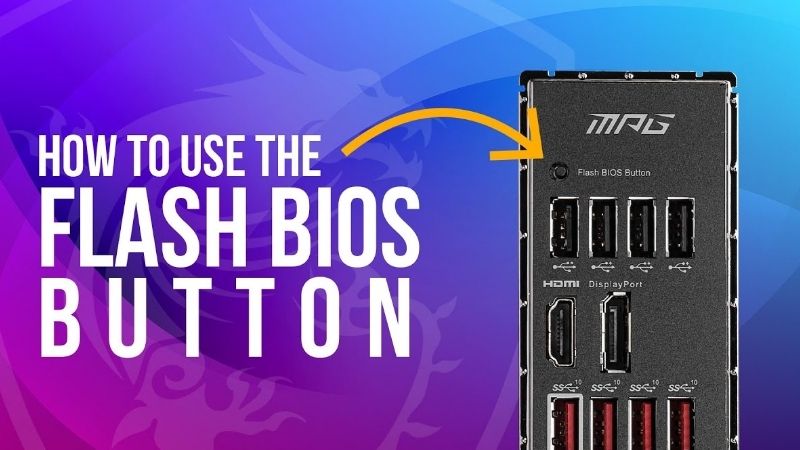
M-FLASH is the firmware-update utility you enter from the motherboard’s BIOS interface; it requires the system to reach the appropriate firmware menus. Flash BIOS Button is a separate hardware feature provided on certain boards that can refresh firmware under specific conditions, potentially without a CPU or RAM installed. MSI’s Flash BIOS Button article explicitly requires a particular rear USB port and renaming a file to MSI.ROM. That instruction is not part of the ordinary M-FLASH method described here.
Do not use a Flash BIOS Button recovery video as a substitute for your board’s M-FLASH guide, and do not attempt a BIOS downgrade unless MSI specifically approves that path for your device. Some firmware updates change platform components or security behavior in ways that make casual downgrading risky or unsupported.
Frequently asked questions
Does the M-FLASH USB need to be bootable?
No. MSI’s motherboard M-FLASH instructions describe a FAT32-formatted USB with extracted BIOS files that the firmware utility can browse directly. That is different from creating a Windows installation USB or following an older DOS-based flashing procedure.
Should I rename the BIOS file to MSI.ROM?
Not for the standard M-FLASH method. Keep the extracted BIOS file named as MSI supplied it, unless the specific board guide tells you otherwise. MSI.ROM is prescribed by MSI in its separate Flash BIOS Button article.
Will updating the BIOS erase Windows or my games?
A normal BIOS update changes motherboard firmware rather than intentionally formatting your Windows drive. However, firmware failures, changed boot settings, or BitLocker recovery prompts can affect access to the installed system. Backing up important files and preserving recovery access are therefore part of safe preparation.
Will M-FLASH increase gaming FPS?
Not by itself as a guaranteed result. A relevant firmware update may improve hardware compatibility or correct a specific stability issue, but performance changes depend on the exact board, processor, memory, BIOS release, and workload. This article does not claim to have measured FPS improvements.
Can I use this procedure on an MSI gaming laptop?
Do not assume so. MSI publishes separate notebook BIOS instructions, including a UEFI BIOS Update menu on some models and additional power preparation. Use your exact MSI laptop support page and its notebook-specific instructions rather than applying retail motherboard M-FLASH steps.
Final MSI M-FLASH safety checklist
- The motherboard or prebuilt system model and revision match the official BIOS package.
- The chosen release addresses a relevant need and any model-specific prerequisites have been read.
- The BIOS file is extracted on a FAT32 USB, with its original name and proper root-level placement.
- Power is reliable; important files and BIOS settings have been backed up or recorded.
- BitLocker recovery access is confirmed, and any temporary suspension will be reversed.
- You will not interrupt the flash, remove the USB, or force a restart during the procedure.
- After flashing, the expected BIOS version, boot settings, storage detection, and Windows startup will be checked.
Once every check is satisfied, MSI M-FLASH provides a supported way to update the firmware of a compatible MSI motherboard. If you cannot identify the right image or the system behaves unexpectedly, stop at the safest point and use the motherboard’s official MSI support documentation rather than guessing. A controlled, verified update matters more than simply installing the highest version number.