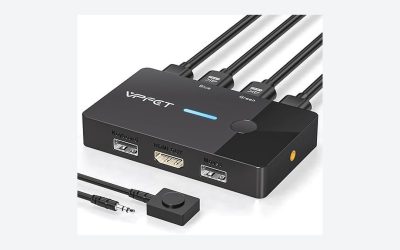
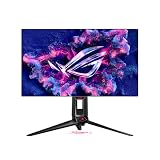
The best gaming monitors with KVM can share keyboard and mouse peripherals between two hosts, but only if the video links and USB upstream paths are both correctly connected. A KVM label without a practical two-computer wiring plan is not a useful buying recommendation. For a gaming PC and a work laptop, map out both the video connection and the upstream USB connection for each host. Some monitors switch the keyboard and mouse automatically with the input; others need a menu action or a particular cable layout. USB-C power delivery, refresh-rate limits and the number of available USB ports can turn a convenient feature into a compromise. Compare the actual two-computer workflow, including what happens when one machine sleeps, rather than assuming every integrated KVM behaves the same way.
Quick verdict: which KVM screen fits two computers?
Before choosing a monitor with KVM, map the two computers and the peripherals that need to move between them. A monitor may switch the visible input while still requiring a separate USB upstream connection for the keyboard and mouse. This shortlist distinguishes integrated switching convenience from USB-C charging capability, since those functions must be verified independently.
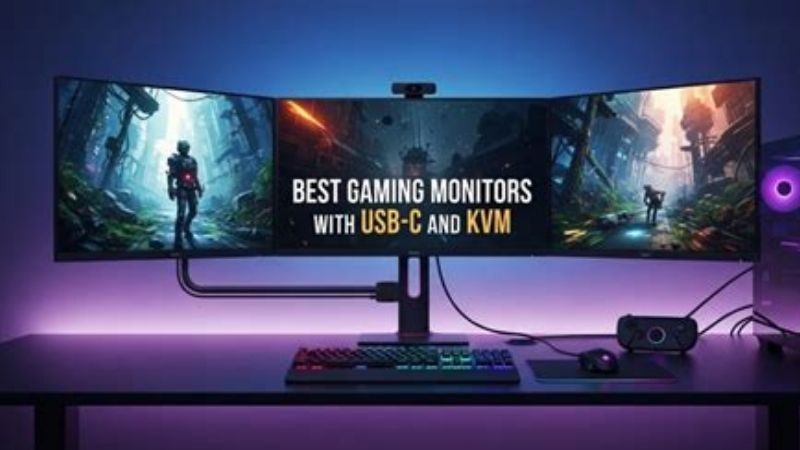
A good gaming-monitor KVM switches both image and USB keyboard/mouse ownership. GIGABYTE M32U/M27U and MSI/ASUS OLED candidates differ in USB-C power and upstream wiring; design your cable map first.
For the primary use case: MSI MPG 321URX QD-OLED. The shortlist describes it as up to 90W. Its distinguishing evidence is Yes (tested model). The limiting check is desktop USB-B upstream, laptop USB-C DP Alt Mode/data, input-to-upstream assignment. These are model-specific factors, not a promise of independent testing or verified U.S. checkout.
A contrasting option: MSI MAG 321UPX QD-OLED. The shortlist describes it as 15W. Its distinguishing evidence is No. The limiting check is exclude from integrated-KVM shortlist; budget an external USB switch. These are model-specific factors, not a promise of independent testing or verified U.S. checkout.
Comparison table: displays, specs, and trade-offs
| Exact model | Built-in KVM | Laptop USB-C charging | Buyer must verify | US price — exact variant, checked Oct 31, 2026 | Stock status — exact variant, checked Oct 31, 2026 |
|---|---|---|---|---|---|
| MSI MPG 321URX QD-OLED | Yes (tested model) | Up to 90W | Desktop USB-B upstream, laptop USB-C DP Alt Mode/data, input-to-upstream assignment | Price not verified | In stock (MSI US listing) |
| MSI MAG 321UPX QD-OLED | No — excluded from KVM recommendations | 15W | Exclude from integrated-KVM shortlist; budget an external USB switch | $799.99 (MSI US MAG 321UPX) | In Stock (MSI US exact product page) |
| Gigabyte M27U | Yes | 15W | Retain laptop power adapter and test USB hub return after waking | US price not verified | No longer available at B&H US |
| Gigabyte M32U | Yes | 15W | Verify 2-host USB mapping and how monitor OSD/KVM switch routes peripherals | US price not verified | No longer available at B&H US |
US price and inventory observations are tied to the named seller, selected SKU, color or memory configuration where specified. “Buy Now” and “Add to Cart” describe purchase buttons, not a completed checkout or guaranteed warehouse stock. Family-level pricing, obsolete variants, and conflicting source badges are explicitly qualified. Unresolved rows are not assumed purchasable.
Additional comparisons and purchase considerations
| Product / exact family | Verified feature or evidence boundary | Best fit | Major caveat | US price and stock (29 Oct 2026) |
|---|---|---|---|---|
| GIGABYTE M32U | 31.5-inch IPS, 4K 144Hz, non-glare surface, USB-C and KVM function | A non-OLED 4K candidate for long maps, cockpits and mixed office use | KVM USB paths and HDMI 4K modes depend on settings and input capabilities | Unverified — confirm exact US seller SKU |
| GIGABYTE M27U | 27-inch SS IPS, 4K up to 160Hz, non-glare surface, KVM class USB routing, USB-C PD up to 18W | A smaller 4K alternative for close seating and laptop-plus-PC desks | 18W USB-C power is not enough for most gaming laptops; check USB routing | Unverified — confirm exact US seller SKU |
| MSI MPG 321URX QD-OLED | 31.5-inch QD-OLED 4K 240Hz; USB-C DP Alt Mode with 90W PD; USB hub and KVM features | Well aligned with a desktop plus USB-C laptop workspace | Ensure USB upstream switching and OLED care fit the workflow; USB-C alone is not universal video | Unverified — confirm exact US seller SKU |
| ASUS ROG Swift OLED PG32UCDM | 31.5-inch QD-OLED 4K 240Hz, USB-C DP Alt Mode/90W PD, built-in KVM | Best considered when a single 4K display must serve gaming and another computer | 90W requires OSD setting on some configurations; verify USB upstream behavior | Unverified — confirm exact US seller SKU |
| Situation | Recommended evaluation or next action |
|---|---|
| One laptop and one desktop | USB-C video/data plus DP and USB upstream wiring |
| Two desktops with many peripherals | Compare monitor hub limits with an external KVM |
| Only sharing pointer on one LAN | Consider software input sharing instead of buying hardware |
The selected monitors and their key compromises
GIGABYTE M32U — fit and limitations
Gigabyte M32U is on this shortlist for a specific reason: yes. That makes it relevant when 15W. For a two-computer desk, check the monitor’s USB upstream path, video input selection, and laptop power needs separately. A USB-C socket does not establish full-resolution high-refresh video or one-cable charging for every laptop.
The main qualification is verify 2-host USB mapping and how monitor OSD/KVM switch routes peripherals. Confirm the relevant resolution and refresh rate over the actual cable, plus how the USB hub switches when the active video source changes. This is a specification-led comparison, not a claim that we measured this model in a controlled hands-on test.
GIGABYTE M27U — fit and limitations
Gigabyte M27U is on this shortlist for a specific reason: yes. That makes it relevant when 15W. For a two-computer desk, check the monitor’s USB upstream path, video input selection, and laptop power needs separately. A USB-C socket does not establish full-resolution high-refresh video or one-cable charging for every laptop.
The main qualification is retain laptop power adapter and test USB hub return after waking. Confirm the relevant resolution and refresh rate over the actual cable, plus how the USB hub switches when the active video source changes. This is a specification-led comparison, not a claim that we measured this model in a controlled hands-on test.
MSI MPG 321URX QD-OLED — fit and limitations
MSI MPG 321URX QD-OLED is on this shortlist for a specific reason: yes (tested model). That makes it relevant when up to 90W. For a two-computer desk, check the monitor’s USB upstream path, video input selection, and laptop power needs separately. A USB-C socket does not establish full-resolution high-refresh video or one-cable charging for every laptop.
The main qualification is desktop USB-B upstream, laptop USB-C DP Alt Mode/data, input-to-upstream assignment. Confirm the relevant resolution and refresh rate over the actual cable, plus how the USB hub switches when the active video source changes. This is a specification-led comparison, not a claim that we measured this model in a controlled hands-on test.
ASUS ROG Swift OLED PG32UCDM — fit and limitations
ASUS ROG Swift OLED PG32UCDM is relevant because 31.5-inch QD-OLED 4K 240Hz, USB-C DP Alt Mode/90W PD, built-in KVM. That hardware is a reasonable match when best considered when a single 4k display must serve gaming and another computer. For a two-computer desk, check the monitor’s USB upstream path, video input selection, and laptop power needs separately. A USB-C socket does not establish full-resolution high-refresh video or one-cable charging for every laptop.
The limiting consideration is 90w requires osd setting on some configurations; verify usb upstream behavior. Confirm the relevant resolution and refresh rate over the actual cable, plus how the USB hub switches when the active video source changes. This is not a claim of detailed research or current retailer stock.
Buying guide: check the display in your setup
Model eligibility and buying decisions
Two hosts need two data paths: For a desktop PC using DisplayPort, connect the USB-B upstream cable to the desktop for the monitor’s USB-A ports. For a laptop using USB-C, confirm its cable carries DP Alt Mode and USB data. Switching video input alone may leave peripherals assigned to the wrong host.
GIGABYTE M32U has a KVM Wizard: The manufacturer manual labels KVM Wizard and asks users to bind USB-B Display and Type-C Display to selected inputs. Establish those mappings before relying on a front shortcut. If the menu is different after firmware changes, use the exact manual for your revision instead of guessing.
Charging is a different dimension: MSI 321URX lists 90W USB-C PD, whereas GIGABYTE M27U lists only a small USB-C power budget. This matters if the second host is a laptop: a video signal can work while the laptop still needs its own AC adapter.
Failure isolation
If the mouse stops working after a KVM switch, test monitor USB-A with one known wired mouse, then confirm USB-B upstream on the desktop and data-capable USB-C on the laptop. Avoid blaming the operating system before mapping the connections and checking the monitor OSD.
Fit and design trade-offs
Choose integration level by your desk’s actual complexity: A built-in KVM removes an external box and often simplifies cable routing, but its switching flexibility and device compatibility depend on firmware. An external KVM may provide more USB ports or more dependable switching for two desktops, at a cost and with its own display bandwidth requirements. A software-only keyboard/mouse sharing tool may be easier when both PCs are on the same network, but it is not a full hardware substitute in BIOS or login screens. If the work laptop needs USB-C charging, record its wattage requirement separately; successful KVM switching says nothing about charging adequacy.
Performance limits and real-world implications
Two-host KVM preflight — model, cables, power and recovery: For a KVM monitor, the purchasing unit is the exact SKU plus its USB upstream map. RTINGS’ MSI side-by-side confirms MPG 321URX QD-OLED has KVM with USB-C power delivery up to 90W, while the look-alike MAG 321UPX has no integrated KVM and only 15W USB-C. The Gigabyte M27U and M32U do include KVM, but RTINGS records only 15W charging through their USB-C ports. A KVM switch routes USB peripherals; USB-C charging wattage is a separate capability. A desktop attached by DisplayPort or HDMI often still needs USB-B upstream to own the monitor hub. These conclusions are product-specific, not an assumption that all MSI or Gigabyte versions behave alike.
Repeatable two-host acceptance test before your return window expires: (1) label each video cable and its matching USB upstream; (2) move keyboard and mouse between hosts without disconnecting the cables; (3) check webcam/USB audio if you plan to switch them; (4) sleep and wake both computers, then repeat; (5) power-cycle the monitor and confirm upstream routing recovers. If a keyboard fails on host B, first check the USB upstream association instead of falsely blaming image input or panel response. A 90W port may still be insufficient for high-load gaming laptops. This is a buyer test protocol, not a test performed by GeekGamingTricks.
Compatibility, setup and verification
Draw both the video paths and the USB paths: A monitor KVM is not simply an HDMI input switch. For each computer, there must be a supported display connection and a corresponding upstream USB data path so the monitor can redirect attached keyboard and mouse devices. On one machine that might be DisplayPort plus USB-B; on another it might be USB-C carrying both video and data. Check the manufacturer’s KVM assignment table or manual for the exact monitor before buying. If a desktop has a Type-C port that lacks DisplayPort Alt Mode, the USB-C link alone may carry peripherals without a picture. Some monitors require the KVM setting to be configured manually.
The acceptance test should cover the awkward transitions: After connecting two computers, plug a plain keyboard and mouse into the monitor’s downstream USB ports. Switch source A to source B, test typing and pointer control, then switch back. Repeat with one computer asleep and again after a cold boot. If your headset, USB microphone or webcam is routed through the hub, check whether the port supports the required bandwidth; a monitor’s USB 2.0 hub may not be suitable for every device. Test your high-refresh display mode at the same time: a KVM setup that works at 4K 60Hz does not prove the desired gaming timing works through the second host.
M32U KVM needs two USB host paths
Wire the desktop and laptop before configuring KVM: GIGABYTE M32U includes a USB-C input, USB-B upstream path and manufacturer-documented KVM Wizard that pairs USB upstream devices to selected display inputs. A physical KVM button is not simply another HDMI port.
US buying evidence at this checkpoint: US price/availability not freshly verified. This is a page observation, not completed checkout, and must not be presented as universal stock or delivery availability.
A switching reliability trial for shared peripherals: To switch keyboard and mouse, the monitor needs two host USB paths and a correctly configured input pairing. A desktop using DP video still needs USB-B upstream; a laptop USB-C link needs video-capable DP Alt Mode.
KVM switching is not laptop charging and is not a two-cable setup: Before choosing a gaming monitor with KVM, draw two independent paths for each computer: one carries the video signal; the other carries keyboard, mouse, headset, and webcam USB data. The independent RTINGS M27U review documents both a useful two-host KVM and only 15W USB-C Power Delivery . RTINGS reports the same 15W USB-C charging boundary for the larger M32U . Neither should be represented as a one-cable solution for an unplugged laptop needing 65W, 90W, or more in use. The laptop’s own charger may remain necessary even if its video and peripherals work through USB-C.
The MSI MPG 321URX US specifications provide a different input set: high-bandwidth 4K/240Hz video with 90W USB-C power, and separate USB upstream/hub connectivity. The USB-C specification alone does not prove KVM behavior for every pair of hosts. Match the actual inputs to the active upstream path; never assume HDMI/DisplayPort video cables also transfer USB keyboard data.
| Situation | Verified boundary | Hands-on acceptance test |
|---|---|---|
| Desktop GPU on DP, laptop on USB-C | Desktop generally needs a separate USB upstream; USB-C may carry data for the laptop | Switch both directions with keyboard, mouse, webcam and USB audio attached |
| Laptop needs 90W charging | M27U and M32U offer 15W USB-C, insufficient for many laptops | Compare real charger rating and battery drain over a full gaming session |
| 4K PC gaming plus PS5 | Console video does not guarantee USB KVM keyboard/mouse ownership | Verify device recognition and refresh separately on each host |
| USB headset disappears after switching | USB devices may re-enumerate; not a display-pixel issue | Test audio input and output after switching, sleep, and wake |
A five-minute checkout and return-window checklist: Check the exact suffix on the seller’s product detail, USB-C Power Delivery wattage, which USB upstream connector accompanies each video input, and current firmware update notes. Write down the desk’s actual data and power cables before you buy. If you need full laptop charging from one cable, exclude 15W-only models regardless of how good their pixel response looks. If peripherals fail after sleep, re-test with only one USB device before assigning blame to the whole KVM. These are externally sourced behaviors and a proposed validation protocol, not a completed two-PC desk test or US ZIP-code checkout by GeekGamingTricks.
How we selected these options and checked evidence
We assessed whether the KVM actually routes USB peripherals between hosts while maintaining the requested display modes. USB-C charging, upstream cabling and firmware behavior can determine success.
The comparison is based on the exact configuration and technical limitations recorded in this draft, with model identities, connection requirements, and purchase conditions treated separately. Published manufacturer specifications are not substitutes for independent long-duration measurements. Prices and stock are seller-, date-, and region-specific; where no current U.S. checkout was verified, that uncertainty remains visible instead of being presented as a live offer. The recommendations are therefore shortlists for further verification, not accounts of our own hands-on lab tests.
Frequently asked questions
Why does the picture switch but my keyboard stay on the old PC?
The USB upstream path or KVM binding is missing or assigned incorrectly. Confirm the upstream cable and input pairing in the monitor manual.
Can I connect both PCs with HDMI only?
Usually not for USB peripheral switching. HDMI carries video and audio, not the USB upstream data path needed for typical monitor KVM functions.
Final thoughts
For two-computer switching at the same desk, M32U is worth evaluating if its 4K IPS and 144Hz panel suit the work/game split. A standalone KVM may fit better when multiple 4K240 monitors or complex USB peripherals need switching.
Plug both hosts in before configuring KVM Wizard; pair DP+USB-B for desktop and Type-C for laptop; test keyboard wake behavior, USB headset reconnection, 4K refresh and monitor input auto-detect.
Do not promise seamless microphone or webcam reconnection without a test, and do not confuse a monitor USB hub with two-host KVM.