Key takeaways
- Looking for the best side monitors for a dual-screen desk? Compare portable, vertical and small desk displays, sizes, ports and mounts before you buy.
As an Amazon Associate we earn from qualifying purchases.
A second screen sits beside your main display and quietly takes over the jobs that used to interrupt you. Chat windows, reference documents, music controls, monitoring tools and long articles all move off the primary panel, leaving it free for the work that actually needs your full attention. Choosing the best side monitors therefore comes down to one honest decision: what will live on that second panel all day, and how much desk space, cable clutter and money are you willing to trade for it.
Remote workers who juggle video calls and spreadsheets, coders who keep documentation open beside their editor, traders who watch live charts, students who research while writing, and gamers who track streams and system stats all use a side monitor differently. This guide walks through the types available, the criteria that matter most, and the setup mistakes that waste money, drawing on published specifications and common desk setups rather than any single product recommendation.
How to Choose
Match the Size to Your Main Display
A side monitor that towers over your main screen looks wrong and strains your neck, while one far too small forces you to squint at the windows you moved there to read comfortably. A secondary panel between 15 and 24 inches pairs well with a 27-inch main display, and a 13 to 16-inch portable panel suits a laptop-first setup. Measure the free width on your desk, including the stand footprint, because a monitor that overhangs the edge or crowds your keyboard will annoy you daily. Keep the top of the side panel level with the top of your main display so your eyes move sideways, and confirm a rotating model clears your lamp and speakers.
Pick the Right Resolution and Panel Type
Resolution decides how sharp text looks at the distance you sit from a secondary screen. A 1080p panel reads well at 15 to 24 inches for chat, email and reference material, while a 1440p panel earns its keep with spreadsheets, timelines or code. Higher resolutions rarely pay off on a display you glance at rather than stare at. Panel type matters as much: IPS panels keep colours steady when viewed from an angle, which is exactly how a side monitor sits on most desks. Cheaper TN-style panels wash out off-axis, while VA panels offer deeper blacks but a narrower sweet spot. A matte coating helps near a window, where a glossy panel can turn into a mirror.
Check Ports, Cables and Power Before You Buy
Nothing kills the excitement of a new side monitor faster than discovering your laptop or graphics card has no free output to match it. Count the video outputs, including HDMI, DisplayPort and USB-C with video support, and confirm whether your USB-C port carries a display signal, because many laptop USB-C ports handle data and charging only. Portable side monitors run on a single USB-C cable for power and video, which keeps a travel bag light but demands a port with enough output, while full-size desk monitors need a power brick and a video cable. A short cable forces an awkward position, and one video input makes switching computers a chore.
Decide How It Will Sit on Your Desk
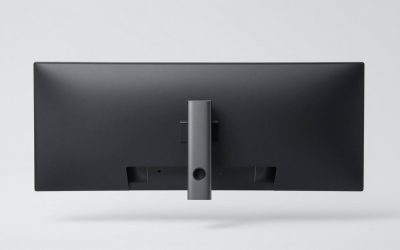
A side monitor is only as good as its mounting, and the bundled stand is often the weakest part of the package. A wide-footed stand can eat the space, while a slim stand or a VESA arm frees that room and lets you push the panel against the wall. Check for VESA mounting holes on the back of any monitor you consider, since that feature opens up arms, wall mounts and vertical stacking later. Portable panels sidestep the question with folding covers and kickstands, which suit flat desks but wobble elsewhere and adjust little. Leave clearance to angle the side panel toward you, because a screen facing forward sits at an awkward angle.
The Main Types of Side Monitors
Portable USB-C Monitors
Portable monitors are thin, light panels, usually 13 to 16 inches, designed to travel in a laptop bag and run from a single cable. They make an excellent side monitor for anyone who works from different desks, cafes or hotel rooms, and they double as a second screen for a desktop when space is tight. Their strengths are obvious: minimal setup, no power brick, and a footprint barely larger than a tablet. The trade-offs are a smaller image, modest brightness compared with a full desk monitor, and stands that amount to a folding cover or a small kickstand. If your side screen mostly shows chat, email and reference pages, a portable panel covers the job well. If it needs to hold a full spreadsheet or a video timeline for hours, the smaller size starts to feel cramped by the end of the day.
Small Desk Monitors
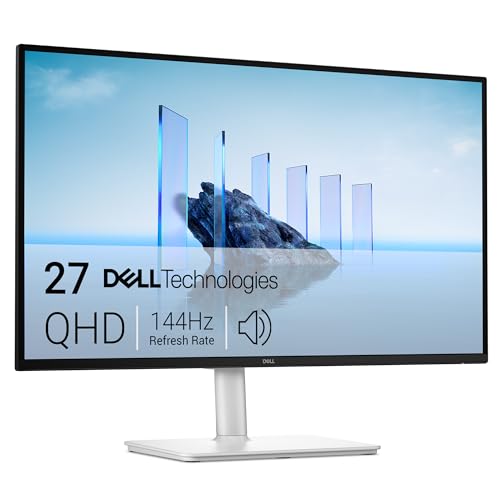
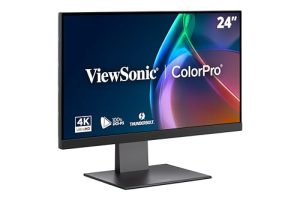
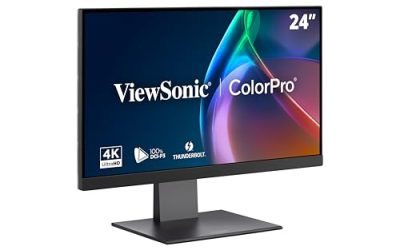
A dedicated small desk monitor, typically 21 to 24 inches, is the classic side screen for a permanent home office or gaming setup. It plugs into mains power, offers a proper adjustable stand, and usually carries a wider spread of inputs than a portable panel, including HDMI and DisplayPort alongside USB-C on better models. The larger image suits dashboards, monitoring software and long documents, and the sturdier stand keeps the panel exactly where you put it. The cost is desk space and a second power cable, plus the fact that it never leaves the room. For a fixed battlestation where the side monitor stays put for years, this is the most comfortable and most flexible option, and it pairs naturally with a monitor arm when you want to reclaim the desk underneath it.
Vertical and Rotating Monitors
Turning a monitor on its side transforms it into a tall, narrow window that fits long pages of code, chat threads, social feeds and documents without scrolling. Some monitors ship with stands that rotate between landscape and portrait, and almost any VESA-compatible panel can do the same job on a rotating arm. A vertical side monitor works best when the content you park there is genuinely tall: code files, terminal output, reading material and timelines all benefit, while video and games obviously do not. The main risk is buying a panel whose stand does not rotate and then discovering that a replacement arm costs almost as much as the monitor itself. Confirm rotation support, either in the stand or through VESA mounting, before you commit to this layout.
Ultrawide and Stacked Alternatives
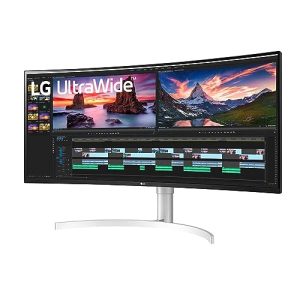
Some desks skip the traditional side-by-side layout entirely and place a second screen above the main display or use one ultrawide panel instead of two separate monitors. Stacking works well when desk width is limited but vertical space is free, and it keeps the secondary content in your peripheral vision without widening your head movements. An ultrawide single panel removes bezels and cable clutter altogether, though it changes window management and costs more than a modest side monitor. Neither approach suits everyone: stacked screens demand a strong mount and a neck that tolerates looking up, while an ultrawide gives up the freedom of turning one screen off or moving it to another room. Weigh these layouts against a simple side monitor before assuming that more screen area always means a better desk.
Setting Up a Side Monitor Without the Headaches
Start by deciding which screen is primary in your operating system settings, because the main display should hold your taskbar, your most-used apps and the window you focus on. Place the side monitor on the side your dominant eye naturally glances toward, usually the side of your non-dominant hand if you take notes while you work, and angle it inward by roughly 20 to 30 degrees so the panel faces you rather than the room. Match brightness and colour temperature between the two screens as closely as you can; a side panel that glows blue-white next to a warm main display will tire your eyes faster than any resolution difference.
Cable management deserves ten minutes of attention before you declare the setup finished. Route the video and power cables behind the desk, give the side monitor enough slack to rotate or slide without yanking a connector, and label the cables if two computers share the desk. On Windows and macOS, drag the display arrangement in settings until it mirrors the physical layout, so moving your cursor off the right edge of the main screen lands exactly where the side monitor sits. Finally, test the arrangement with your real workload for a day before buying accessories: a monitor arm, a longer cable or a small USB hub often proves unnecessary once the screens are positioned correctly, and the money stays in your pocket.
Which One Fits Your Situation
Working From Home With Video Calls
If your day runs on video meetings, keep the side monitor at eye level and reserve it for the call window, notes and chat, while the main display holds the document you are presenting. A 21 to 24-inch desk monitor works well because its larger image keeps faces readable. Built-in speakers help, though a headset wins for long meetings. Keep the camera on the main display so you look toward colleagues, not off to the side.
Coding and Writing With Reference Material
Coders and writers live with two windows open: the work itself and the material it draws on. A vertical side monitor shines here, holding documentation, research or a draft in a tall column that needs little scrolling. A 15 to 16-inch portable panel fits if you move between desks, since documentation stays readable. Prioritise sharp text and an IPS panel over refresh rate, because this side screen shows words and your eyes will notice soft text first.
Gaming With Streams and Stats
Gamers park a stream chat, a voice app, monitoring or a guide on the side monitor while the main display runs the game. A desk monitor handles this well, and refresh rate matters less on the side panel than a stable stand and enough inputs for a console or second PC. Keep it opposite your mouse hand so your arm never bumps it, and angle it inward so a glance reads the chat without turning your head from the game.
Travelling Light With a Laptop
Travellers need a side monitor that fits in the same bag as the laptop and sets up in under a minute. A 14 to 16-inch portable USB-C panel is the fit, drawing power and video from one cable and folding flat afterwards. Check your laptop’s USB-C video support, pack the cable, and accept brightness and speakers are more modest than on a desk monitor. In cafes, trains and hotels, the extra screen is worth the compromise.
Common Mistakes
- Buying a side monitor before counting your free video outputs, then discovering the only spare port needs an adapter you do not own.
- Choosing a panel far larger or smaller than the main display, which makes the desk look lopsided and forces constant refocusing between screens.
- Ignoring the stand and VESA support, then paying for a monitor arm that costs nearly as much as the screen it holds.
- Placing the side monitor flat against the desk edge instead of angling it toward you, so every glance becomes a neck twist.
- Setting brightness and colour temperature far apart on the two screens, which tires your eyes faster than any difference in resolution.
Frequently Asked Questions
What size is best for a side monitor?
For a desktop setup, a 21 to 24-inch side monitor balances readability and desk space beside a 27-inch main display, while a 15 to 16-inch portable panel suits laptop users who travel. Match the side panel’s height to your main display so your eyes move sideways rather than up and down, and measure your free desk width including the stand before ordering.
Can I use a portable monitor as a permanent side monitor?
Yes, a portable monitor works as a permanent side screen if it stays on your desk, and many people use one this way because it needs only a single USB-C cable. The trade-offs are a smaller image, a folding cover instead of a proper stand, and modest brightness, so a dedicated desk monitor is more comfortable for all-day use at a fixed workstation.
Do I need a graphics card with two outputs for a side monitor?
You need two video outputs in total, but they do not have to come from the same graphics card. Most desktop graphics cards already carry several outputs, and many laptops drive an external display through USB-C or HDMI alongside their built-in screen. Check your device’s specifications for the number of simultaneous external displays it supports before buying.
Is a vertical side monitor worth it for coding?
A vertical side monitor is worth it if your side screen mostly shows code, documentation or long articles, because the tall layout fits far more lines without scrolling. It is less useful for video, spreadsheets or chat, so choose a monitor with a rotating stand or VESA mounting if you want the option to switch back to landscape later.
FAQ
What size is best for a side monitor?
Can I use a portable monitor as a permanent side monitor?
Do I need a graphics card with two outputs for a side monitor?
Is a vertical side monitor worth it for coding?
More from Amazon
Programs that pair well with the guide above. Offers and eligibility are set by Amazon and may change.
Free shipping on eligible items, Prime Video and more. Eligible new members can start with a free trial.
Start a Prime free trialAd-free music streaming. Eligible new subscribers can start with a free trial.
Try Music Unlimited freeA Prime membership for ages 18-24 with a trial period. Eligibility is set by Amazon.
See Prime for Young AdultsAudiobooks and podcasts to listen to on the go. Eligible new members can start with a free trial.
Try Audible freeAs an Amazon Associate we earn from qualifying purchases.