Key takeaways
- RAM: Loose or improperly seated memory is a top cause of no-boot; remove, reseat until both clips click, and try one stick at a time.
- Power connectors: Confirm both the 24-pin motherboard cable and the 8-pin CPU power cable at the top of the board are fully plugged in; a missing CPU power cable is a frequent culprit.
- GPU: Reseat the graphics card in its slot and check its PCIe power cables.
- Everything: Push firmly on every power and data connection, as vibration and moving the case can loosen them.
Pressing the power button on your gaming PC and getting nothing, no fans, no lights, no beeps, is a heart-stopping moment. But before you panic and assume the worst, know that a dead-on-arrival PC is far more often a loose connection, a misconfigured setting, or a simple power issue than a fried component. Working through the causes methodically will find the culprit and often save you an expensive and unnecessary parts replacement.
This 2026 troubleshooting guide walks you through diagnosing a gaming PC that will not turn on, starting with the quickest and most common fixes and progressing to deeper hardware checks. Follow it in order rather than jumping around, and you will isolate the problem efficiently instead of guessing.
Our top picks


 Pre-Built PC
- Equipped with i5 Power for Gaming & Work…
- Speed and Stability in One - Boot up…
- RGB Lighting and Advanced Cooling - Stay cool…



As an Amazon Associate we earn from qualifying purchases at no extra cost to you.
⚡ Save on Your Next PC — Amazon Prime
Prime members get fast free shipping on the systems above, plus early access to Prime Day & Black Friday PC deals. New members get a 30-day free trial.
Watch: Why Won’t My Gaming PC Turn On? (2026 Fixes) — Video Review
Check the Obvious Power Basics First
It sounds too simple, but a huge share of no-power problems come down to the basics. Confirm the wall outlet works with another device. Check that the PSU’s rear power switch, the one marked I and O, is flipped to I. Make sure the power cable is fully seated at both the wall and the PSU. If you use a surge protector or power strip, test the PC plugged directly into the wall, since a tripped strip is a common and easily missed cause.
Verify the Front Panel and Power Button
Your case’s power button connects to the motherboard through tiny front-panel header pins, and these can come loose or be plugged in wrong, especially after moving or working inside the case. Consult your motherboard manual and confirm the power switch header is connected to the correct two pins. To rule out a faulty button entirely, you can briefly bridge those two pins with a screwdriver to power on the board directly. If it starts that way, your case button or its wiring is the problem.
Reseat Components That May Have Come Loose
- RAM: Loose or improperly seated memory is a top cause of no-boot; remove, reseat until both clips click, and try one stick at a time.
- Power connectors: Confirm both the 24-pin motherboard cable and the 8-pin CPU power cable at the top of the board are fully plugged in; a missing CPU power cable is a frequent culprit.
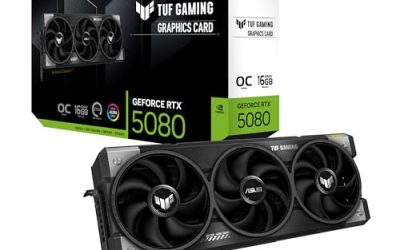
- GPU: Reseat the graphics card in its slot and check its PCIe power cables.
- Everything: Push firmly on every power and data connection, as vibration and moving the case can loosen them.
Interpret the Diagnostic Signs
Modern motherboards give you clues. Many have small labeled debug LEDs for CPU, DRAM, VGA, and BOOT that light up to show where the boot process stalls. Others have a two-digit POST code display. If a specific LED stays lit, it points directly to the problematic component. If the board does a short power-on then immediately shuts off in a loop, that often indicates a short, a power delivery issue, or incompatible or unseated memory.
Rule Out a Short or Bad Component
If nothing so far works, try the classic breadboard test: remove the motherboard from the case and run it on a non-conductive surface with only the CPU, one stick of RAM, and the cooler connected. If it powers on outside the case, a standoff or something metal was shorting it inside. If it still will not start, systematically test with a known-good PSU or a PSU tester to confirm the power supply is delivering correct voltages before suspecting the board or CPU.
Tips to Speed Up Diagnosis
- Change only one variable at a time so you know exactly what fixed it.
- Keep your motherboard manual handy for header layouts and debug LED meanings.
- Test with the minimum viable set of components, then add parts back one by one.
- Try clearing the CMOS to reset BIOS settings, which can resolve boot hangs from a bad configuration.
Frequently Asked Questions
Why do the fans spin briefly then stop?
A short power-on followed by an immediate shutdown, sometimes repeating, usually points to a short circuit, a power delivery problem, or unseated memory. Reseat the RAM and CPU power cable, and check that no metal is shorting the board against the case.
My PC gets no power at all, where do I start?
Begin with the power basics: a working outlet, the PSU rear switch set to on, and fully seated cables. Then check the front-panel power button connection. These account for a large share of complete no-power cases before you ever open the deeper checks.
Could bad RAM stop my PC from turning on?
Yes. Improperly seated or incompatible memory is one of the most common no-boot causes. Reseat each stick firmly until the clips click, and try booting with a single stick to isolate a faulty module or slot.
How do I know if my power supply is dead?
Use a PSU tester or swap in a known-good unit. If the tester shows missing or incorrect voltages, or a known-good PSU brings the system to life, the original power supply is the culprit and should be replaced.
Conclusion
A gaming PC that will not turn on is intimidating but usually fixable without buying anything. Start with power basics and the front-panel button, reseat the RAM, GPU, and power cables, read your motherboard’s debug LEDs, and use a minimal breadboard test to isolate shorts or a bad PSU. Change one thing at a time and work methodically, and you will almost always find the small, simple cause behind the scary silence.