Key takeaways
- A Windows 10 or Windows 11 PC with a compatible Xbox controller.
- A functioning USB data cable, or the Xbox Wireless Adapter when using supported wireless hardware. Xbox Series controllers generally use USB-C; many older Xbox One controllers use micro-USB.
- The Xbox Accessories app from the Microsoft Store for Microsoft’s controller-profile method, or an up-to-date Steam client for per-game Steam Input layouts.
- A game or controller-testing screen where you can safely check the result before playing online.
If you want to know how to remap Xbox controller on PC, start by deciding whether you need the change in every compatible game or only one. On Windows 10 and Windows 11, Microsoft’s free Xbox Accessories app can change supported controller assignments, while Steam Input lets you build a separate layout for an individual Steam game. An Xbox Elite Wireless Controller Series 2 also offers extra configuration and onboard profile options. The most reliable first setup is a USB data connection, especially if the Xbox Accessories app does not expose its configuration options over Bluetooth.
Choose the right remapping method
The best tool depends on where you want the new button behavior to take effect. Xbox Accessories is the Microsoft-supported starting point for eligible Xbox controllers. Steam Input is better when one game needs a different layout, when you want to translate controller input into keyboard or mouse commands, or when the game has limited built-in controller options. A game’s own Controls menu is often the simplest choice if it already supports rebinding.
| What you want to change | Use this method | Important limitation |
|---|---|---|
| Swap supported buttons on an Xbox Wireless Controller | Xbox Accessories | Available controls vary by controller model; use USB or Xbox Wireless for configuration |
| Customize paddles, sticks, triggers, or selectable profiles on an Elite Series 2 | Xbox Accessories | Some advanced functions are specific to Elite hardware |
| Give one Steam game a custom layout | Steam Input | The Steam layout normally applies only when Steam Input handles that game |
| Bind a game action without affecting other software | The game’s Controls settings | Only works when that title offers the binding you need |
| Make a controller button act like a keyboard command | Steam Input; certain Elite/Adaptive assignments in Xbox Accessories | Not every game or controller supports every keyboard binding |
What you’ll need before changing buttons
- A Windows 10 or Windows 11 PC with a compatible Xbox controller.
- A functioning USB data cable, or the Xbox Wireless Adapter when using supported wireless hardware. Xbox Series controllers generally use USB-C; many older Xbox One controllers use micro-USB.
- The Xbox Accessories app from the Microsoft Store for Microsoft’s controller-profile method, or an up-to-date Steam client for per-game Steam Input layouts.
- A game or controller-testing screen where you can safely check the result before playing online.
First, connect the controller and confirm it works with its default buttons. If Windows or the game cannot detect it at all, solve the connection problem before changing assignments. If you use Bluetooth for regular gameplay, you can still temporarily switch to USB while configuring Xbox Accessories: Microsoft specifically notes that keyboard mappings through that app are not supported over Bluetooth on PC.
How to remap Xbox controller buttons with Xbox Accessories
Applies to: supported Xbox controllers on Windows 10 or 11. Button and profile options depend on the controller; an Elite Series 2 exposes more settings than a standard Xbox Wireless Controller.
- Connect the controller through USB. Use a cable that carries data, not a charge-only cable. An Xbox Wireless Adapter is another supported connection for relevant controllers.
- Install Xbox Accessories from the Microsoft Store. Search for the official app published by Microsoft and open it. There is no need to obtain a controller-mapping utility from an unfamiliar download site.
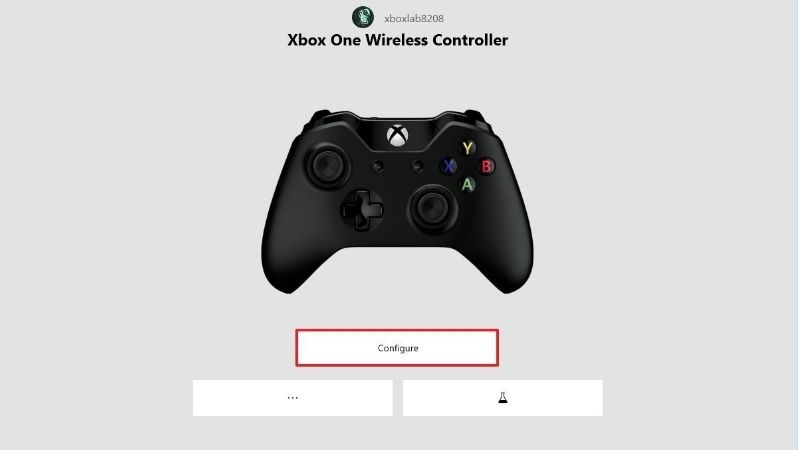
- Select your controller. If your model supports configuration, choose Configure. The available buttons, profile controls, and settings can vary by model and app version.
- Open an existing configuration or create one. For controllers with configurable profiles, make a new profile so you can retain an easy route back to a familiar layout.
- Choose the physical input to change. For example, select the button you physically press and assign the supported button action you want the PC or game to receive. Double-check the direction of the swap: assigning B to the physical A button is different from assigning A to the physical B button.
- Save or assign the configuration as prompted. On an Elite Series 2, also assign the configuration to a supported profile slot, then select that slot on the controller. Merely editing a profile does not necessarily make it the active one.
- Test the mapping. Use the Xbox Accessories test screen when available, then try the controller in a game’s menu or practice area. Check both the changed input and any button that used to trigger that action.
Expected result: a supported reassigned button now sends its new input. If the app shows the new layout but the game behaves as before, check the active profile and whether Steam Input or the game’s own controls are applying another mapping on top of it.
Remapping paddles on the Xbox Elite Wireless Controller Series 2
The Elite Series 2 adds rear paddles, customizable profiles, and model-specific adjustments. In Xbox Accessories, open Configure, select the profile you intend to use, and assign the desired function to a paddle. Then place that profile in an available slot and activate it on the controller. Microsoft’s Elite Series 2 instructions explain the profile workflow; the app’s exact labels may change with updates.
For actions that do not already have a controller button, certain Elite Series 2 and Xbox Adaptive Controller configurations can also emit supported keyboard keys. Xbox’s published instructions describe selecting a button, opening the Key assignment option, and choosing a key or a key plus modifiers. That feature is not the same as unlimited macro scripting: Microsoft describes one non-modifier key per binding, optionally combined with modifier keys such as Ctrl or Shift. Keyboard bindings also depend on the game’s willingness to accept keyboard input alongside controller input.
How to remap an Xbox controller for one game using Steam Input
Applies to: Steam games where Steam Input can handle the connected controller. This is usually the cleaner method when you want one layout for a shooter and a different one for a racing game.
- Connect the Xbox controller and open Steam. Go to Steam > Settings > Controller and make sure Steam recognizes it. If the device is missing, resolve its USB, wireless, or Windows connection first.
- Find the target game in Library. With the controller connected, open the game’s controller-layout screen using the controller icon or the game’s controller-related menu. Steam labels can change between client versions.
- Enable Steam Input for that game if necessary. Open the game’s Properties > Controller options and choose the applicable Steam Input override when a custom Steam layout is not currently being used. Avoid altering this setting for other games that already work correctly.
- Choose Edit Layout. Select the group containing the physical input you want to change, such as Buttons, D-pad, triggers, or joysticks.
- Assign the new output. For instance, make the physical B button send the standard A gamepad action. For a title with no native controller support, choose a keyboard or mouse command that corresponds to the intended action.
- Apply or save your layout. Return to the game’s controller screen and make sure your edited layout is active rather than an unchanged default or community layout.
- Launch the game and verify. Enter a safe menu, training room, or offline section and press each modified button once. Check that the game recognizes the intended action.
Expected result: the chosen Steam game receives the remapped command while other titles can keep their own layouts. Steam Input works at the software layer; it is not a guarantee that a mapping will transfer to a non-Steam launcher or stay in effect when Steam is closed. The game may also show button prompts that reflect its default scheme rather than your physical button locations.
Example: swap A and B without confusing confirm and cancel
Suppose a game uses A to confirm and B to go back, but you prefer the opposite physical buttons. In Steam’s layout editor, set the physical A button to output B and the physical B button to output A. Test this in a menu where backing out is harmless. If you change only one side, two physical buttons can end up sending the same action, leaving you without a convenient way to confirm or cancel.
For games that expose their own in-game action bindings, it may be clearer to change the Confirm and Back actions inside the game instead. Avoid remapping the same pair in Xbox Accessories, Steam Input, and the game’s settings at once, because two swaps can cancel each other out.
How to tell whether a remap actually worked
- Before testing, write down the original assignment and the intended new output for each changed button.
- In Xbox Accessories, inspect the active configuration and use its testing function when available. Microsoft’s Elite keyboard-mapping documentation describes a test view for emitted keyboard commands.
- In Steam, re-open the game-specific layout to confirm that your edited layout is selected, not just saved.
- Test in an offline or noncompetitive context. Check navigation, interactions, and held inputs, not only a single button press.
- Restart the game after a significant change if the previous behavior appears cached, then check again.
Remember that an on-screen prompt labeled “A” generally names the command the game expects, not necessarily the physical button you must press after remapping. A changed prompt is not always proof that input is wrong; verify the actual action.
Fix Xbox controller remapping that does not apply
| Symptom | Likely explanation | First safe action |
|---|---|---|
| Xbox Accessories does not show the controller or Configure | Connection mode, unsupported model, app detection, or cable issue | Reconnect using a known data-capable USB cable and reopen the official app |
| Elite paddle settings look saved but do nothing | Edited profile is not assigned or active | Assign the intended profile to a slot and select it on the controller |
| Steam layout is ignored in one game | Steam Input is not active for the title, or a different layout is selected | Check the game’s Controller override and active layout |
| Buttons seem to swap back or act unpredictably | Several mapping layers conflict | Use defaults in two layers and test the third layer by itself |
| Keyboard mappings fail over Bluetooth | Xbox Accessories connection restriction | Use USB or a supported Xbox Wireless Adapter for the applicable feature |
| Gamepad works, but some keyboard commands do not | Game input-mode or key-binding limitation | Check the game’s own keyboard bindings and mixed-input support |
Steam and Xbox Accessories are both changing the buttons
This is a common source of confusing behavior. Imagine Xbox Accessories already makes physical A send B, then Steam Input makes B send A. Depending on the active input path, you may end up with the original action or a layout that behaves differently across titles. Isolate the layers: restore a standard layout in Steam, test the Xbox Accessories change alone, then decide whether Steam’s per-game customization is needed.
A remapped keyboard shortcut opens a Windows feature
Take extra care with shortcuts involving Win, Alt, Ctrl, and Shift. A combination might trigger an operating-system command rather than the in-game action you expected. Use an unassigned key within the game where possible, and avoid bindings that interfere with accessibility features, system navigation, or essential menu controls.
The controller is detected over Bluetooth but cannot be configured
Working gameplay over Bluetooth does not prove full Xbox Accessories configuration support. Microsoft documents USB and the Xbox Wireless Adapter for relevant controller-to-keyboard mapping and explicitly excludes Bluetooth for that feature on PC. Switch to a compatible data connection, configure the input, and test again. Do not assume that every third-party Xbox-style controller can use Microsoft’s profile editor; vendor-specific software may be required for those devices.
How to restore the default controller layout
If a new layout makes a game difficult to navigate, reverse the smallest change first instead of reinstalling drivers or resetting Windows.
- Xbox Accessories: open the configuration and restore the original button assignments, or return to a known default/previous profile if your controller supports profiles. On an Elite Series 2, confirm the active slot is the one you want.
- Steam Input: open the affected game’s controller layout and select the standard gamepad template or your previously saved layout. If you enabled a per-game Steam Input override only to test a remap, return it to the prior state when appropriate.
- In-game controls: use the game’s Reset to Defaults option if you changed bindings inside its own settings.
Do not perform a firmware downgrade, registry edit, or driver removal just to undo a button assignment. Those actions address different problems and introduce unnecessary risk.
Frequently asked questions
Can I remap a normal Xbox Wireless Controller on Windows 11?
Yes, supported standard Xbox controller button remapping is available through Xbox Accessories, with fewer advanced options than an Elite Series 2. For a specific Steam title, Steam Input is another practical choice. The available functions depend on the controller revision, connection, and software version.
Can I map a controller button to a keyboard key?
Steam Input can send keyboard and mouse commands in supported game configurations. Microsoft’s Xbox Accessories keyboard-mapping feature specifically covers the Xbox Elite Wireless Controller Series 2 and Xbox Adaptive Controller in its published guidance. Do not assume that a standard controller exposes the same Xbox Accessories keyboard options.
Will a Steam layout also work in Xbox PC Game Pass games?
Not automatically. A layout created through Steam Input is tied to how Steam handles the selected game. A game launched separately through the Xbox app may not use that Steam mapping. Prefer a game’s built-in bindings or supported Xbox Accessories configuration for a setup that does not depend on Steam Input.
Final thoughts
For most PC players, the easiest answer is to use Xbox Accessories for supported controller-level changes and Steam Input for game-by-game layouts. Connect through USB when configuring, change one assignment at a time, and confirm the active profile or layout before you launch a match. If controls still behave strangely, reset the extra mapping layers instead of stacking additional fixes on top. A clear, reversible remap is more useful than a complicated one you cannot reliably test.