The best 4K monitors for flight simulators should make small cockpit labels readable without forcing a system into impractical frame rates. A flight-sim buyer often values display area, contrast, ergonomics, and performance on a long session differently from a tournament shooter player. Aircraft instrumentation and moving scenery create a different display workload from a fast shooter. A larger panel may improve the visibility of cockpit controls, but it also occupies more desk space and requires a suitable viewing distance. Evaluate contrast for night flying, stand adjustment for longer sessions, and the graphics settings your PC can maintain at native 4K. If you use a joystick, throttle or additional panels, consider how the monitor fits into the whole cockpit rather than choosing solely by refresh rate.
Quick verdict: 4K monitors for cockpit visibility
A flight-simulator monitor has to make gauges, runway markings and distant scenery legible during long sessions. That makes pixel density, size, brightness consistency and cockpit viewing distance at least as important as a gaming-oriented refresh claim. The shortlist distinguishes a practical 4K desk display from OLED alternatives whose contrast benefits come with different ownership considerations.
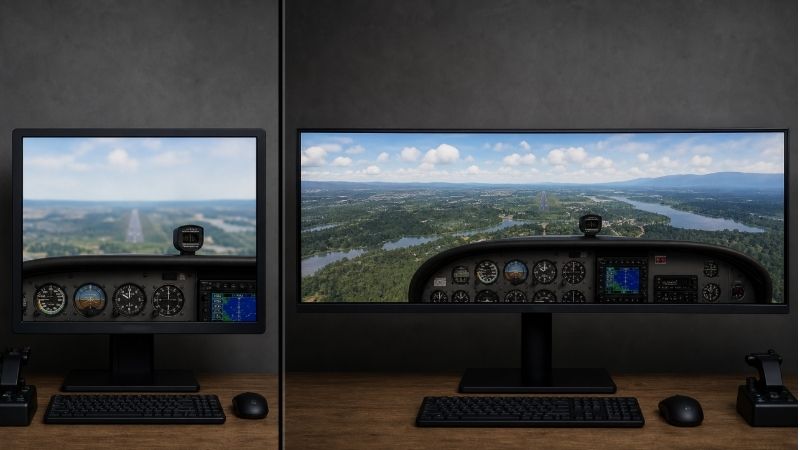
For flight simulators, a 32-inch 4K IPS panel such as the GIGABYTE M32U is a low-maintenance cockpit candidate; a 4K OLED can deepen night scenes but requires a deliberate plan for static instruments.
For the primary use case: GIGABYTE M32U. The shortlist describes it as a non-OLED 4K candidate for long maps, cockpits and mixed office use. Its distinguishing evidence is 31.5-inch IPS, 4K 144Hz, non-glare surface, USB-C and KVM function. The limiting check is kVM USB paths and HDMI 4K modes depend on settings and input capabilities. These are model-specific factors, not a promise of independent testing or verified U.S. checkout.
A contrasting option: MSI MPG 321URX QD-OLED. The shortlist describes it as well aligned with a desktop plus USB-C laptop workspace. Its distinguishing evidence is 31.5-inch QD-OLED 4K 240Hz; USB-C DP Alt Mode with 90W PD; USB hub and KVM features. The limiting check is ensure USB upstream switching and OLED care fit the workflow; USB-C alone is not universal video. These are model-specific factors, not a promise of independent testing or verified U.S. checkout.
Comparison table: displays, specs, and trade-offs
| Product / exact family | Verified feature or evidence boundary | Best fit | Major caveat | US price — exact variant, checked Oct 31, 2026 | Stock status — exact variant, checked Oct 31, 2026 |
|---|---|---|---|---|---|
| GIGABYTE M32U | 31.5-inch IPS, 4K 144Hz, non-glare surface, USB-C and KVM function | A non-OLED 4K candidate for long maps, cockpits and mixed office use | KVM USB paths and HDMI 4K modes depend on settings and input capabilities | US price not verified | No longer available at B&H US |
| MSI MPG 321URX QD-OLED | 31.5-inch QD-OLED 4K 240Hz; USB-C DP Alt Mode with 90W PD; USB hub and KVM features | Well aligned with a desktop plus USB-C laptop workspace | Ensure USB upstream switching and OLED care fit the workflow; USB-C alone is not universal video | Price not verified | In stock (MSI US listing) |
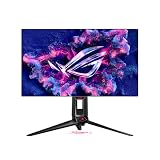
| ASUS ROG Swift OLED PG32UCDM | 31.5-inch QD-OLED 4K 240Hz, USB-C DP Alt Mode/90W PD, built-in KVM | Best considered when a single 4K display must serve gaming and another computer | 90W requires OSD setting on some configurations; verify USB upstream behavior | $1,199.00 (ASUS US PG32UCDM) | Buy Now button; stock unconfirmed |
| LG UltraGear 32GS95UE-B | 31.5-inch OLED; native 4K 240Hz and switchable 1080p 480Hz Dual Mode; anti-glare/low-reflection | Balances detailed sims and very fast competitive games on one panel | 1080p on a 32-inch display appears less sharp at close range; OLED care matters | $1,099.99 (LG US catalog; was $1,399.99) | LG US catalog Add to Cart; checkout not confirmed |
US price and inventory observations are tied to the named seller, selected SKU, color or memory configuration where specified. “Buy Now” and “Add to Cart” describe purchase buttons, not a completed checkout or guaranteed warehouse stock. Family-level pricing, obsolete variants, and conflicting source badges are explicitly qualified. Unresolved rows are not assumed purchasable.
Additional comparisons and purchase considerations
| Situation | Recommended evaluation or next action |
|---|---|
| Long cockpit sessions with static gauges | Evaluate 32-inch 4K IPS and ergonomic mounting |
| Night flying and varied gameplay | Consider OLED with panel-care safeguards |
| CPU-limited simulator | Prioritize consistent frame time before 240Hz |
The selected monitors and their key compromises
GIGABYTE M32U — fit and limitations
GIGABYTE M32U is on this shortlist for a specific reason: 31.5-inch IPS, 4K 144Hz, non-glare surface, USB-C and KVM function. That makes it relevant when a non-OLED 4K candidate for long maps, cockpits and mixed office use. At cockpit viewing distance, legibility of small gauges, GPU load at 4K, and long stretches of static instruments matter more than the largest advertised refresh number. Match screen size and scaling to your desk.
The main qualification is kVM USB paths and HDMI 4K modes depend on settings and input capabilities. Check independent motion and contrast evidence for the exact panel, and consider static-UI care if the screen uses OLED. This is a specification-led comparison, not a claim that we measured this model in a controlled hands-on test.
MSI MPG 321URX QD-OLED — fit and limitations
MSI MPG 321URX QD-OLED is on this shortlist for a specific reason: 31.5-inch QD-OLED 4K 240Hz; USB-C DP Alt Mode with 90W PD; USB hub and KVM features. That makes it relevant when well aligned with a desktop plus USB-C laptop workspace. At cockpit viewing distance, legibility of small gauges, GPU load at 4K, and long stretches of static instruments matter more than the largest advertised refresh number. Match screen size and scaling to your desk.
The main qualification is ensure USB upstream switching and OLED care fit the workflow; USB-C alone is not universal video. Check independent motion and contrast evidence for the exact panel, and consider static-UI care if the screen uses OLED. This is a specification-led comparison, not a claim that we measured this model in a controlled hands-on test.
ASUS ROG Swift OLED PG32UCDM — fit and limitations
ASUS ROG Swift OLED PG32UCDM is on this shortlist for a specific reason: 31.5-inch QD-OLED 4K 240Hz, USB-C DP Alt Mode/90W PD, built-in KVM. That makes it relevant when best considered when a single 4K display must serve gaming and another computer. At cockpit viewing distance, legibility of small gauges, GPU load at 4K, and long stretches of static instruments matter more than the largest advertised refresh number. Match screen size and scaling to your desk.
The main qualification is 90W requires OSD setting on some configurations; verify USB upstream behavior. Check independent motion and contrast evidence for the exact panel, and consider static-UI care if the screen uses OLED. This is a specification-led comparison, not a claim that we measured this model in a controlled hands-on test.
LG UltraGear 32GS95UE-B — fit and limitations
LG UltraGear 32GS95UE-B is on this shortlist for a specific reason: 31.5-inch OLED; native 4K 240Hz and switchable 1080p 480Hz Dual Mode; anti-glare/low-reflection. That makes it relevant when balances detailed sims and very fast competitive games on one panel. At cockpit viewing distance, legibility of small gauges, GPU load at 4K, and long stretches of static instruments matter more than the largest advertised refresh number. Match screen size and scaling to your desk.
The main qualification is 1080p on a 32-inch display appears less sharp at close range; OLED care matters. Check independent motion and contrast evidence for the exact panel, and consider static-UI care if the screen uses OLED. This is a specification-led comparison, not a claim that we measured this model in a controlled hands-on test.
Buying guide: check the display in your setup
Model eligibility and buying decisions
Flight-simulator monitor choice by actual flight workload: The 32-inch Gigabyte M32U has evidence that matters more to an instrument-panel pilot than its HDR badge: RTINGS measured excellent 4K text clarity, 144Hz VRR, responsive high-rate motion and a useful KVM. But it also observed weak HDR contrast, more blur or inverse ghosting at lower refresh rates, and just 15W USB-C charging , insufficient to power most active gaming laptops. A flight simulator operating nearer 50–70fps must be judged at its real low-rate motion, not at a 144Hz showroom loop.
RTINGS’ tested LG 32GS95UE-B delivers very fast OLED pixel response, 4K 240Hz, and 1080p 480Hz Dual-Mode. The lower-resolution esports mode gives up cockpit text sharpness and does not improve a flight simulator whose GPU cannot sustain high frames. The review also notes VRR flicker under variable frame rates and permanent burn-in risk from long-running static panels. For multi-hour cockpit sessions with the same horizon bars and instrument overlays, this is a real ownership trade-off; it is not proof any particular unit will burn in.
| Flight workflow | First monitor trial | Reason to decline |
|---|---|---|
| Long-haul flights; fixed gauges, maps, planning charts | M32U IPS at native 4K and your typical frame rate | Poor dark-scene HDR or unacceptable low-fps smearing |
| Short sessions in a dark room, occasional fast competitive games | LG 32GS95UE-B at 4K 240Hz | Persistent bright cockpit HUDs, VRR flicker, burn-in anxiety |
| One cable to power gaming notebook | Check source-laptop USB-C PD budget separately | M32U 15W USB-C is too little for full-power laptop gaming |
At the buyer’s actual GPU settings, run the same flight route and stationary cockpit scene for at least ten minutes with frame-time display enabled. Inspect gauge text, moving runway markers, reflections and OSD behavior; repeat at the lower refresh range you use. Do not imply in-house testing or current US stock proof from these published lab reviews.
Pixel density and cockpit reading: A 31.5-inch 3840×2160 image is about 140 pixels per inch; real usefulness depends on seating distance and in-sim cockpit/UI scaling. Increase readability before assuming a 27-inch 4K panel is always superior. For close yoke or HOTAS placement, measure clearance below the screen.
Cockpit readability is an information problem: A flight simulator monitor should let you read avionics text, runway markings and distant ground features from your actual seating position. Native 4K on a 32-inch screen provides denser detail than 1440p at the same size, but some simulator instruments render with tiny labels that may still need UI scaling. Assess viewing distance, physical FOV and the software’s instrument scaling before assuming the biggest diagonal is best. A 42-inch display can be immersive for a cockpit-like setup but demands more eye movement and desk depth. Ultrawide immersion is a separate trade-off from the native 4K pixel count specified by this keyword.
Special considerations for yokes, head tracking and long sessions: A simulator desk may need room for a yoke, throttle quadrant, rudder pedals and tablet mounts. Measure stand depth and cable exit clearance, and decide whether a VESA arm creates a better view across the controls. OLED’s superior black levels can enhance night flying, but static cockpit indicators and long flights create a use case where warranty and panel-care guidance deserve special attention. A good IPS 4K display may be the more cautious choice for someone who leaves the same instruments onscreen for hours. USB-C hubs and KVM features can be helpful, but only when the specific flight setup needs them.
Cockpit hours matter more than peak 240Hz: The first purchasing question is not whether a 4K monitor advertises 144Hz or 240Hz. It is whether the simulator can sustain an acceptable frametime while drawing glass-cockpit instruments, weather and the scenery. At 60 frames per second the frame budget is about 16.7ms; at 120fps it is 8.3ms. Those are theoretical frame intervals, not claims that any monitor or CPU has been measured at those numbers. In a crowded airport, a faster panel cannot repair CPU-limited stutters or replace GPU memory.
The independent M32U review by RTINGS reports a 32-inch 4K IPS display with 144Hz, KVM, USB-C DP Alt Mode and only 15W of USB-C charging. It also finds more motion blur or inverse ghosting at lower refresh rates. That is a meaningful detail for simulators which spend time around 45–70fps: choose an overdrive setting that remains clean at the actual operating refresh rate , rather than trusting a single ‘1ms’ retail claim. Gigabyte’s U.S. model page calls the coating non-glare, specifies 3840×2160 at up to 144Hz and does not promise a laptop-charging dock.
The LG 32GS95UE-B takes a different approach: an independently researched 4K 240Hz OLED with deep dark-room contrast, fast pixel response and a separate 1080p 480Hz mode. RTINGS warns that prolonged static elements can cause permanent burn-in and that strong glare can overwhelm its brightness. An instrument-heavy six-hour session with the same PFD, MFD and taskbar layout creates a different ownership risk from a varied shooter game. A review’s OLED text-clarity result does not erase that cumulative risk.
| Flight-sim situation | Choose first | Verify before purchase | Reason to walk away |
|---|---|---|---|
| Long training or static glass-cockpit sessions | M32U-class 4K IPS | Low-refresh response, panel reflection location, current U.S. return rules | Expected laptop charging needs more than 15W from the display |
| Dark-room immersion with varied game content | 32GS95UE-B-class 4K OLED | Warranty’s static image/burn-in language, glare from windows, current firmware | Daily prolonged fixed HUD use with no acceptable OLED-care tradeoff |
| Multi-screen cockpit at 4K | IPS panels with manageable GPU budget | Two or three display outputs, aggregate rendered pixels and stand depth | GPU cannot maintain usable low-percentile frametimes |
Do a no-purchase workload audit first: Run the same departure and approach in the simulator three times at the proposed resolution, with the overlays and weather you actually use. Record median and 1% low fps, cockpit text scaling, head-turn blur and VRR behavior. If a second screen hosts only maps and instruments, confirm whether the game still renders a second full 3D viewport: the performance cost is not necessarily equivalent. Measure viewing distance and map physical placement before buying a 32-inch replacement; a higher refresh number should be the final decision factor, not the first.
4K cockpit legibility: the M32U reference
Instrument text and static HUDs set the buying criteria: The manufacturer specifies a 31.5-inch 3840×2160 IPS monitor at 144Hz with HDMI 2.1, DisplayPort and USB-C connectivity. That is a practical 4K large-screen reference, not proof of outstanding HDR.
US buying evidence at this checkpoint: US exact-SKU live price not verified in this pass. This is a page observation, not completed checkout, and must not be presented as universal stock or delivery availability.
Single-screen versus triple-screen flight setup: Flight simulation involves thin power lines, glass-cockpit text and prolonged static instrument displays. Pixel density and even subpixel structure matter for legibility, while OLED static-image risk and GPU 4K frame rate matter differently.
Choosing a 4K screen for hours of cockpit instruments: Better cockpit text is not automatically better HDR: RTINGS’ Gigabyte M32U review reports superb text clarity, sufficient brightness for many lit rooms and a useful KVM, but mediocre contrast and weak edge-lit local dimming. Those are important, conflicting facts for a pilot who spends hours reading static gauges. The 31.5-inch 4K 144Hz IPS M32U is a practical comparison point when instrument sharpness and stationary interfaces rank above black-level contrast; it is not a reference for realistic HDR darkness.
What the OLED option changes: RTINGS’ MSI MPG 321URX QD-OLED analysis finds deep blacks, very fast motion and clear 4K text. It also flags reduced perceived black depth under direct ambient lighting and the risk of persistent burn-in from prolonged fixed UI elements. Flight simulation is a special case: an unchanged airspeed tape, map legend, taskbar or control panel can remain visible for long flights. Treat that risk as relevant to purchase and warranty research, not a claim that any individual panel will fail on a known date.
| Flight-sim constraint | IPS-first choice | OLED-first choice | Before checkout |
|---|---|---|---|
| All-day static PFD/MFD, desktop and maps | M32U-type 4K IPS avoids OLED image-retention trade-off | MSI/ASUS/LG 4K OLED requires care schedule and warranty review | Confirm coverage of persistent images and whether simulator UI can auto-hide |
| Window-lit training desk | Test RTINGS brightness and reflection notes against window angle | QD-OLED may raise dark-level appearance with ambient light | Reposition lamp/window first; do not infer room-independent glare performance |
| Night flight and dark landscape | LCD weak contrast limits depth of black scenes | OLED local pixel control gives much darker blacks | Assess in your own room and game HDR settings, not a logo |
| Long-haul sim with heavy scenery add-ons | 144Hz ceiling is often sufficient when the GPU/CPU cannot render near 144fps | 240Hz is useful for other fast games, but does not create frames | Review 1% lows and frame pacing on YOUR aircraft, airport and CPU |
A repeatable flight-deck acceptance check: Open the aircraft and airport you normally fly; compare PFD numbers, small map labels, a dense scenery approach and a night runway. Record viewing distance, Windows or simulator scaling, HDR enabled/disabled and the actual frame-time graph. Keep VRR enabled only if its flicker behavior is acceptable at the variable low frame rates your simulator reaches. Do not quote 4K 240Hz as an expected flight-simulator frame rate. For two-computer setups, verify the actual upstream USB and laptop charging path; RTINGS notes the M32U supports USB-C DisplayPort Alt Mode but only 15W charging, so it is not a one-cable charging solution for most gaming laptops.
Evidence and inventory boundary: comparisons above are attributed external testing, not site-owned cockpit trials. Check exact US model suffix, current return window and warranty; the lab observations do not verify retailer checkout, sales tax or remaining inventory.
Fit and design trade-offs
The static-instrument OLED trade-off: A night approach with deep black skies looks different on self-emissive OLED, but fixed attitude indicators, navigation bars and menu chrome increase retention considerations. Use screen care and hide unnecessary static overlays where possible; confirm the exact burn-in coverage.
Simulator-specific buying gate: static PFD text, multi-monitor load and OLED care: A flight simulator displays stationary instrument borders, moving maps and small numbers for hours; it is different from an esports benchmark loop. The independently researched GIGABYTE M32U is a 32-inch 4K IPS display at up to 144Hz with superb text clarity and bright-room usability. RTINGS also documents mediocre contrast and more motion blur at low refresh rates. Those are meaningful tradeoffs: the screen is a credible instrument-reading baseline and does not have OLED pixel wear, but dark night flights do not gain OLED-level blacks simply from 4K resolution.
The MSI MPG 321URX US product page documents 4K/240Hz QD-OLED, OLED Care 2.0 and a three-year warranty including burn-in. These features mitigate the prolonged-static-HUD concern; they do not eliminate panel aging, and regional warranty eligibility and exclusions must still be checked. Do not copy performance or coating observations from an ASUS PG32UCDM Gen3 review into an original PG32UCDM recommendation: RTINGS calls the Gen3 a different iteration, so review-model identity is part of technical accuracy.
| Typical simulator desk | Evidence-backed choice logic | Test before keeping it |
|---|---|---|
| Long IFR flights, static PFD/MFD and checklists | 4K IPS M32U favors readable text and avoids OLED burn-in exposure | Read the smallest waypoint labels from actual seating distance |
| Night VFR flights, cinematic contrast prioritized | 4K OLED 321URX has deeper dark-scene contrast but needs care | Check halos, bright runway highlights, dark detail and refresh routine |
| Desktop plus laptop for charting | M32U KVM is useful but RTINGS confirms only 15W USB-C PD | Keep laptop charger if its required draw is higher |
| Triple-screen 4K layout | Three displays demand more pixels than one; 240Hz headline is no assurance | Measure 1% lows, frame time and panel alignment at a busy airport |
Build the cockpit acceptance test around your own avionics: Take one daytime cockpit screenshot and another night approach; check identical Windows scaling, in-sim instrument scale, viewing distance, and a 45-minute static panel exposure. In HDR mode, compare instrument white against outside scenery rather than comparing black-level marketing photos. Run the same demanding airport and weather preset before deciding that 240Hz adds value: very fast pixel refresh cannot create simulator frames. A seller’s ‘Gen3’ suffix, warranty country, return window, port map and current US availability must be checked separately before purchase. No three-screen performance measurements or real-world panel-life results are claimed here.
Performance limits and real-world implications
Acceptance gate: compare a cockpit at the frame rate you actually fly: Independent RTINGS testing separates the Gigabyte M32U’s 4K 144Hz IPS behavior from the MSI MPG 321URX QD-OLED’s 4K 240Hz behavior. The M32U is an understandable reference for extended static avionics, but its low-refresh transitions can blur or overshoot. The 321URX has much faster pixel response and comparatively less VRR flicker than many OLED rivals, yet the reviewer still warns about permanent burn-in from repeated fixed elements and about reduced dark-scene contrast in strong ambient light. Neither test establishes a universal winner for flight simulation: a long flight at 45–75fps is different from a short high-refresh racing session.
| Flight scenario | First shortlist | Actual rejection test |
|---|---|---|
| Four-to-six-hour static PFD or map session | Gigabyte M32U IPS | Test altimeter tape, magenta route and dark cockpit at typical fps; reject if low-refresh inverse ghosting obscures labels |
| Night flight plus mixed game library | MSI MPG 321URX QD-OLED | Inspect dark-gray detail and VRR flicker at sim frametimes; reject if long-term fixed HUD exposure is unacceptable |
| Laptop-based simulator with KVM | MSI MPG 321URX or a verified alternative | Check separate USB upstream, 90W PD budget, and the actual laptop charging requirement; do not assume USB-C replaces its gaming adapter |
| Budgeting three 4K screens | Three-display GPU/desk preflight before choosing brand | Three 3840×2160 displays contain 24,883,200 pixels; check simulator performance and output/VRR limitations before buying |
Variant gate: RTINGS distinguishes the MSI MPG 321URX from the similar-looking MAG 321UPX: the former includes a KVM and 90W USB-C delivery, while the MAG is listed with 15W and no KVM. Never transfer a tested review or a cable diagram across those two SKU families. Source records are retained in the Evidence Log, not a claim of site-owned test data.
Flight-simulator acceptance test: distinguish cockpit contrast from peak refresh marketing: For a cockpit full of fixed PFD/MFD numbers, the best panel is the one that stays readable at the intended seat distance for the whole flight, not necessarily the fastest gaming refresh rate. RTINGS measured the Gigabyte M32U as a 32-inch 4K 144Hz IPS monitor with strong text clarity, useful KVM, and less precise lower-refresh motion than its high-rate results. OLED options such as the LG 32GS95UE-B and MSI MPG 321URX can provide far deeper blacks and fast motion, but RTINGS warns about static-element burn-in. A permanently fixed engine-instrument overlay is therefore a materially different duty cycle from movie or shooter play. Compare MSI’s actual MPG 321URX with the cheaper-looking MAG 321UPX: RTINGS specifies 90W USB-C charging plus KVM on the MPG, versus 15W and no KVM on MAG; those names are not interchangeable.
| Simulator workload | Best defensible priority | At-home test |
|---|---|---|
| Five-hour flights, static instruments, desktop maps | IPS 4K such as M32U if predictable text and no OLED burn-in anxiety outweigh peak black level | Read 9pt instrument labels at actual seating distance and test lower frame rates |
| Night approaches in a dim room | OLED may win for dark scenery and cockpit blacks if static OLED care is acceptable | Compare same scene at SDR and calibrated HDR, note dark-gray crushing and text fringe |
| Single-cable flight desk with laptop/KVM | Check exact model USB-C video, power and KVM independently | MSI MPG 321URX 90W/KVM differs from MAG 321UPX 15W/no KVM |
A buyer should try a repeatable benchmark at a demanding airport in bad weather, then move the camera while watching instruments at the real delivered frame rate. Use the return window to check coating reflections with the room lights positioned as normal. These are recommended user tests; we have not measured this game’s 4K three-screen FPS or panel longevity ourselves.
Flight simulation is not an esports framerate race: Microsoft Flight Simulator and DCS World often benefit more from stable frame pacing and cockpit legibility than a constant 240fps target. Your GPU, aircraft complexity, scenery and VR/monitor arrangement determine what refresh ceiling is sensible. Do not rank 240Hz above 144Hz automatically.
Frame pacing changes the flight experience: Microsoft Flight Simulator and DCS workloads can be limited by the CPU, scenery density, memory or GPU depending on environment. A steady 60–100 fps with predictable frame time can feel better in a detailed cockpit than a higher but unstable average. Decide whether you use frame generation and how its visual artifacts affect fast-moving propellers, cockpit overlays or mouse-look movement. Do not combine benchmark results from different scenery, weather, plane and game versions. Dynamic refresh support is useful when load varies; verify which port and mode deliver VRR on the exact monitor.
Compatibility, setup and verification
Ports, controls and support gear: Some cockpit desks also host a laptop or second workstation. GIGABYTE M32U KVM can consolidate keyboard and mouse routing, but USB upstream paths must be configured. Check USB hub and KVM needs against your HOTAS inputs rather than assuming all USB accessories follow the monitor.
How we selected these options and checked evidence
We evaluated 4K detail, display dimensions, cockpit viewing distance and GPU load, with special attention to readability during long flights. OLED care and IPS contrast are trade-offs rather than absolute rankings.
The comparison is based on the exact configuration and technical limitations recorded in this draft, with model identities, connection requirements, and purchase conditions treated separately. Published manufacturer specifications are not substitutes for independent long-duration measurements. Prices and stock are seller-, date-, and region-specific; where no current U.S. checkout was verified, that uncertainty remains visible instead of being presented as a live offer. The recommendations are therefore shortlists for further verification, not accounts of our own hands-on lab tests.
Frequently asked questions
Is 4K at 240Hz necessary for a flight simulator?
Usually not. Readability, consistent frame pacing, color and contrast tend to matter more than an extreme refresh-rate headline. Choose refresh according to your system and other games.
Will a 4K monitor fix blurry instruments automatically?
No. Verify in-game render scaling, TAA or upscaling mode, cockpit zoom and display scaling. The game’s text rendering can remain a bottleneck.
Final thoughts
For a single-screen civilian flight-sim cockpit, M32U offers a 32-inch-class 4K canvas. For a triple-monitor home cockpit, calculate graphics load and physical desk footprint before purchasing three high-refresh 4K screens.
Check panel width and bezel dimensions for the cockpit; test avionics text at 100% and 125% desktop scale; verify HDMI/DP bandwidth from GPU; measure head-tracking and simulator frame-time stability in dense airports.
Do not imply 144Hz guarantees 144fps in MSFS, or that DisplayHDR400 provides deep per-pixel blacks.