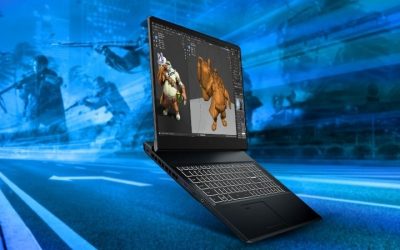
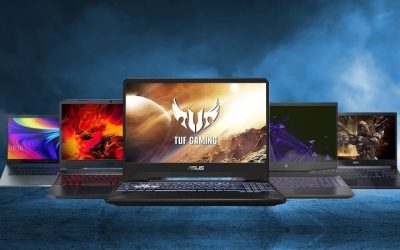
Finding the best gaming laptops for Blender rendering means looking beyond gaming frame rates. A powerful NVIDIA GPU can accelerate Cycles rendering, but GPU memory, sustained cooling, system RAM, and storage determine how comfortably a laptop handles demanding 3D projects. For most serious Blender users, an RTX 5080 Laptop GPU with 16GB of VRAM is a strong starting point. Artists working with especially complex scenes should consider an RTX 5090 Laptop GPU with 24GB of VRAM. Here are six laptop configurations worth comparing, including their advantages, limitations, and ideal workloads. Start by checking how much GPU memory your largest scene actually uses, then compare cooling under long render jobs rather than choosing by gaming FPS alone. A laptop that looks impressive during a short benchmark can behave differently during overnight Cycles work. Pay particular attention to whether RAM and SSD storage can be expanded, because those limitations may outlast the GPU’s initial appeal.
Quick verdict: which laptops make sense for Blender work?
The shortlist is easier to use when you separate GPU-memory capacity from the laptop’s overall design. A portable creator system may suit texture work and occasional rendering, while a larger gaming chassis may be more practical for repeated long Cycles jobs. The recommendations below distinguish those priorities without treating a GPU model name as a complete performance test.
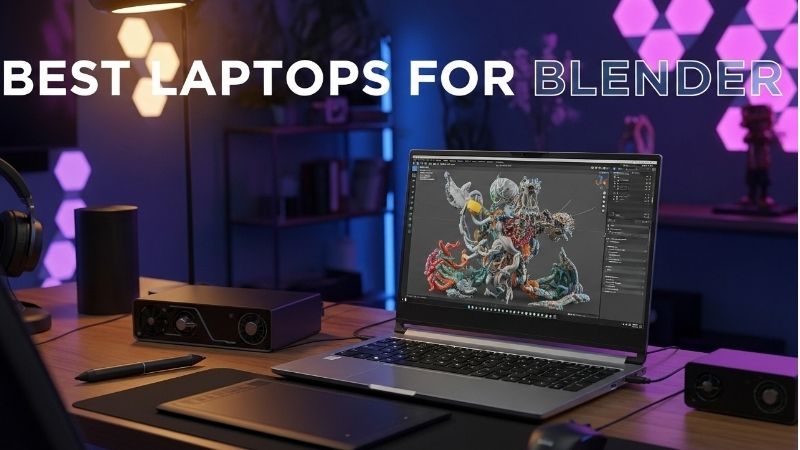
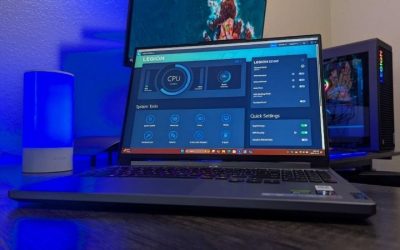
The Lenovo Legion Pro 7i with RTX 5080 is a compelling performance-oriented choice for artists who also play demanding PC games. Its 16GB GPU memory capacity makes it suitable for many substantial Cycles projects.
The ASUS ProArt P16 with RTX 5090 is the premium creator-focused alternative. Its 24GB GPU memory, 64GB system memory configuration, and high-resolution OLED display are particularly attractive for professional 3D workflows.
For buyers prioritizing sustained rendering over portability, larger gaming systems such as the ASUS ROG Strix SCAR 18 and Razer Blade 18 deserve consideration. These are configuration-based recommendations, not claims that every laptop has been independently researched by Geek Gaming Tricks.
Comparison table: laptop configurations and buying risks
| Laptop configuration | GPU | VRAM | Best for | US price — exact variant, checked Oct 31, 2026 | Stock status — exact variant, checked Oct 31, 2026 |
|---|---|---|---|---|---|
| Lenovo Legion Pro 7i Gen 10 | RTX 5080 Laptop | 16GB | Balanced rendering and gaming | $3,598.99 (Lenovo US selected 83F50080US RTX5080) | Add to Cart; family has other variants |
| ASUS ProArt P16 | RTX 5090 Laptop | 24GB | Large scenes and creation | $5,499.99 (Best Buy US H7606WX-XH99T) | Add to Cart (Best Buy, no completed checkout) |
| ASUS ROG Strix SCAR 18 | RTX 5090 Laptop | 24GB | Desk-based rendering | $4,999.99 (ASUS US G835LXG-DB96) | Notify Me / Coming Soon (2026 selected SKU) |
| Razer Blade 18 | RTX 5090 Laptop | 24GB | Premium desktop replacement | $5,399.99 (Razer US, 2026 RTX5090/32GB/2TB) | Stock unclear for selected configuration |
| ASUS ProArt P16 | RTX 5080 Laptop | 16GB | Color-sensitive creation | No verified US RTX 5080 SKU/retail listing | US ASUS H7606 where-to-buy no RTX5080 option found |
| Lenovo Legion Pro 7i Gen 10 | RTX 5070 Ti Laptop | 12GB | Moderate budgets | $3,598.99 (Lenovo US selected 83F50080US RTX5080) | Add to Cart; family has other variants |
US price and inventory observations are tied to the named seller, selected SKU, color or memory configuration where specified. “Buy Now” and “Add to Cart” describe purchase buttons, not a completed checkout or guaranteed warehouse stock. Family-level pricing, obsolete variants, and conflicting source badges are explicitly qualified. Unresolved rows are not assumed purchasable.
Blender benchmark context
| Laptop GPU | Approximate Blender median score |
|---|---|
| RTX 5090 Laptop | 8,012 |
| RTX 5080 Laptop | 6,660 |
| RTX 5070 Ti Laptop | 5,015 |
| RTX 4090 Laptop | 7,033 |
The shortlisted laptops and their real-world trade-offs
Lenovo Legion Pro 7i Gen 10 — Best Performance-Oriented Choice
The RTX 5080 Laptop GPU provides 16GB of GDDR7 memory, useful for detailed scenes, product visualization, environment modeling, character assets, and GPU-accelerated rendering. The gaming-oriented design also suits users working in Unreal Engine or modern games.
Check the exact GPU power configuration, processor, installed RAM, upgrade options, SSD capacity, and US SKU. 32GB system RAM is a practical starting point; 64GB is preferable for larger scenes. Buy for balanced Cycles work and gaming; skip if lightweight travel is the priority.
ASUS ProArt P16 RTX 5090 — Best for Professional Creators
ASUS documents a configuration with AMD Ryzen AI 9 HX 370, RTX 5090 Laptop GPU, 24GB GDDR7 GPU memory, and 64GB onboard LPDDR5X system memory. Its 16-inch 3840 × 2400 OLED touchscreen offers a 120Hz refresh rate and 100% DCI-P3 coverage.
24GB VRAM is valuable for complex textures and geometry, while the display suits texturing and compositing. Thin construction does not guarantee sustained cooling; onboard RAM should not be assumed upgradeable. Buy for memory, display, and portability; skip when maximizing render performance per dollar is the only goal.
ASUS ROG Strix SCAR 18 RTX 5090 — Best for Desk-Based Rendering
An RTX 5090 configuration offers 24GB of VRAM for substantial scenes. An 18-inch display can accommodate Blender’s viewport, timeline, Outliner, and Properties editor together.
A larger chassis can provide more cooling space but is not proof of better thermals. Check extended-workload reviews of the exact SKU and consider fan noise and portability. Buy for a desk-based mobile workstation; skip for daily commuting.
Razer Blade 18 RTX 5090 — Best Premium Desktop Replacement
The Blade 18 combines a large display and RTX 5090 Laptop GPU with 24GB VRAM, targeting artists who work across Blender, editing applications, and gaming.
Premium positioning does not establish superior value. Compare sustained rendering, memory configuration, display, and service terms with competing RTX 5090 laptops. Buy for a premium large-screen system; skip if a lower-priced RTX 5080 satisfies your projects.
ASUS ProArt P16 RTX 5080 — Best for Rendering and Color Work
This creator-focused option combines an RTX 5080 Laptop GPU with 16GB dedicated VRAM and a display-oriented workflow for texturing, materials, and compositing.
It provides less memory headroom than the RTX 5090 model. Verify the exact US SKU’s RAM, SSD, display, and GPU configuration. Buy for a balanced creative workflow; skip if scenes regularly exceed 16GB GPU memory.
Lenovo Legion Pro 7i RTX 5070 Ti — Best Lower-Tier Alternative
The RTX 5070 Ti Laptop GPU provides 12GB VRAM, appropriate for moderate projects, modeling, and learning advanced workflows.
Complex scenes and high-resolution textures may expose memory limits earlier than on 16GB or 24GB GPUs. Buy for moderate scene complexity; skip for memory-intensive professional rendering.
Buying guide: verify the laptop for your workload
Price checked October 28, 2026: Price not verified for all six configurations. Stock status: Unclear for all six configurations at US retailers. Buyers should verify exact SKUs and availability before purchasing. This is a historical snapshot, not an October 31 checkout verification for every SKU; the comparison table records the current evidence limits.
Blender GPU performance: what the benchmarks show
Blender Open Data provides a useful starting point for evaluating NVIDIA laptop graphics processors. Its public database collects submitted benchmark results and reports median rendering scores. Higher scores indicate stronger performance in the benchmark workload.
These are GPU-level community results, not controlled head-to-head tests of the six laptops listed above. Scores can vary with GPU power limits, cooling, driver versions, benchmark versions, and other configuration differences. GPU memory is equally important: a project exceeding available VRAM can behave very differently from one that fits comfortably.
How to choose a gaming laptop for Blender
Prioritize GPU memory: 8GB suits smaller learning projects; 12GB is a reasonable intermediate tier; 16GB supports substantial projects; 24GB provides more headroom for demanding professional scenes. These are planning tiers, not hard scene-size limits.
Compare sustained GPU power: GPU names do not reveal actual sustained performance. Check manufacturer power configurations and independent extended-load tests; a short benchmark may not reflect a long render.
Choose enough system RAM: 32GB is a practical baseline for serious work; 64GB helps larger scenes, simulations, and multitasking. Check whether RAM is soldered or replaceable.
Consider CPU performance
CPU performance still matters for modeling, dependency-graph evaluation, simulations, and tasks that do not primarily scale with GPU rendering.
Do not overlook storage: 1TB SSD is a reasonable minimum for many users; 2TB or more helps large project libraries. Verify available SSD slots and upgrade restrictions.
RTX 5090 vs RTX 5080 vs RTX 5070 Ti for Blender
The RTX 5090 Laptop GPU offers the most VRAM among these options and strong aggregate benchmark performance. The RTX 5080 balances 16GB VRAM and rendering capability. The RTX 5070 Ti can handle moderate projects but offers less headroom with 12GB VRAM. For scenes that fit within 16GB, a well-configured RTX 5080 may be more rational; artists regularly approaching that limit may benefit from 24GB.
Common mistakes when buying a Blender laptop
Choosing based on gaming FPS
Gaming frame rates are not Blender Cycles benchmarks.
Ignoring GPU power limits
The same GPU can perform differently across laptop cooling and power designs.
Assuming VRAM can be upgraded
Dedicated laptop GPU memory generally cannot be upgraded separately.
Buying a high-end GPU with insufficient RAM
Balance system memory with GPU capability.
Ignoring noise and cooling
Extended renders can generate sustained heat and fan noise.
Plan for your largest Cycles scene, not an average demo
Before committing to a 12GB, 16GB or 24GB GPU, open a representative Blender file on your current system and record the GPU memory used with its usual textures, subdivision, render resolution and denoising settings. A scene that runs near the capacity limit can leave little room for a more complex revision. Out-of-core behavior and CPU fallback may change both render speed and responsiveness, so a small percentage of extra GPU throughput is not a substitute for enough memory. If two laptops share an RTX GPU name, compare the manufacturer power limits and independent long-duration rendering behavior rather than assuming identical times.
Check the full creator workflow, not just the GPU
A laptop that scores well in a short GPU benchmark may still feel awkward when you edit geometry, bake textures, work across multiple monitors and move large project assets. Check whether the RAM is replaceable, whether a second NVMe drive is supported, and whether the screen has the color controls your work requires. Consider AC power and cooling noise during overnight renders. If portability is rare and upgrades matter, a desktop may offer better serviceability; if clients, studios or classrooms require mobile work, weigh chassis size and charging logistics against peak speed.
How we selected these options and checked evidence
We prioritized documented laptop GPU memory and hardware configurations, then weighed their relevance to Blender Cycles, cooling under long jobs, upgradeable system RAM and display quality. Ranking language reflects feature fit rather than controlled in-house render tests.
The comparison is based on the exact configuration and technical limitations recorded in this draft, with model identities, connection requirements, and purchase conditions treated separately. Published manufacturer specifications are not substitutes for independent long-duration measurements. Prices and stock are seller-, date-, and region-specific; where no current U.S. checkout was verified, that uncertainty remains visible instead of being presented as a live offer. The recommendations are therefore shortlists for further verification, not accounts of our own hands-on lab tests.
Frequently asked questions
Is an RTX 5080 laptop good enough for Blender?
Yes, 16GB VRAM is a strong option for many serious workflows when paired with adequate cooling and RAM.
Is 24GB of VRAM necessary for Blender?
Not for every project. It is valuable when scenes approach or exceed smaller GPU memory capacities.
Is 32GB of RAM enough?
It is a reasonable starting point; larger scenes and simulations may benefit from 64GB.
Is a gaming laptop better than a workstation laptop?
Neither category is automatically better. Compare exact hardware and application requirements.
Can Blender use NVIDIA OptiX?
Yes, on supported NVIDIA GPUs with compatible Blender and driver versions.
Should I buy a laptop or desktop?
Desktops offer more upgrade flexibility and cooling; laptops make sense when portability is essential.
Final thoughts
For many artists, an RTX 5080 laptop with 16GB VRAM, adequate RAM, and sustained cooling offers a sensible balance. Lenovo Legion Pro 7i is a compelling gaming-oriented candidate, while ASUS ProArt P16 emphasizes creator features. For demanding scenes, compare 24GB RTX 5090 configurations. Before purchasing, check the VRAM use of your largest Blender project and verify exact US pricing, availability, and sustained rendering results.