The best gaming laptops for esports tournaments must do more than produce a high average FPS. They need predictable frame times, reliable wired networking, usable peripheral ports, a high-refresh display for practice, and enough portability to survive travel. For organized events, the first question is whether players are allowed to bring their own laptop at all: many competitions provide standardized PCs. This guide compares six documented laptop configurations for permitted bring-your-own-device events, team boot camps and tournament practice. It does not claim any of them is approved by a particular organizer. If the organizer supplies standardized desktops, a personal laptop may be useful only for practice and travel. If bring-your-own-device play is allowed, confirm Ethernet access, approved peripherals, monitor outputs and anti-cheat requirements before picking a configuration. A measured 1% low or consistent frame-time trace in your actual title is more useful than comparing peak frame rates from unrelated games, resolutions or power profiles.
Quick verdict: practical laptops for esports events
Best balanced practice and travel choice: Lenovo Legion Pro 7i Gen 10 RTX 5080, with a 16-inch 240Hz OLED configuration and strong documented GPU power. Best larger stationary practice option: ASUS ROG Strix SCAR 18 G835LWG-DB96 (2026), with an 18-inch 4K 240Hz panel and 2.5Gb Ethernet. Best lower-GPU-tier Legion alternative: Legion Pro 7i RTX 5070 Ti. The other candidates are a Legion Pro 7i RTX 5090, the 2026 SCAR 18 RTX 5090 and the 2025 Strix G16 RTX 5070 Ti. A higher-tier GPU does not automatically improve competitive outcomes; pick for your specific game and monitor setup.
Comparison table: laptop configurations and buying risks
| Configuration | Verified family feature | Use case | Caveat | US price — exact variant, checked Oct 31, 2026 | Stock status — exact variant, checked Oct 31, 2026 |
|---|---|---|---|---|---|
| Legion Pro 7i Gen 10 RTX 5080 | 16-inch 2560×1600 240Hz OLED on cited variant | Travel/practice balance | Confirm US SKU and LAN | $3,399.99 (Lenovo US, 83F500M0US RTX5080) | Add to Cart on Lenovo US; checkout stock unconfirmed |
| Legion Pro 7i Gen 10 RTX 5070 Ti | Up to 140W GPU including boost | Cost-conscious performance | Price not verified | $3,149.99 (Lenovo US, selected RTX5070Ti/32GB config) | Configurable offer; checkout stock uncertain |
| Legion Pro 7i Gen 10 RTX 5090 | 24GB GDDR7 GPU option | High-end multi-game rig | Likely overkill for light esports | $4,914.99 (Lenovo US 83F50019US) | Add to Cart; checkout not confirmed |
| ROG Strix SCAR 18 2026 G835LWG-DB96 | 18-inch 4K 240Hz Mini LED; RTX 5080 | Large desk setup | Heavy; 4K demands GPU | $4,299.99 (ASUS US; G835LWG-DB96) | Buy Now; checkout inventory not confirmed |
| ROG Strix SCAR 18 2026 G835LXG-DB96 | 18-inch 4K 240Hz Mini LED; RTX 5090 | High-end desktop replacement | Heavy and premium | $4,999.99 (ASUS US; G835LXG-DB96) | Notify Me / Coming Soon on ASUS |
| ROG Strix G16 2025 RTX 5070 Ti variant | RTX 5070 Ti, up to 140W incl. boost | Compact performance alternative | Exact display/ports vary | $2,299.99 (Best Buy G614PR-G16.R95070TI) | Add to Cart / seller-specific pickup; other configurations vary |
US price and inventory observations are tied to the named seller, selected SKU, color or memory configuration where specified. “Buy Now” and “Add to Cart” describe purchase buttons, not a completed checkout or guaranteed warehouse stock. Family-level pricing, obsolete variants, and conflicting source badges are explicitly qualified. Unresolved rows are not assumed purchasable.
Additional comparisons and purchase considerations
Stock status is unclear for all six exact US purchase configurations. This is a research shortlist, not a verified in-stock ranking. No sale prices, FPS benchmarks, or input-latency measurements are invented.
The shortlisted laptops and their real-world trade-offs
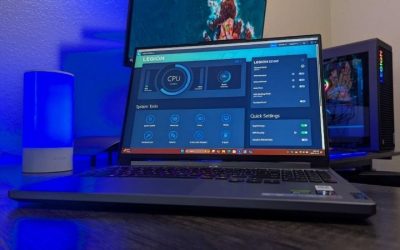
Lenovo Legion Pro 7i Gen 10 RTX 5080 — best balanced candidate
Why it stands out.
Lenovo documents an RTX 5080 Laptop GPU with 16GB GDDR7 and up to 175W including boost. A documented 16-inch 2560×1600 240Hz OLED configuration also makes this a plausible all-in-one practice machine. The 240Hz figure is a panel specification, not a measured response or latency result.
Who should buy or skip.
Consider it for mixed esports and demanding AAA gaming, especially when the same laptop will travel to team practice. Skip if your tournament forbids personal PCs or a less expensive GPU already maintains your game’s target frame rate. Verify the exact US part number, Ethernet and external-display wiring before ordering.
Legion Pro 7i Gen 10 RTX 5070 Ti — lower-tier option
Why it stands out.
Lenovo lists an RTX 5070 Ti Laptop GPU option with 12GB GDDR7 and up to 140W including boost. Competitive titles often reward CPU consistency and tuning more than additional VRAM, so this tier deserves attention if the final price is substantially lower.
Who should buy or skip.
Choose it when your game’s measured performance meets the target on an external competition monitor. Skip if you also need substantial GPU headroom for production, streaming and visually demanding games. Price and US stock remain unverified.
ASUS ROG Strix SCAR 18 2026 RTX 5080 — large-screen station
Why it stands out.
ASUS lists US model G835LWG-DB96 with an Intel Core Ultra 9 290HX Plus, RTX 5080 Laptop GPU, 18-inch 3840×2400 240Hz Mini LED display, 32GB RAM and a 2.5Gb Ethernet port. The large display can be comfortable for practice and replay review, but native 4K is not necessary for competitive play.
Who should buy or skip.
Consider it for desk-based training and travel between fixed locations. At about 8.16 pounds in ASUS documentation, it is not an ultralight event laptop. Test your preferred competitive resolution and scaling before a match.
ASUS ROG Strix SCAR 18 2026 RTX 5090 — premium replacement
Why it stands out.
ASUS identifies G835LXG-DB96 as an RTX 5090 model in the same 2026 SCAR 18 family, with a 4K 240Hz panel and 2.5Gb Ethernet. Its premium GPU is more relevant to mixed workloads than to esports titles that already run at the display’s refresh ceiling.
Who should buy or skip.
Consider it when the laptop doubles as a powerful workstation. Skip for tournaments with supplied PCs or when portability and budget matter more than peak graphics capacity. Confirm the specific US SKU before purchase.
Legion Pro 7i Gen 10 RTX 5090 — high-end multitasker
Why it stands out: The Lenovo family offers an RTX 5090 Laptop GPU with 24GB GDDR7 and up to 175W including boost. This extra memory is useful for certain non-esports workflows, but there is no basis to promise better tournament results from memory capacity alone.
Who should buy or skip: It makes more sense for players who also create 3D assets, edit video or play demanding games. Pure esports buyers should compare measured latency and frame-time consistency against the RTX 5080 and RTX 5070 Ti before paying more.
ASUS ROG Strix G16 2025 RTX 5070 Ti — compact alternative
Why it stands out: ASUS documents 2025 Strix G16 RTX 5070 Ti variants with up to 140W including Dynamic Boost. A 16-inch chassis can be easier to pack than an 18-inch desktop replacement, though exact dimensions, panel refresh and ports vary by variant.
Who should buy or skip: Choose only after checking the exact US model number, monitor output and wired networking. Do not transfer specs from a different year or regional suffix to the product you buy.
Buying guide: verify the laptop for your workload
What actually matters in tournament play
Stable frame times beat peak FPS: In a competitive shooter, a brief CPU or GPU hitch can be more disruptive than a small difference in average FPS. Look for repeatable 1% low FPS and frame-time traces measured in the exact game, resolution, patch and power mode. Avoid comparing isolated numbers from unrelated reviewers.
Display and external monitor strategy: A 240Hz panel can show a new frame roughly every 4.17 milliseconds, but refresh rate alone does not establish low end-to-end latency. Pixel response, processing, GPU output and peripheral latency also matter. If an event supplies a monitor, confirm the laptop supports its required resolution and refresh rate through the actual cable and port.
Wired LAN and USB reliability: Wired Ethernet is preferable when the organizer permits it and provides network drops. Check whether the laptop has a built-in Ethernet jack, whether USB hubs are permitted, and whether your keyboard, mouse and headset can connect without a fragile chain of adapters.
Rules and anti-cheat compatibility: Some competitions prohibit personal PCs or mandate supplied hardware and software. Never assume that a personal laptop, custom driver, macro profile, USB device or overlay is allowed. Obtain the event rulebook and confirm with staff before travel.
Tournament-day setup checklist
Before leaving home: Request written confirmation of BYOD eligibility, game version, anti-cheat rules, allowed peripherals and display connections. Install official GPU and chipset drivers well ahead of the event, not minutes before a match. Save a stable power profile, game settings and mouse sensitivity. Test the complete setup while plugged into the OEM power adapter.
At the venue: Ask staff which network and video ports are approved. Connect peripherals directly where practical. Verify Windows display refresh rate and the game’s full-screen mode. Disable unneeded background downloads and notifications using normal OS controls; do not bypass security or anti-cheat. Run the organizer’s permitted warm-up or benchmark and stop changing settings once performance is stable.
After a problem: If FPS suddenly falls, check AC power, thermal conditions, in-game resolution and background load before changing drivers. If the external display lacks the expected refresh rate, check the monitor OSD, cable, Windows Advanced display settings and GPU control panel. Escalate to event staff rather than attempting unauthorized software changes.
Prepare the complete tournament connection plan
Ask organizers whether personal laptops are permitted and whether they supply a monitor, wired network and peripherals. List every approved item you must carry: original charger, verified video cable, mouse, keyboard, headset, and a backup if the event allows one. Confirm anti-cheat and driver policies before changing system settings. Practice on the same external resolution and refresh rate when possible; a display rated for 240Hz does not guarantee the game will sustain 240 FPS or low end-to-end latency. Do not rely on a dock unless the rules and the video path have been tested.
Evaluate a consistent match workload
For the competitive games you actually play, collect 1% low FPS or frame-time recordings at a consistent game version, graphics preset, resolution and AC power profile. Short peaks are poor predictors of hitches during a decisive fight. Check temperature and clock stability over a full practice block and note whether fans compromise communication. If a less expensive GPU meets your stable performance target, spend the remaining budget on dependable peripherals, network and travel logistics instead of automatically stepping up to a flagship.
How we selected these options and checked evidence
We examined high-refresh displays, GPU tiers, available wired networking and practical transport trade-offs. A listed system is not presumed legal at an event: the organizer’s hardware, anti-cheat and peripheral rules come first.
The comparison is based on the exact configuration and technical limitations recorded in this draft, with model identities, connection requirements, and purchase conditions treated separately. Published manufacturer specifications are not substitutes for independent long-duration measurements. Prices and stock are seller-, date-, and region-specific; where no current U.S. checkout was verified, that uncertainty remains visible instead of being presented as a live offer. The recommendations are therefore shortlists for further verification, not accounts of our own hands-on lab tests.
Frequently asked questions
Is 240Hz enough for esports?
It can be a strong starting point. Whether it is sufficient depends on the game, player preference and the frame rates the laptop can sustain. Higher refresh alone does not guarantee lower total input latency.
Do I need an RTX 5090 laptop?
Usually not solely for esports. Test the actual game and settings first; CPU consistency, thermals and peripherals can matter more.
Should I use an external monitor?
Use one if the event provides it or your practice workflow benefits from it. Confirm supported resolution, refresh, connection and organizer rules.
Can I bring my own laptop to a LAN tournament?
Only if that specific organizer permits it. Many events supply standardized PCs, and the rulebook overrides any hardware recommendation.
How much RAM should I choose?
16GB may suffice for many competitive games, but 32GB offers useful headroom for multitasking, voice chat and capture. Check your actual game requirements.
Final thoughts
Before shopping, write down the tournament’s BYOD policy, approved peripherals, external-monitor requirements and the game’s target refresh rate. If BYOD is allowed, shortlist the Legion Pro 7i RTX 5080 for balance, the RTX 5070 Ti for a potentially lower-cost option, or the SCAR 18 for a desk-based setup. Do not buy until exact US stock, price, port compatibility and performance evidence are verified.