Key takeaways
- Enter BIOS: Restart and tap Delete or F2 during boot to open the UEFI/BIOS.
- Find the profile setting: Look for XMP, EXPO, DOCP, or A-XMP, usually on the main page or in an overclocking/memory menu.
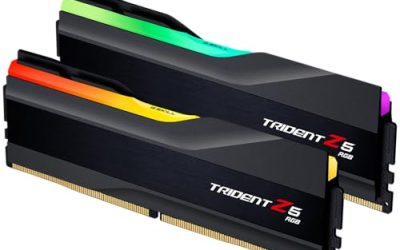
- Select Profile 1: Enable it; the board loads the rated speed (for example DDR5-6000 CL30 on a G.SKILL Trident Z5 Neo kit).
- Save and reboot: Press F10 to save. The system restarts and applies the profile.
- Verify: Open Task Manager’s Performance tab or CPU-Z to confirm the memory now reports its rated speed.
Here is a secret that surprises many new builders: buy a fast DDR5-6000 kit, install it, and it runs at a pokey default speed like 4800MHz until you flip one switch. That switch is XMP (Intel) or EXPO (AMD), a stored profile that applies your memory’s rated speed and timings. Skipping it leaves free performance on the table, and it is the single easiest tune in PC building.
This guide explains what these profiles are and walks through enabling them safely, so kits like a Corsair Vengeance DDR5-6000 or a G.SKILL Trident Z5 Neo EXPO kit actually run at the speed you paid for. It takes about two minutes.
Our top picks
 Corsair Vengeance RGB RS DDR5 16GB
- Disclaimer: Maximum Speed requires overclocking/PC BIOS adjustments
- AMD EXPO & Intel XMP 3.0 Compatible Only:…
- Dynamic RGB Lighting: Individually addressable RGB lighting delivers…
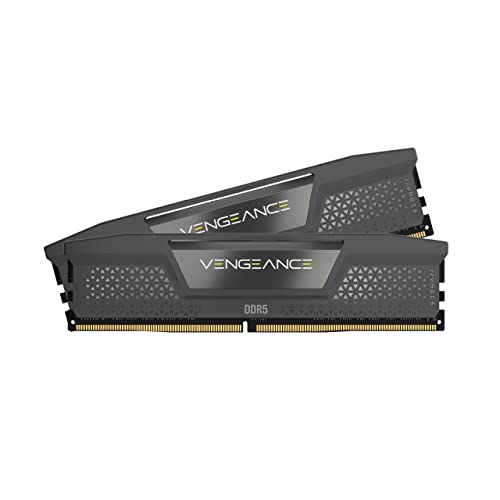 CORSAIR Vengeance DDR5 32GB
- Disclaimer: Maximum Speed requires overclocking/PC BIOS adjustments
- AMD EXPO & Intel XMP 3.0 Compatible Only:…
- Onboard Voltage Regulation: Enables easier, more finely-tuned, and…
| Product | Key specs | |
|---|---|---|
 G.SKILL Trident Z5 Neo RGB Series DDR5 G.SKILL Trident Z5 Neo RGB Series DDR5 | Check price | |
| Corsair Vengeance RGB RS DDR5 16GB | Disclaimer: Maximum Speed requires overclocking/PC BIOS adjustments AMD EXPO & Intel XMP 3.0 Compatible Only:… Dynamic RGB Lighting: Individually addressable RGB lighting delivers… | Check price |
| CORSAIR Vengeance DDR5 32GB | Disclaimer: Maximum Speed requires overclocking/PC BIOS adjustments AMD EXPO & Intel XMP 3.0 Compatible Only:… Onboard Voltage Regulation: Enables easier, more finely-tuned, and… | Check price |
 CORSAIR Vengeance DDR5 32GB CORSAIR Vengeance DDR5 32GB | Disclaimer: Maximum Speed requires overclocking/PC BIOS adjustments AMD EXPO & Intel XMP 3.0 Compatible Only:… Onboard Voltage Regulation: Enables easier, more finely-tuned, and… | Check price |
 CORSAIR Vengeance RGB DDR5 32GB CORSAIR Vengeance RGB DDR5 32GB | Disclaimer: Maximum Speed requires overclocking/PC BIOS adjustments AMD EXPO & Intel XMP 3.0 Compatible Only:… Dynamic Ten-Zone RGB Lighting: Illuminate your system with… | Check price |
| Corsair Vengeance DDR5 16GB | Disclaimer: Maximum Speed requires overclocking/PC BIOS adjustments AMD EXPO & Intel XMP 3.0 Compatible Only:… Onboard Voltage Regulation: Enables easier, more finely-tuned, and… | Check price |
| Corsair Vengeance RGB RS DDR5 64GB | Disclaimer: Maximum Speed requires overclocking/PC BIOS adjustments AMD EXPO & Intel XMP 3.0 Compatible Only:… Dynamic RGB Lighting: Individually addressable RGB lighting delivers… | Check price |
 G.SKILL Flare X5 Series DDR5 RAM G.SKILL Flare X5 Series DDR5 RAM | * Requires overclocking/BIOS adjustments G.SKILL Flare X5 Series DDR5 U-DIMM Memory Kit,… Non-ECC, DDR5 U-DIMM, 288-pin, for Desktop PC &… | Check price |
As an Amazon Associate we earn from qualifying purchases at no extra cost to you.
⚡ Save on Your Next PC — Amazon Prime
Prime members get fast free shipping on the systems above, plus early access to Prime Day & Black Friday PC deals. New members get a 30-day free trial.
Watch: How to Enable XMP / EXPO for Faster RAM — Video Review
What XMP and EXPO Actually Are
Memory ships conservatively so it works in every system. XMP (Extreme Memory Profile) and EXPO (Extended Profiles for Overclocking) are pre-tested profiles baked into the RAM that tell your motherboard the correct fast frequency, timings, and voltage. EXPO is AMD’s open standard tuned for Ryzen; XMP is Intel’s. Many kits, like the Corsair Vengeance DDR5 line, carry both, so one kit works either way.
How to Enable the Profile
- Enter BIOS: Restart and tap Delete or F2 during boot to open the UEFI/BIOS.
- Find the profile setting: Look for XMP, EXPO, DOCP, or A-XMP, usually on the main page or in an overclocking/memory menu.
- Select Profile 1: Enable it; the board loads the rated speed (for example DDR5-6000 CL30 on a G.SKILL Trident Z5 Neo kit).
- Save and reboot: Press F10 to save. The system restarts and applies the profile.
- Verify: Open Task Manager’s Performance tab or CPU-Z to confirm the memory now reports its rated speed.
Choosing the Right Kit
- For Ryzen (AM5): DDR5-6000 CL30 with EXPO is the proven sweet spot; kits like the G.SKILL Trident Z5 Neo or Flare X5 are tuned for it.
- For Intel: XMP kits scale higher, but DDR5-6000 to 6400 covers most gaming needs affordably.
- Capacity: 32GB (2x16GB) is the 2026 gaming standard; 64GB suits heavy multitasking and content creation.
Tips
- Update BIOS if the profile fails: A newer BIOS often improves memory compatibility and stability.
- Use two matched sticks: Dual-channel doubles bandwidth; enabling a profile on a single stick wastes potential.
- Test stability: After enabling, run a quick memory test and a few games to confirm everything is solid.
- Do not mix kits: Combining different kits can prevent the profile from applying cleanly.
Frequently Asked Questions
What is the difference between XMP and EXPO?
They do the same job, applying your RAM’s rated speed automatically. XMP is Intel’s standard and EXPO is AMD’s open profile optimized for Ryzen. Many kits include both, so you use whichever matches your platform.
Is enabling XMP or EXPO safe?
Yes. These profiles are factory-tested by the memory maker and designed to be enabled. They are the intended way to run your kit at its advertised speed and do not void the memory warranty.
Why is my RAM running slower than advertised?
Because you have not enabled XMP/EXPO yet. Without it, DDR5 defaults to a base speed like 4800MHz. Turning on the profile in BIOS applies the full rated frequency and timings.
My PC won’t boot after enabling the profile, what now?
Clear the CMOS to reset BIOS, update to the latest BIOS version, and try again. If it still fails, your board or CPU memory controller may not hit that speed, so try a slightly slower profile.
Conclusion
Enabling XMP or EXPO is the fastest free upgrade in PC building: two minutes in the BIOS unlocks the full speed of kits like the Corsair Vengeance or G.SKILL Trident Z5 Neo. Use two matched sticks, verify the speed afterward, and update your BIOS if a profile refuses to boot. Do not leave that performance switched off.