Key takeaways
- Identify your exact board and revision: Download firmware only for your precise model to avoid a mismatched, dangerous flash.
- Get the right file: Download the latest BIOS from the manufacturer’s support page and unzip it to a FAT32-formatted USB drive.
- Ensure stable power: Never flash during a storm or on a failing PSU; a power cut mid-flash is the main brick risk.
- Read the release notes: Some updates are one-way or reset settings, so know what changes before you commit.
A BIOS update can be the difference between a new CPU booting or a black screen, and it often unlocks better memory compatibility, security patches, and stability fixes. It sounds intimidating because a failed flash can, in rare cases, brick a board, but modern motherboards have made the process far safer than its reputation suggests.
This guide walks through updating your motherboard BIOS the safe way in 2026, including the near-foolproof BIOS Flashback feature found on boards like the ASRock B860M Pro A and ASUS TUF B550-PLUS. Follow the steps, do not rush, and you will be on the latest firmware without drama.
Our top picks




As an Amazon Associate we earn from qualifying purchases at no extra cost to you. Ratings are shown as listed on Amazon.
⚡ Save on Your Next PC — Amazon Prime
Prime members get fast free shipping on the systems above, plus early access to Prime Day & Black Friday PC deals. New members get a 30-day free trial.
Watch: How to Update Your Motherboard BIOS — Video Review
When You Actually Need a BIOS Update
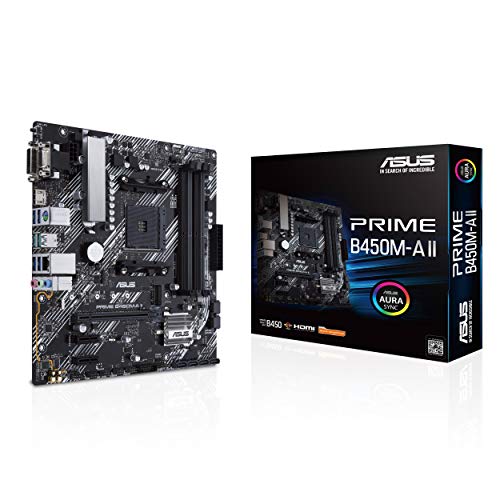
Do not update on a whim. Flash the BIOS when you are installing a newer CPU the board shipped before supporting, chasing a specific stability or memory fix, or applying an important security patch. If your system is stable and does your job, an update carries risk with little reward. The classic case is dropping a new Ryzen chip into an older AM4 board like the ASUS Prime B450M-A II, which may need a firmware bump first.
Preparing to Flash
- Identify your exact board and revision: Download firmware only for your precise model to avoid a mismatched, dangerous flash.
- Get the right file: Download the latest BIOS from the manufacturer’s support page and unzip it to a FAT32-formatted USB drive.
- Ensure stable power: Never flash during a storm or on a failing PSU; a power cut mid-flash is the main brick risk.
- Read the release notes: Some updates are one-way or reset settings, so know what changes before you commit.
The Two Safe Methods
- BIOS Flashback (safest): Boards like the ASRock B860M Pro A and ASUS TUF B550-PLUS let you flash with only the PSU connected, no CPU or RAM needed. Put the file on USB, press the Flashback button, and wait for the light to finish.
- In-BIOS updater: Boot into the BIOS and use the built-in tool (EZ Flash, Instant Flash) to select the file from your USB drive. Reliable when your current CPU already posts.
Tips
- Do not interrupt it: Never restart or cut power mid-flash; let the process complete fully.
- Format USB as FAT32: Most Flashback tools only read FAT32 drives, not exFAT or NTFS.
- Note your settings: Updates often reset the BIOS, so record your XMP/EXPO and fan profiles first.
- Keep a diagnostic tool handy: A POST code card helps you troubleshoot if something goes wrong on boards without a debug display.
Frequently Asked Questions
Can updating the BIOS damage my PC?
Only if the flash is interrupted by power loss or you use the wrong file. Use the correct firmware, ensure stable power, and do not touch the system while it flashes; the risk is then very low.
What is BIOS Flashback and why is it safer?
Flashback updates the firmware directly from a USB drive with only the power supply connected, needing no CPU, RAM, or GPU. It bypasses the need to boot, making it the safest way to update, especially for new-CPU compatibility.
Do I need a CPU installed to update the BIOS?
With BIOS Flashback, no, which is exactly why it exists. Without Flashback, you need a compatible CPU that the current BIOS already supports in order to boot into the updater.
Will a BIOS update erase my Windows install?
No. Updating the BIOS does not touch your storage drives or operating system. It may reset BIOS settings like XMP and boot order, which you simply reconfigure afterward.
Conclusion
Update your BIOS only when you have a reason, then do it carefully: correct file, FAT32 USB, stable power, and no interruptions. If your board supports BIOS Flashback, use it for the safest possible flash. Note your settings beforehand, and the whole process is a low-stress ten minutes.