
Key takeaways
- Enable the monitor’s highest refresh rate in Windows; a 144Hz panel stuck at 60Hz throws away most of its responsiveness advantage.
- Turn on Game Mode in the monitor’s OSD to bypass image-processing that adds latency.
- Avoid traditional V-Sync where possible, as it can add significant lag; use FreeSync or G-Sync with a frame cap just below your refresh rate instead.
- Cap your frame rate a few FPS under your refresh ceiling to keep adaptive sync in its low-latency zone rather than letting frames overshoot.
Input lag is the invisible tax on your reflexes: the delay between you moving the mouse or pressing a key and the game responding on screen. It matters because no amount of skill can beat a system that reacts a fraction of a second late, and in fast shooters, fighting games, and rhythm titles that delay is the difference between a clean hit and a frustrating miss. The good news is that most input lag comes from fixable settings and hardware choices rather than some unavoidable limit.
This guide walks through where input lag actually comes from and the concrete steps that shave milliseconds off your response time, from display settings and driver features to peripherals and cabling. You will learn which tweaks give the biggest gains, which are placebo, and how to build a genuinely responsive setup without spending a fortune chasing tiny improvements.
Our top picks
 Logitech G305 Lightspeed Wireless Gaming Mouse
- The next-generation optical HERO sensor delivers incredible performance…
- Ultra-fast LIGHTSPEED wireless technology gives you a lag-free…
- G305 wireless mouse boasts an incredible 250 hours…
 Logitech G502 Hero Wired Gaming Mouse
- HERO Gaming Sensor: Next generation HERO mouse sensor…
- 11 programmable buttons and dual mode hyper-fast scroll…
- Adjustable weights: Match your playing style
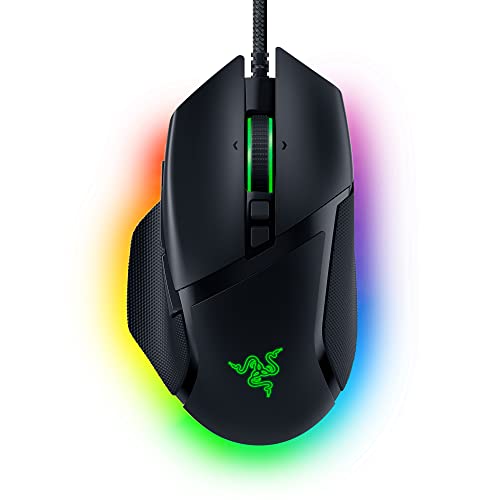 Razer Basilisk V3 Customizable RGB Wired Ergonomic
- PC gaming mouse favored by millions worldwide with…
- Assign macros and secondary functions across 11 programmable…
- Speed through content with a scroll wheel that…
| Product | Key specs | |
|---|---|---|
| Logitech G305 Lightspeed Wireless Gaming Mouse | The next-generation optical HERO sensor delivers incredible performance… Ultra-fast LIGHTSPEED wireless technology gives you a lag-free… G305 wireless mouse boasts an incredible 250 hours… | Check price |
| Logitech G502 Hero Wired Gaming Mouse | HERO Gaming Sensor: Next generation HERO mouse sensor… 11 programmable buttons and dual mode hyper-fast scroll… Adjustable weights: Match your playing style | Check price |
| Razer Basilisk V3 Customizable RGB Wired Ergonomic | PC gaming mouse favored by millions worldwide with… Assign macros and secondary functions across 11 programmable… Speed through content with a scroll wheel that… | Check price |
 Logitech G PRO X2 SUPERSTRIKE Wireless Gaming Logitech G PRO X2 SUPERSTRIKE Wireless Gaming | Designed With Pros, Engineered to Win: Designed alongside… Dominate with industry-leading speed: 30 ms faster clicks… Haptic Feedback: This breakthrough haptic gaming mouse with… | Check price |
 Redragon M612 Wired RGB Optical Gaming Mouse Redragon M612 Wired RGB Optical Gaming Mouse | Pentakill, 5 DPI Levels - Geared with 5… Any Button is Reassignable - 11 programmable buttons… Comfort Grip with Details - The skin-friendly frosted… | Check price |
 Logitech G305 Lightspeed Wireless Gaming Mouse Logitech G305 Lightspeed Wireless Gaming Mouse | Next-gen 12,000 DPI HERO optical sensor delivers unrivaled… Advanced LIGHTSPEED wireless gaming mouse for super-fast 1… Ultra-long battery life gives you up to 250… | Check price |
 Razer Basilisk V3 X HyperSpeed Customizable Wireless Razer Basilisk V3 X HyperSpeed Customizable Wireless | Favored by millions worldwide, the mouse’s signature shape… Unleash seamless, low-latency performance that's faster than other… With up to 535 hours on Bluetooth and… | Check price |
 Razer DeathAdder Essential Ergonomic Wired Gaming Mouse Razer DeathAdder Essential Ergonomic Wired Gaming Mouse | PRECISION 6,400 DPI OPTICAL SENSOR Supports up to 10 million clicks RIDGED, RUBBERIZED SCROLL WHEEL FOR MAXIMUM ACCURACY | Check price |
As an Amazon Associate we earn from qualifying purchases at no extra cost to you.
A high-polling, low-latency mouse is one of the easiest wins for responsiveness, which is why our recommended gear leans on proven performers like the Logitech G305 Lightspeed, the wired G502 Hero, and the Razer Basilisk V3 line. Wireless options here use low-latency radios that are effectively indistinguishable from wired in real play, so you can pick for comfort as well as speed.
⚡ Save on Your Next PC — Amazon Prime
Prime members get fast free shipping on the systems above, plus early access to Prime Day & Black Friday PC deals. New members get a 30-day free trial.
Watch: How to Reduce Input Lag in Games — Video Review
Where Input Lag Comes From
Input lag is a chain, not a single number. It accumulates from your peripheral (how fast the mouse reports its position), your PC (how quickly the game engine and GPU process the input into a frame), and your display (how long the panel takes to actually draw that frame). Reducing lag means trimming every link. A slow monitor can undo a fast mouse, and a badly configured game can undo a fast monitor, so it pays to think of the whole path from hand to eye.
Raise Your Frame Rate
Frame rate has an outsized effect on input lag because each new frame is a fresh opportunity for the game to reflect your input. At 60 FPS a new frame arrives roughly every 16ms; at 144 FPS it is about every 7ms. Higher, more consistent frame rates therefore cut the delay before your action appears. Lowering demanding settings to hit a stable high frame rate usually feels far more responsive than a prettier but choppier image, especially in competitive play.
Tune Your Display and Sync Settings
- Enable the monitor’s highest refresh rate in Windows; a 144Hz panel stuck at 60Hz throws away most of its responsiveness advantage.
- Turn on Game Mode in the monitor’s OSD to bypass image-processing that adds latency.
- Avoid traditional V-Sync where possible, as it can add significant lag; use FreeSync or G-Sync with a frame cap just below your refresh rate instead.
- Cap your frame rate a few FPS under your refresh ceiling to keep adaptive sync in its low-latency zone rather than letting frames overshoot.
Use Low-Latency Driver Features
Modern GPUs include latency-reduction modes that are genuinely effective. NVIDIA’s Reflex, supported in many competitive titles, dynamically syncs the CPU and GPU to slash render-queue lag and is worth enabling wherever it appears. On the driver side, NVIDIA’s Low Latency Mode (set to Ultra) and AMD’s Anti-Lag do something similar for games without built-in support. These cost you nothing in image quality and can remove several milliseconds of delay with a single toggle.
Optimize Your Peripherals and Cabling
A gaming mouse with a 1000Hz or higher polling rate reports its position every millisecond, versus every 8ms on an old office mouse. Wired mice and modern low-latency wireless (like Lightspeed or HyperSpeed) are both excellent; older Bluetooth mice are not. Use a DisplayPort cable rated for your refresh rate, plug peripherals directly into the PC rather than through unpowered hubs, and connect your monitor to the GPU’s output, never the motherboard’s, so you aren’t routing through slower integrated graphics.
Tips
- Set your mouse polling rate to 1000Hz in its software; many ship at a lower default.
- Enable NVIDIA Reflex (or AMD Anti-Lag) in every competitive game that lists it in the options menu.
- Disable Windows features like HDR or high-DPI scaling on your gaming display if you notice added sluggishness, then re-test.
- Prioritize a stable frame rate over maxed-out graphics; a locked 144 FPS feels sharper than a fluctuating 165.
Frequently Asked Questions
Does wireless add noticeable input lag?
Modern gaming-grade wireless like Logitech Lightspeed or Razer HyperSpeed is effectively as fast as wired, with differences measured in fractions of a millisecond that no one can feel. Old Bluetooth mice are a different story and should be avoided for competitive play.
Will a higher refresh monitor reduce input lag on its own?
Partly. It reduces the display portion of the lag chain and lets high frame rates translate into faster on-screen response, but you also need the frame rate to feed it. The two work together rather than one replacing the other.
Is V-Sync bad for input lag?
Traditional V-Sync can add substantial latency because it holds frames back to prevent tearing. The better approach is adaptive sync (FreeSync or G-Sync) combined with a frame cap just under your refresh rate, which prevents tearing with far less delay.
What’s the single biggest fix for input lag?
For most people it is raising and stabilizing frame rate while enabling their monitor’s full refresh rate. Those two changes together usually deliver the largest, most obvious improvement before you touch anything else.
Conclusion
Reducing input lag is about trimming every stage of the path from your hand to the screen: a fast-polling mouse, a high and stable frame rate, a properly configured high-refresh display, and low-latency driver features all stack together. None of these tweaks is expensive or complicated, and the combined effect is a setup that feels instantly more connected to your inputs. Work through them once, verify each is actually enabled, and your reflexes finally get the responsive system they deserve.





