Key takeaways
- Physical Footprint: Typical dimensions range from 14.5 x 10.5 inches up to 15.5 x 11.5 inches, with a thickness of 1.0 to 1.5 inches. They generally weigh between 1.5 and 2.2 pounds, making them bulky for travel but sturdy on a desk.
- Fan Configuration: Lower-profile units feature three large fans (around 110mm to 120mm each) spinning at 1,000 to 1,200 RPM. Multi-fan units often combine one central 120mm fan with four smaller 70mm to 80mm corner fans capable of speeds up to 2,000 RPM.
- Power Draw: They plug directly into one of your laptop’s USB-A ports, drawing 5V of power with an energy consumption between 1.5W and 2.5W. Most pads include a dual-USB pass-through plug so you do not lose a usable USB port.
- Ergonomics & Build: Most units use a rigid plastic base topped with a steel or aluminum wire mesh plate. They typically offer 2 to 6 adjustable angle settings, tilting the keyboard anywhere from a subtle 5-degree pitch up to a steeper 20-to-30-degree incline.
If your laptop fan sounds like a jet engine taking off every time you open a few dozen browser tabs or export a video, you have likely wondered: do I need a laptop cooling pad? With hundreds of options flooding online marketplaces, it is easy to assume these elevated mesh trays are an essential desk accessory for keeping high-performance hardware alive.
As desk setups evolve in 2026, laptop cooling pads remain one of the most debated accessories in home office design. While they are often marketed as silver-bullet solutions that can magically turn a budget notebook into a freezing workstation, the reality is far more practical—and depends heavily on your specific laptop design and daily usage habits.
Our top picks
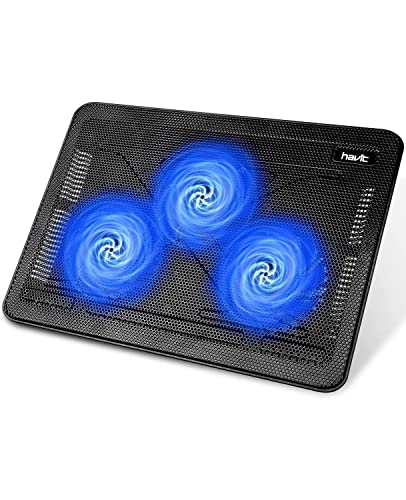 havit HV-F2056 Laptop Cooling Pad for 15.6-17
- Ultra-Portable: Slim, portable, and light weight allowing you…
- Ergonomic Comfort: Doubles as an ergonomic stand with…
- Optimized for Laptop Carrying: The metal mesh provides…
 Kootek Laptop Cooling Pad Cooler Stand with
- Dual USB Hub: With a built-in dual USB…
- Whisper-Quiet Operation: Enjoy a noise-free and interference-free environment…
- Enhanced Cooling Performance: The laptop cooling pad features…
As an Amazon Associate we earn from qualifying purchases at no extra cost to you.
The Short Answer
No, most people do not need a laptop cooling pad—unless your laptop has active bottom-intake ventilation and you regularly run demanding tasks like gaming, 3D rendering, or heavy video editing on a soft surface.
If you use a modern thin-and-light laptop (such as an Apple Silicon MacBook) for web browsing, writing, and video streaming on a hard desk, a fan-powered cooling pad provides virtually no thermal benefit. However, if your laptop relies on underside intake vents to pull air across a hot graphics card or processor, an active cooling pad can prevent heat buildup, reduce fan noise, and eliminate thermal throttling during extended workloads.
What You Actually Get
To understand whether a cooling pad makes sense for your desk, it helps to look at what these devices actually contain. A standard laptop cooling pad costs between $20 and $40. Popular options—such as the three-fan Havit HV-F2056 (around $27.99) or five-fan Kootek stand (around $29.99)—follow a similar physical footprint:
- Physical Footprint: Typical dimensions range from 14.5 x 10.5 inches up to 15.5 x 11.5 inches, with a thickness of 1.0 to 1.5 inches. They generally weigh between 1.5 and 2.2 pounds, making them bulky for travel but sturdy on a desk.
- Fan Configuration: Lower-profile units feature three large fans (around 110mm to 120mm each) spinning at 1,000 to 1,200 RPM. Multi-fan units often combine one central 120mm fan with four smaller 70mm to 80mm corner fans capable of speeds up to 2,000 RPM.
- Power Draw: They plug directly into one of your laptop’s USB-A ports, drawing 5V of power with an energy consumption between 1.5W and 2.5W. Most pads include a dual-USB pass-through plug so you do not lose a usable USB port.
- Ergonomics & Build: Most units use a rigid plastic base topped with a steel or aluminum wire mesh plate. They typically offer 2 to 6 adjustable angle settings, tilting the keyboard anywhere from a subtle 5-degree pitch up to a steeper 20-to-30-degree incline.
In terms of mechanics, a cooling pad does not act like a refrigerator; it does not blow refrigerated air into your computer. Instead, it pushes ambient room air upward. If your laptop has ventilation grilles on the bottom, the fans push air directly into those intakes, assisting the internal cooling system. If your laptop has a solid aluminum bottom without vents, the fans simply cool the exterior metal chassis, yielding minor heat dissipation.
Pros
- Prevents Thermal Throttling Under Heavy Loads: By forcing ambient air directly into bottom intake vents, active pads keep internal CPU and GPU temperatures consistently lower. This allows high-performance processors to sustain higher clock speeds without downclocking to protect themselves from heat.
- Improved Desk Ergonomics: The built-in kickstands elevate your laptop screen closer to eye level. Raising the display by 2 to 4 inches helps align your neck and shoulders, reducing slouching during long work sessions.
- Protects Surfaces and Lap Comfort: High-performance laptops can easily reach exterior surface temperatures exceeding 105°F (40°C). A cooling pad acts as a thermal barrier, keeping hot chassis metal off your knees, legs, or delicate wooden desk surfaces.
- Enables Airflow on Soft Surfaces: Placing a gaming laptop directly on a bed, couch, or blanket blocks its bottom intake vents entirely. A cooling pad creates a flat, elevated platform with clear clearance, allowing internal fans to breathe freely regardless of where you sit.
Cons
- Desk Clutter and Port Consumption: A cooling pad adds another thick platform and a stray USB cable to your workspace. Even with pass-through plugs, managing the power wire can disrupt a minimalist desk aesthetic.
- Accumulation of Internal Dust: Because active fans force continuous air into your laptop’s lower intake vents, they also push ambient dust and pet dander into the chassis at a faster rate, requiring more frequent internal cleaning.
- Added Acoustic Noise: While cooling pads are marketed as quiet (typically rated between 20 and 28 dBA), adding 3 to 5 spinning fans to your workspace introduces a constant low-frequency hum or whir that can be noticeable in quiet environments.
- Limited Benefit for Fanless Laptops: On laptops without bottom air vents (like modern MacBook Air models), ambient forced air can only chill the exterior aluminum case. This offers negligible improvements to internal processor performance.
Who Should Buy It
You should consider adding a cooling pad to your desk setup if you fall into one of the following categories:
- Gaming Laptop Owners: Dedicated graphics cards generate immense heat. If your laptop features bottom intake grilles and you notice stuttering frame rates after 30 minutes of gaming, an active pad provides immediate relief.
- Couch and Bed Workers: If you frequently work with your laptop resting on blankets, cushions, or your lap, a cooling pad provides the hard surface and air clearance required to keep internal fans from choking.
- Media Creators & 3D Artists: Long render times put continuous 100% stress on CPU and GPU cores. A cooling pad helps maintain steady thermal headroom over hours-long render queues.
Who Should Skip It
You can safely save your money and desk space if your setup matches these conditions:
- Apple Silicon MacBook Users: MacBook Air and MacBook Pro models rely on highly efficient ARM-based architecture and sealed, or side-exhausted, unibody aluminum enclosures. Blowing air against the bottom exterior does not meaningfully alter internal chip temperatures.
- Everyday Office & Web Browsing Users: Basic tasks like email, word processing, spreadsheet editing, and 1080p video streaming do not push modern processors hot enough to trigger thermal throttling.
- Minimalist Desk Purists: If you prefer a clean setup and already use an external monitor, keyboard, and mouse, a simple passive aluminum stand looks far cleaner and takes up less physical space.
Cheaper Alternatives
If you want to reduce your laptop’s operating temperature without purchasing a dedicated fan-powered pad, several cost-effective (and free) alternatives offer comparable results by simply improving passive airflow.
| Option | Cost | Trade-off |
|---|---|---|
| Passive Aluminum Laptop Stand | $15 – $25 | Elevates display and allows 100% open airflow beneath vents, but lacks active fans for extreme heat loads. |
| Rubber Feet / Riser Wedges | $5 – $10 | Ultra-portable and cheap lift for the rear edge; does not offer multi-angle height adjustment for the screen. |
| Compressed Air Can (Internal Dust Cleaning) | $6 – $12 | Clears clogged heatsinks to restore factory cooling performance; requires opening the back chassis cover. |
| Household Prop (Small Book or Bottle Caps) | Free ($0) | Instantly elevates rear intake vents on a desk; looks unrefined and offers zero anti-slip stability. |
In many real-world scenarios, simply lifting the rear edge of a laptop 0.5 to 1.0 inch off a flat desk allows the internal fans to draw in significantly more air, recovering up to 70% of the cooling gains that an active $30 fan pad would provide.
FAQ
Do cooling pads drain my laptop battery quickly?
Yes, if the cooling pad relies entirely on your laptop’s USB port for power while running on battery. Draws of 1.5W to 2.5W can shorten your overall battery runtime by 10% to 15%. To avoid battery drain, plug the cooling pad into a powered USB desk hub or wall adapter rather than the laptop itself.
Can a laptop cooling pad damage my laptop fans?
No. The low-pressure air produced by 5V cooling pad fans is not strong enough to over-spin or damage internal laptop fans. However, because they push more surrounding room air toward your laptop’s intake vents, they can accelerate dust accumulation inside the computer over time.
Do cooling pads work on Apple MacBooks?
For fanless models like the MacBook Air, cooling pads provide almost no practical benefit because there are no intake vents on the bottom panel. For MacBook Pro models, a pad can slightly chill the aluminum chassis, but a simple passive stand that elevates the laptop off the desk provides virtually identical thermal performance with zero added fan noise.
Is fan count or fan size more important in a cooling pad?
Fan size and placement matter more than raw fan count. One or two large 120mm fans running at lower speeds move a higher volume of air with significantly less acoustic noise than five small 70mm fans running at high RPMs. Choose a pad where the fans align directly with your specific laptop’s bottom ventilation grilles.