Key takeaways
- Windows Device Manager no longer reports a relevant USB enumeration failure.
- The correct Kraken model appears in CAM in the supported Cooling, Lighting, or display sections.
- Available fan curves, pump information, and display controls respond where the model actually supports them.
- Fans and pump function as specified by the cooler manual, and temperatures remain reasonable at idle and under ordinary use. Do not use a heavy stress test to verify suspected pump failure.
- Detection survives a full Windows restart and, if relevant, the exact wake-from-Sleep or cold-boot condition that previously caused it to disappear.
- Temporary changes to other programs or Windows settings are restored or documented.
An NZXT CAM not detecting cooler fix starts with checking whether your Kraken model is supported by CAM and whether Windows recognizes its USB interface. For a supported CAM-controlled Kraken, restart CAM and Windows, then inspect Device Manager before reinstalling anything. If Windows cannot see the cooler, investigate the internal USB connection and the power state; if Windows can see it but CAM cannot, check software conflicts and CAM installation health. A missing CAM tile does not, by itself, prove the pump has stopped—or that cooling is safe. Check the actual operating symptoms before running games or stress tests.
First, make sure the cooler is safe to operate
A USB communication error and a genuine pump failure require different responses. If the PC reports a CPU fan or pump fault, temperatures rise unusually fast, the system repeatedly shuts down to protect itself, or you hear abnormal grinding with evidence that coolant is not circulating, stop demanding workloads. Shut down safely and inspect the cooler using its exact installation guide or contact NZXT Support. Do not keep running a stress test just to see whether a missing software tile returns.
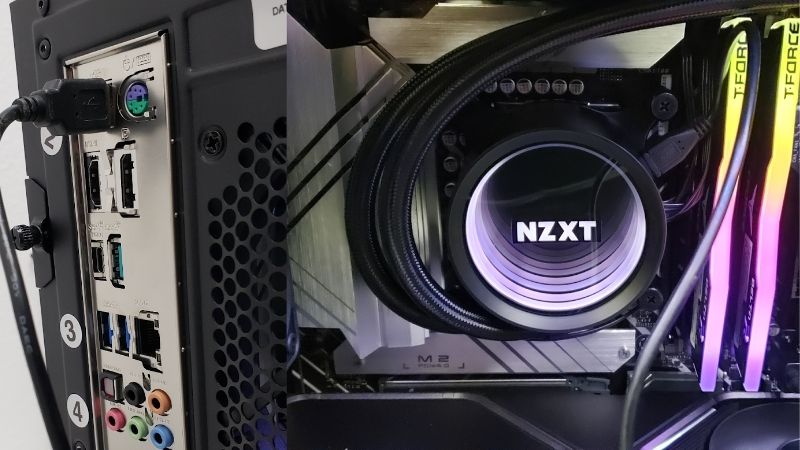
Some coolers have independent motherboard connections for power or speed reporting and can continue cooling without software control. Other symptoms, such as a blank display, missing LCD data, or a failed pump, need separate checks. An illuminated logo or spinning radiator fan is not sufficient evidence that the pump is working correctly.
Know which Kraken models should appear in CAM
Before applying an NZXT CAM not detecting cooler fix, identify the full product name and generation from the invoice, box, or model label. NZXT’s compatibility and fan-control documents distinguish CAM-powered Krakens from coolers controlled through motherboard headers. They also distinguish showing up in CAM from offering a particular Cooling or Lighting control.
| Cooler family | What NZXT documents | What to check first |
|---|---|---|
| Kraken Elite (2024), Plus (2024), Kraken/Elite (2023), and supported X/Z models | CAM-supported, but fan, RGB, and display controls vary by generation | Confirm the exact device is detected in Windows and then CAM |
| Kraken Core (2025) | Not a CAM-powered cooler; pump and fans connect to motherboard headers | Use the motherboard’s fan/pump controls; do not expect a standalone CAM cooler tile |
| Kraken 120 | Not a CAM Cooling device; certain NZXT RGB connections can expose Lighting control | Check the motherboard fan/pump setup and the separate RGB connection |
| Kraken M22 | Fan and pump speeds are controlled by motherboard headers, not CAM Cooling | Do not mistake an absent Cooling entry for a USB detection failure |
| Older Kraken X0 series such as X40/X60 | Uses dedicated Kraken Control rather than current CAM for cooler control | Verify the legacy product’s supported management method |
Those are family-level distinctions, not a substitute for the manual for your exact model. For example, some supported X-series products expose lighting functions in CAM but not direct fan control, while the newer Elite/Plus products have different controls. If your device is an unsupported or motherboard-controlled model, a CAM reinstall cannot add hardware features that it does not possess.
Match the symptom to the next safe action
| What you see | Likely area | First safe action |
|---|---|---|
| Cooler missing in both CAM and Device Manager | USB connection, power, cable, controller | Power down and check the internal USB header and model-specific power connections |
| Windows sees Kraken but CAM shows no device | CAM process, support, or software conflict | Restart CAM, update from official NZXT sources, close conflicting monitoring tools |
| “Unknown USB Device” or “Device Descriptor Request Failed” | USB enumeration or power state | Use NZXT’s targeted power-cycle steps for the affected device |
| Cooler appears but says communication failed | Third-party app also accessing USB/sensors | Isolate RGB/monitoring conflicts; optionally use Microsoft Process Explorer |
| Cooler is visible but LCD is blank | Display, breakout cable, renderer, or backlight | Use the exact Kraken display support guide, not a generic USB reset |
| CAM loads but hardware sensor values are absent | Sensor access or Windows/CAM software issue | Check the particular update history and the NZXT sensor advisory |
| CPU rapidly overheats or pump reads zero with fault symptoms | Possible cooling hardware problem | Stop heavy use and shut down; inspect hardware safely |
Write down your exact Kraken model, motherboard model, CAM version, Windows version, and when the problem began. These details matter more than guessing at a universal driver fix.
Restart CAM and check for a temporary software problem
- Save your work. Quit NZXT CAM from its notification-area icon if it is running. If it does not close, use Windows Task Manager to end only the stuck CAM application processes; do not terminate unrelated Windows services.
- Restart Windows. Choose Restart rather than repeatedly using Sleep. Open CAM again once Windows has finished loading.
- Look in the appropriate CAM area. A supported cooler’s controls may appear under Cooling or Lighting, depending on its generation and features. Confirm whether the whole device is gone or only one control panel is missing.
- Check NZXT’s official CAM download or update channel. Use the current stable release offered by NZXT; avoid unofficial old versions or third-party driver-download bundles.
Expected result: your supported cooler appears with the controls its model actually provides. If it is still absent, move to Windows detection. Do not repeatedly reinstall CAM if the operating system is not detecting the hardware in the first place.
Find the cooler in Windows Device Manager
NZXT’s September 2026 guidance recommends checking the device in Windows first. It says that if Windows cannot see a CAM-powered device, other software generally cannot communicate with it either. This is the most useful dividing line for diagnosis.
- Right-click the Start button and open Device Manager.
- Use View > Devices by container to make connected USB devices easier to identify. Depending on the cooler generation, you may see a name such as NZXT Kraken Device, NZXT KrakenX Device, NZXT KrakenZ Device, or Asetek USB Device. Exact labels vary.
- Look for warning symbols or Unknown USB Device (Device Descriptor Request Failed). Open the affected device’s Properties to record the error or device status. Check Universal Serial Bus controllers as well if the expected product is not obvious.
- If no device appears, select the computer at the top of Device Manager and choose Action > Scan for hardware changes where available.
- Reopen CAM after Windows recognizes the cooler. If Windows now sees it but CAM does not, proceed to software-conflict checks.
Expected result: a relevant USB device appears without a new Device Manager error. Microsoft’s Error codes in Device Manager in Windows describes how to interpret specific driver codes; the presence of an error does not establish that every Kraken needs the same replacement driver. Avoid removing unrelated USB host controllers or chipset drivers.
Check internal USB and power connections—with the PC off
NZXT says a poorly seated internal USB 2.0 connection, splitter, or incompatible hub can prevent Windows from recognizing CAM-powered hardware. Most relevant Krakens use an internal USB 2.0 header, but cable types and breakout connections differ by model. Checking a connection is a hardware step, not a software setting.
- Shut down Windows and disconnect wall power. Switch off the power supply if applicable. Do not open the case or move internal headers while the PC is running. If you are unfamiliar with PC hardware, have a qualified person perform the physical checks.
- Consult the exact Kraken and motherboard manuals. Identify the cooler’s USB cable, its keyed 9-pin USB 2.0 motherboard header, and its specific power or breakout connectors. Do not mistake a USB header for an RGB or fan header.
- Check for a loose or misaligned USB connector. Reseat it only according to the keyed orientation in the manuals and without forcing pins. Confirm the cooler’s required power connection is seated as specified for that model.
- Temporarily bypass extra hubs or splitters for diagnosis. NZXT recommends direct-to-motherboard USB while troubleshooting. If another compatible header is available, test it with the system powered down. Some powered NZXT hubs can be appropriate for normal use; bypassing them is a diagnostic test, not a claim that every hub is unsupported.
- Boot Windows and check again. Inspect Device Manager before CAM. If the device appears when connected directly, investigate the previous header, hub, or cable path before blaming the app.
For select older Kraken X and Z models with a detachable USB connection, NZXT documents testing an appropriate alternative cable or external USB path. Newer Kraken models may have integrated or nonremovable cables. Do not pry open a pump housing or improvise a removable connector on a model that does not support one.
Power-cycle an unrecognized USB cooler only when indicated
If Device Manager specifically displays Unknown USB Device (Device Descriptor Request Failed), NZXT publishes a targeted power-state reset. Treat it as an option after identifying the affected device—not as permission to uninstall all USB controllers.
- In Device Manager, confirm which entry corresponds to the problematic NZXT device. If the identity is unclear, do not delete random devices. Record its error and ask NZXT Support first.
- For a confidently identified affected entry, follow NZXT’s instructions to Uninstall device or remove that device from Windows.
- Shut down the PC normally. Disconnect wall power and, as NZXT instructs, hold the case power button for approximately 30 seconds to discharge residual power. NZXT also suggests leaving the system disconnected for 5–10 minutes.
- Reconnect power, boot Windows, and return to Device Manager. Check whether Windows enumerates the device correctly, then reopen CAM.
Expected result: Windows recognizes the cooler’s USB interface again. If the same error returns, move to the physical-connection branch or support. Avoid repeatedly removing devices, disabling Windows security, or installing drivers from untrusted download sites.
Resolve conflicts when Windows detects the cooler but CAM cannot control it
NZXT’s March 2026 support guidance explains that another RGB or hardware-monitoring program can acquire access to a CAM-powered device and interrupt CAM communication. This is more plausible when Windows recognizes the cooler but CAM shows Communication to the device has failed, or a device sometimes disappears when another utility starts.
- Temporarily exit other RGB, motherboard-control, or hardware-monitoring tools that access cooler, fan, and sensor hardware. Restart CAM and check detection. Do not permanently uninstall every tool without a clear reason.
- If that resolves the issue, reopen the other programs one at a time. Identify which program or feature reintroduces the conflict and adjust its device monitoring or RGB access settings.
- For persistent cases, NZXT describes using Microsoft’s official Process Explorer. In Device Manager, open the identified NZXT device, choose Properties > Details, and select Physical Device Object name. Copy the value.
- Launch Process Explorer downloaded from Microsoft Sysinternals. Choose Find > Find Handle or DLL (or press Ctrl+Shift+F) and search for the copied object name. Review which programs hold the device handle.
- If an unexpected third-party process appears, inspect that application’s settings or contact its developer. Do not terminate security software or critical system processes solely because they appear in a search.
Expected result: CAM regains access when the conflicting hardware-control feature is closed or reconfigured. The Process Explorer procedure is an advanced diagnostic tool; readers who are unsure about the output can send the findings to NZXT Support instead of making aggressive process changes.
Update CAM or chipset drivers only when the symptom points there
If a CAM-supported Kraken is visible to Windows and physical connections check out, verify that CAM is the current official stable release. If the system has recurring USB disconnects or communication errors, NZXT also suggests examining motherboard chipset drivers. Use the motherboard or chipset manufacturer’s official support page and select the package for your exact board and Windows version.
BIOS updates can sometimes address hardware compatibility, but they carry higher risk and should not be a default fix for one missing CAM tile. If the motherboard maker specifically documents a USB compatibility fix for your system, read the full update instructions, preserve the BitLocker recovery key if device encryption is enabled, and ensure reliable power. Never flash an unrelated motherboard BIOS or downgrade firmware on speculation.
Also distinguish driver detection from sensor display. NZXT reported that the April 2026 Windows 11 cumulative update KB5083769 could cause inconsistent CAM sensor readings. Its advisory mentions disabling Fast Startup as a possible workaround. That does not prove this Windows update is the cause of a completely missing Kraken USB device or mean every PC should disable Fast Startup. Investigate only when the symptoms and update history match; record the original setting if testing a reversible workaround.
Reinstall NZXT CAM only after Windows-level checks pass
If the cooler is confirmed in Windows, compatible with CAM, and not being monopolized by another program, a damaged CAM installation is a reasonable possibility. NZXT documents uninstalling CAM through Windows Settings, and its uninstall guide explains that user settings can remain after removal. A reinstall is therefore not automatically a clean reset.
- Save screenshots of important fan curves, lighting profiles, display choices, and your current CAM version. Export or back up any settings the installed version allows. Do not assume all custom profiles can be restored automatically.
- Close CAM. Go to Windows 11 Settings > Apps > Installed apps, find NZXT CAM, use the three-dot menu, and choose Uninstall. Follow the on-screen instructions.
- Restart Windows. Download and install the current stable CAM installer directly from NZXT’s official website. Avoid third-party installer mirrors and unsupported legacy downloads.
- Open CAM and test cooler detection before restoring custom profiles or launching other monitoring/RGB programs.
- If an ordinary reinstall fails and NZXT Support identifies corrupted settings, back up the relevant user data before following NZXT’s separate application-data cleanup instructions. Removing the entire CAM folder under
%AppData%can delete profiles and preferences, so it is a last resort.
Expected result: a supported cooler is visible and controls respond after a fresh start. If Windows itself still cannot recognize the device, software reinstall is unlikely to repair a broken internal USB cable, header, or cooler controller.
Handle LCD and legacy-driver exceptions separately
Cooler is detected, but the Kraken screen is black
A Kraken Z or other display-equipped model may be present in CAM while its screen fails. NZXT’s separate Kraken Z display guide recommends checking brightness, breakout-cable seating, SATA power, and internal USB connections; a faint picture under a flashlight may point to backlight failure on relevant models. Turn the system off before inspecting internal cables. Display symptoms should not automatically trigger a USB-device driver uninstall.
CAM says “GPU Driver Update Required”
For a supported Kraken with a built-in screen, NZXT says this warning can mean CAM cannot access a compatible graphics renderer. Its guidance covers updating the correct graphics driver and, for certain system configurations, testing CAM’s Graphics API or Graphics Adapter options. This is an LCD rendering branch, not evidence that the cooler’s USB controller is missing. Follow NZXT’s specific GPU-driver support article rather than repeatedly power-cycling the pump.
Older Kraken X device appears as an unknown device
NZXT provides a model-specific Asetek chipset-driver step for Kraken X1, X2, and X3 families in its recognition guide, including the AseUSB.inf file. That procedure is not a universal driver for the Kraken Core, Kraken Elite (2024), or every NZXT cooler. Use it only if the exact product and symptoms match NZXT’s coverage and obtain the file through the official NZXT article.
Verify the repair before returning to gaming
Once CAM detects the device, check more than just the software icon. Compare the behavior to the exact cooler’s documented controls and establish that the PC is operating normally.
- Windows Device Manager no longer reports a relevant USB enumeration failure.
- The correct Kraken model appears in CAM in the supported Cooling, Lighting, or display sections.
- Available fan curves, pump information, and display controls respond where the model actually supports them.
- Fans and pump function as specified by the cooler manual, and temperatures remain reasonable at idle and under ordinary use. Do not use a heavy stress test to verify suspected pump failure.
- Detection survives a full Windows restart and, if relevant, the exact wake-from-Sleep or cold-boot condition that previously caused it to disappear.
- Temporary changes to other programs or Windows settings are restored or documented.
If the cooler remains invisible to Windows on a verified direct connection, NZXT says a cable or device fault may require warranty service. Submit the exact model, serial number, proof of purchase, Windows version, error text, motherboard details, and the steps already attempted. NZXT CAM’s Settings > Support route can include logs where the application opens; if it does not, NZXT documents finding logs under %AppData%\NZXT CAM\. Share diagnostic records with official support, not strangers.
Frequently asked questions
Why are my Kraken fans running even though CAM cannot find the cooler?
Some fans and pumps receive power or control through connections that are separate from CAM’s USB communication. This can let hardware run while software controls are unavailable. However, fan motion is not proof that the pump is healthy, so check the correct model’s pump indication and system temperatures before assuming the cooler is safe.
Should Kraken Core appear in NZXT CAM?
Not as a standalone CAM-powered cooler. NZXT says Kraken Core connects its pump, fan, and ARGB leads to the motherboard and is not directly CAM compatible. Compatible NZXT motherboards may separately expose fan header or ARGB controls through CAM, which is not the same as direct Kraken Core USB detection.
Should I change a USB power setting or disable Fast Startup?
Not as a universal first step. First separate a missing USB device from missing CAM sensor values. NZXT’s 2026 update advisory mentions Fast Startup only in a specific sensor-reading context. Test such a change only when the documented symptom fits, and keep a record so it can be undone.
Will reinstalling CAM fix a missing Kraken with Device Manager error 43?
There is no guarantee. A Windows device error deserves its own investigation of the exact device, USB connection, and driver state. Microsoft publishes separate Device Manager error-code guidance; NZXT’s USB power-cycle and connection checks are more relevant when the cooler is absent or incorrectly enumerated by Windows.
Is a blank Kraken LCD the same problem as a missing cooler?
No. A cooler can appear in CAM but have an LCD backlight, cable, or graphics-rendering problem. Follow the model-specific Kraken display troubleshooting if Windows and CAM both recognize the device.
Final thoughts
The most reliable NZXT CAM not detecting cooler fix is to identify the correct failure layer: verify the Kraken’s CAM compatibility, check Windows USB detection, test the internal cable and power path with the PC off, and only then troubleshoot software conflicts or reinstall CAM. If a real cooling fault is suspected, safety takes priority over restoring an RGB or LCD feature. Record the result of each check so you can stop when the cooler is operating and communicating normally—or give NZXT Support a precise description of the unresolved fault.