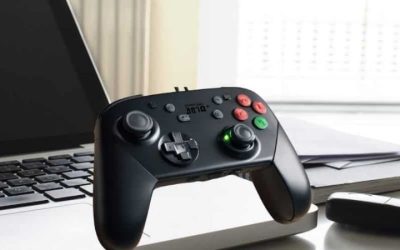
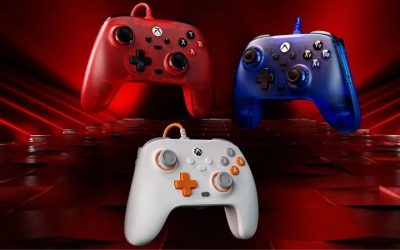
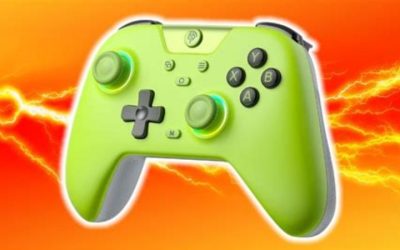
If you are shopping for the best controllers for Xbox cloud gaming, the Xbox Wireless Controller is the safest all-around choice for playing across a Windows PC, phone, or supported TV. For a handheld-style experience on a USB-C phone, the Backbone One (2nd gen) is more convenient; the Razer Kishi V3 offers larger grips and extra controls. Your best option depends less on the Xbox logo than on your screen, operating system, connection method, and how you hold the device. This roundup focuses on cloud streaming rather than native Xbox console compatibility, which is a different purchasing requirement.
Quick verdict: which controller should you buy?
Best overall — Xbox Wireless Controller (Carbon Black). Choose it if you switch among PC, phone, and supported TV devices. Its conventional Xbox layout, Bluetooth support, and broad cloud-device suitability are more valuable here than specialist features.
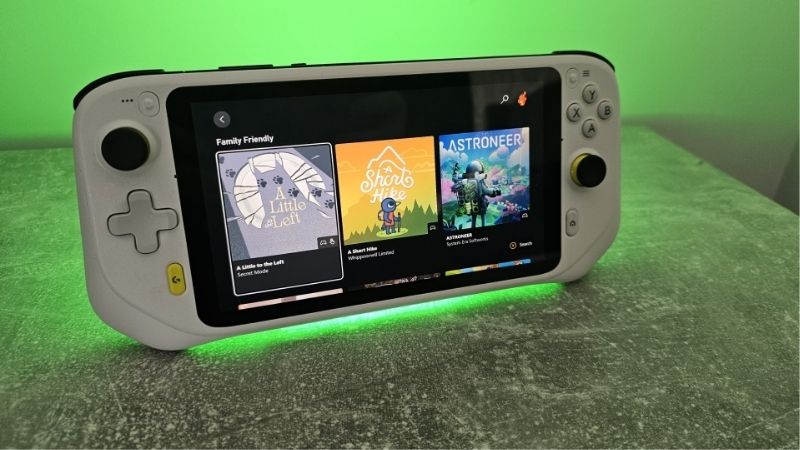
Best portable USB-C option — Backbone One (2nd gen, USB-C). Choose it if you primarily stream on a compatible iPhone or Android phone and want a compact, handheld-style setup.
Best full-size phone grips — Razer Kishi V3. Pick this for longer mobile sessions when the Kishi’s larger handles, TMR sticks, and rear buttons justify its higher price.
Best ergonomic alternative — GameSir G8 Galileo. Its Hall Effect sticks, analog triggers, movable USB-C connector, and controller-like handles make it appealing for supported phones. Confirm the exact phone fit and seller availability before ordering.
Best lower-cost standalone pad — 8BitDo Pro 2 Bluetooth (Hall Effect revision). It is a flexible choice for PC, Android, or Apple devices, especially if you prefer a symmetrical PlayStation-style stick layout.
Best if you already own a PS5 — Sony DualSense. Try your existing controller first rather than buying an Xbox-branded pad just for streaming. Xbox cloud support does not guarantee PS5-specific haptics or adaptive-trigger behavior.
Controller comparison at a glance
| Controller | Verified connection and standout feature | Best cloud-gaming use | Observed US price and seller, checked Oct. 28, 2026 | Stock status, checked Oct. 28, 2026 | Main drawback |
|---|---|---|---|---|---|
| Xbox Wireless Controller, Carbon Black | Bluetooth; Xbox-style button layout; AA power | Windows PC, mobile, supported TV/streamer | $53.99, Best Buy | In stock (orderable listing; varies by ZIP) | Separate batteries or rechargeable pack; no phone mount included |
| Backbone One (2nd gen), USB-C, black | Direct USB-C; compact telescopic frame | Supported USB-C iPhone/Android phones | $79.99, Target | In stock (Target listing; varies by ZIP) | Phone-specific fit; does not serve as a general Bluetooth TV controller |
| Razer Kishi V3, black, RZ06-03550100-R3U1 | Direct USB-C; TMR sticks; two rear buttons | Compatible USB-C phones, especially longer handheld sessions | $99.99, Razer US | In stock (Add to Cart shown) | Higher cost and stricter OS/fit requirements |
| GameSir G8 Galileo, USB-C | Direct USB-C; Hall Effect sticks and triggers; rear buttons | Supported USB-C phones where full grips matter | Price not verified for bare G8 variant | Unclear for bare G8 variant | Case/camera clearance and passthrough charging vary by phone |
| 8BitDo Pro 2 Bluetooth, Hall Effect gray, 80GL02 | Bluetooth and USB-C; back buttons; mode switch | Budget PC/mobile streaming and multi-platform use | $42.99, Best Buy | In stock (orderable listing; varies by ZIP) | Bluetooth setup/mode selection; no phone clip included |
| Sony DualSense, Midnight Black | Bluetooth and USB-C; symmetrical layout | People with a PS5 controller already | $74.99, Best Buy | In stock (orderable listing; varies by ZIP) | Xbox button prompts; PS5-specific effects may not carry into cloud games |
Price and availability note: These are directly observed US product-page prices, not guaranteed checkout prices or historical lows. Retailer stock can depend on ZIP code and selected variant. No game performance, controller latency, or hands-on benchmark results were measured for this article.
How we selected these controllers
Our recommendations prioritize four practical conditions: whether the controller’s maker and Xbox document the relevant device support; whether it connects through the input method your screen accepts; whether its physical layout fits the way you play; and whether there is a realistic US buying option. Microsoft’s Xbox Cloud Gaming guidance recognizes official Xbox pads, PlayStation controllers, and verified third-party devices from brands including 8BitDo, GameSir, and Backbone. That broad brand recognition does not mean every controller model or wireless mode works on every smart TV or phone.
We cross-checked device requirements against Microsoft and manufacturer specifications and reviewed US seller listings for the listed variants. We did not physically test grip comfort, packet latency, button durability, or streaming frame times. Labels such as “best for mobile” are editorial buying recommendations based on design and stated compatibility, not laboratory rankings. A low-latency USB-C connection removes the controller’s Bluetooth hop; it does not eliminate the internet and video-decoding delay inherent in cloud gaming.
Best overall: Xbox Wireless Controller
The standard Xbox Wireless Controller is the easiest recommendation for someone who has not yet decided where they will stream. Microsoft specifies Bluetooth connectivity for supported Windows PCs, Android and iOS devices, alongside Xbox Wireless connectivity for consoles. On supported TVs and streaming hardware, an official Xbox controller is also one of the first options to check against the TV’s controller compatibility list.
The Carbon Black version uses a familiar offset-stick arrangement, hybrid D-pad, textured trigger and bumper surfaces, and a Share button. The key advantage is not a unique cloud-gaming feature. It is avoiding unnecessary format compromises: you can hold it normally when streaming on a laptop, pair it with a phone using Bluetooth, or use it with compatible living-room hardware without relying on a telescopic phone frame.
For long sessions away from an outlet, replaceable AA batteries can be convenient. They are also a recurring cost unless you use rechargeable AAs or a compatible battery pack. Microsoft’s stated battery life is up to 40 hours under its testing conditions, not a guarantee for every configuration. If you want the phone directly above the controller, you will also need a suitable clip or stand; none is included with the standard pad.
Buy it if: you want one conventional controller for a mix of PC, mobile, and potentially TV cloud sessions, or you value Xbox button prompts matching the physical layout.
Skip it if: almost all your play happens while holding a phone and you would rather not balance a separate screen and gamepad. A telescopic model will feel more like a dedicated handheld.
Compatibility check: Xbox console wireless pairing is not the same transport as Bluetooth cloud play. A controller that works on an Xbox console still needs a supported wireless or USB connection to the destination phone, PC, or streaming device. Verify the TV model’s list rather than assuming all Xbox accessories are supported.
Best compact handheld design: Backbone One (2nd gen, USB-C)
Backbone One turns a compatible USB-C phone into a two-sided handheld controller. Its physical connection avoids Bluetooth pairing and leaves the phone centered between the controls, a useful change if you stream on a commute, in bed, or while traveling. The second-generation USB-C model includes fit adapters and an updated D-pad. The standardized USB-C version is the right one to evaluate for supported USB-C iPhones and Android phones; the Lightning product is a distinct variant.
Backbone lists Xbox cloud play among the supported services, but that does not mean it includes a Game Pass entitlement. You still need access to a supported cloud game through Microsoft’s service. There is also an easily missed subscription distinction: Backbone says you do not need Backbone+ to use the hardware as a game controller, while launching Xbox Cloud Gaming from inside the Backbone app requires Backbone+. Players who do not want that extra app feature can use the compatible device’s normal browser cloud-gaming route instead.
Portability is its main advantage over bulkier full-size mobile controllers. The compromise is shorter grips and less physical separation between the display and fingers. It is less appealing if you often play long shooters or action games and find compact controls tiring. Also confirm the phone’s case, camera bump, and connector alignment; USB-C alone is not a complete fit guarantee.
Buy it if: you want a compact phone-first cloud-gaming setup, frequently travel, and value quick attachment over additional back buttons.
Skip it if: you primarily play on PC or TV, or want the feel of a full-size Xbox controller. The Backbone One is not a universal Bluetooth pad.
Compatibility check: match USB-C versus Lightning before checkout, then check the exact phone against Backbone’s support and fit guidance. Never assume a phone case will fit merely because the bare phone does.
Best premium phone grips: Razer Kishi V3
The Razer Kishi V3 is a stronger fit for players who like a handheld format but dislike small controller grips. Razer specifies larger, console-style handles, TMR thumbsticks, two multifunction rear buttons, a USB-C connection, pass-through charging, and a 3.5 mm audio port. The Kishi V3 is a separate model from the Kishi V3 Pro and Pro XL; do not shop those names interchangeably.
The USB-C connection is the reason to consider this model for a compatible modern iPhone or Android phone. Razer explicitly names Xbox Cloud Gaming among its supported streaming services. The controller draws power from the phone instead of having a separate rechargeable controller battery. Its pass-through port helps with charging during longer sessions, while the dedicated analog headphone connection is convenient where you do not want to depend on wireless headphones.
Razer’s support requirements list Android 14 or newer and iOS 18 for the standard Kishi V3, and its current product material names USB-C iPhone generations beginning with iPhone 15. Exact case and camera clearance still matter. Razer also notes that the controller’s USB-C accessory port is intended for pass-through charging and supported PC connections, not USB-C earphones or arbitrary accessories. These restrictions are worth more attention than the stick sensor marketing.
In cloud gaming, TMR sticks and extra buttons can improve control feel or customization, but they do not solve a slow network route. The extra controls are especially useful if your preferred games support the mappings you configure. They are unnecessary for someone who only wants to launch a few casual cloud titles each month.
Buy it if: you frequently stream on a compatible phone and prioritize substantial grips, wired attachment, and additional programmable controls.
Skip it if: you use an older Lightning iPhone, an unsupported operating system, or a phone that cannot safely seat in the bridge. Its premium price is also hard to justify for occasional play.
Compatibility check: compare your device and OS against Razer’s Kishi V3 support page and confirm which insert arrangement works with your case. Do not rely on specifications for the Kishi V3 Pro or Ultra.
Best full-size value alternative: GameSir G8 Galileo
The GameSir G8 Galileo aims for a more console-like feel than the smallest phone attachments. GameSir identifies a movable USB-C connector, Hall Effect sticks, Hall Effect analog triggers, two remappable back buttons, and pass-through charging. The full-size handles may be attractive for adventure games, shooters, and lengthy sessions where finger position matters more than packing the smallest possible device.
GameSir explicitly lists Xbox Game Pass/cloud use for the G8 Galileo. Unlike a Bluetooth controller that sits apart from the screen, the G8 holds a compatible phone between its grips and connects through the internal USB-C plug. It uses the phone for power. GameSir’s own phone-fit guidance specifies an unencased length of 110–185 mm, body thickness up to 13 mm, and camera protrusion no deeper than 5 mm. This is more useful than a generic “works with Android” claim because a physically blocked USB-C connector can make an otherwise supported phone unusable.
There are meaningful caveats. GameSir recommends removing phone cases in many situations, and its troubleshooting guide says pass-through charging does not work equally on every compatible handset. Its setup instructions also distinguish iPhone and Android modes, with USB-OTG configuration relevant to some Android models. Do not equate Hall Effect sensor hardware with a measured latency advantage over every competing controller.
The directly opened GameSir store page displayed a price for a G8 plus carrying-bag bundle, not a reliably isolated price for the bare G8. For that reason, the bare-controller price and availability remain unverified in the table rather than borrowing the bundle’s price. That limitation prevents us from presenting it as the cheapest currently available mobile pick.
Buy it if: you want a substantial handheld grip and your exact phone appears compatible with GameSir’s size and USB-C requirements.
Skip it if: you need guaranteed case-on compatibility or have a Lightning phone. Check the G8 Galileo rather than G8+ wireless listings when comparing these features.
Compatibility check: measure your phone with its case and camera housing, and review the manufacturer fit list before placing an order. Check whether charging through the controller is documented for your handset.
Best lower-cost multi-device pad: 8BitDo Pro 2 Bluetooth
The Hall Effect revision of the 8BitDo Pro 2 Bluetooth gamepad makes sense for a budget-oriented player who wants a regular controller rather than a phone attachment. Its symmetrical sticks and pronounced D-pad can be more comfortable for people familiar with PlayStation-style layouts or who play many platformers and side-scrollers. Manufacturer specifications list Hall Effect sticks, two rear buttons, a hardware mode switch, Bluetooth, USB-C, and custom profiles.
Its major advantage is flexibility across supported Windows, Android, and Apple devices. 8BitDo specifies Android 9 or newer and iOS/iPadOS 16.3 or newer for controller support; Xbox Cloud Gaming has its own, potentially higher, supported-device requirements. Both sets must be met before the entire streaming setup can work. The controller’s mobile clip is optional and sold separately, so it is better suited to a tablet, laptop, or phone on a stand unless you buy the mount.
The four-position mode switch is helpful once you understand it but can be confusing when moving among platforms. Consult 8BitDo’s pairing instructions rather than assuming the same mode works equally on every operating system. Also distinguish the Bluetooth Pro 2 from 8BitDo’s wired Xbox-licensed Pro 2; similar naming does not mean identical wireless functionality or device support. The Pro 2 Bluetooth is not a controller for direct use with an Xbox console, according to 8BitDo’s FAQ.
Buy it if: you prefer symmetrical controls, want useful customization for less money than premium phone hardware, and play on PC or a supported mobile device.
Skip it if: you expect a clip to be included, need official Xbox console wireless support, or want zero mode-switch setup. An Xbox Wireless Controller is more straightforward for a mixed Xbox ecosystem.
Compatibility check: choose the exact Bluetooth Hall Effect variant and verify its OS requirements. Check the selected mode before deciding a failed connection means the hardware is incompatible.
Best option for PS5 owners: Sony DualSense
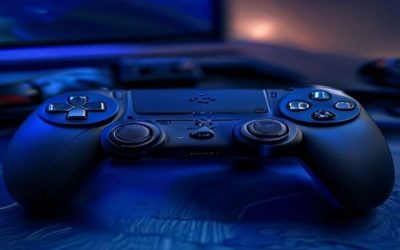
If a DualSense is already in your home, you may not need to buy anything. Microsoft’s Xbox cloud-gaming guidance specifically includes Sony’s DualSense among supported controller families, while Sony documents Bluetooth and USB connection support for Windows PCs and compatible Android and Apple devices. The DualSense is particularly sensible for someone who spends time between PS5 games and cloud gaming on a laptop or phone.
The analog-stick placement differs from the standard Xbox pad, and cloud games may show Xbox ABXY button labels while you are holding a controller marked with PlayStation symbols. That is an inconvenience, not a reason to replace a perfectly working controller. The larger mistake would be assuming every DualSense feature automatically transfers to an Xbox title streamed from a server. Sony’s adaptive triggers, advanced haptics, headset functions, and microphone behavior depend on device, connection method, and game support; they are not reasons to buy a DualSense specifically for Xbox Cloud Gaming.
For a first-time buyer who owns no console controllers, the ordinary Xbox pad is the simpler recommendation because of familiar button prompts and broader living-room expectations. But for existing DualSense owners, the incremental cost of using the hardware they already own is zero. Start there and spend more only if you encounter a specific comfort or compatibility problem.
Buy it if: you also play PS5 games, prefer the symmetrical layout, or would otherwise purchase another PlayStation controller.
Skip it if: you expect Xbox streaming to provide every native PS5 controller effect or you want Xbox-labeled face buttons.
Compatibility check: confirm the exact PC, phone, or television supports DualSense over the intended connection. For Sony’s documented Bluetooth pairing procedure, hold Create and PS until the light bar flashes, then select the controller from the device’s Bluetooth list.
Choose by where you actually stream
Windows laptop or desktop
Start with the Xbox Wireless Controller if you want the least complicated Xbox-style experience. The 8BitDo Pro 2 Bluetooth is the more economical alternative if you like its symmetrical layout and are comfortable selecting the correct operating mode. DualSense is an excellent first test when already owned. A wired USB connection can simplify pairing where the controller and Windows support it, but it should not be sold as a cure for network latency.
Android phone or USB-C iPhone
Consider how you will hold the phone. A compact attachment such as Backbone One suits short, portable sessions. Razer Kishi V3 and GameSir G8 Galileo offer more substantial grips for supported phones. A standalone Xbox, 8BitDo, or DualSense controller works well if you have somewhere to prop the screen. Confirm the device’s cloud-gaming OS requirements separately from the controller maker’s minimum OS.
Supported smart TV or streaming stick
Do not buy a phone-only USB-C attachment for a TV. Start with a verified Bluetooth controller that the TV or streaming-device maker and Xbox list as supported. Xbox Wireless Controller is the conservative first choice; Sony controllers can be supported on select devices. Third-party pads may work on phones and PCs yet fail to pair or map correctly on a particular TV. The exact TV model, software generation, and streaming-stick revision matter.
Tablet or large screen away from home
A conventional wireless pad can be more adaptable than a phone-sized telescopic controller. It leaves the tablet on a stand and keeps its weight off your wrists. Check for tablet-specific attachments only when the manufacturer publishes a suitable size range, and verify Bluetooth compatibility if you expect to play across multiple devices.
What actually matters for Xbox cloud performance?
Controller latency versus streaming latency
A direct USB-C connection avoids Bluetooth transmission between controller and phone; this is a practical design distinction, not proof that a particular model makes cloud gaming faster by a measurable number of milliseconds. Streaming responsiveness also depends on server distance, network congestion, Wi-Fi interference, decoding, and display processing. A premium controller will not fix a poor connection.
Xbox’s current connectivity guidance recommends roughly 10 Mbps for mobile play and 20 Mbps for PCs, consoles, and tablets as useful performance targets, together with suitable 5 GHz Wi-Fi or mobile data. A stable connection with low jitter often matters more to the feel of button presses than adding programmable back buttons. If controls feel delayed but local controller inputs register correctly, troubleshoot the network before replacing the pad.
Device support is not the same as game entitlement
A controller purchase does not include Xbox cloud access. The game you want must support cloud play in your region and under your current Microsoft account or subscription arrangement. Some selected free-to-play games have their own access rules. Xbox announced changes to monthly cloud playtime and purchasing options for late 2026, so check the plan and eligible-game details at the time of buying rather than depending on an old statement that “all cloud gaming requires Ultimate.”
Fit, power, and accessories
Before paying, decide whether you need a phone clip, an integrated telescopic grip, pass-through charging, a headset jack, or rechargeable batteries. Those features cannot be inferred from the controller’s wireless standard. For a USB-C phone model, inspect camera clearance and whether a case must be removed. For a Bluetooth pad, check charging requirements and whether a mount is included.
Stick sensors and extra buttons
Hall Effect and TMR analog-stick designs use different sensor approaches from conventional potentiometer sticks and are worth considering for wear and responsiveness, but neither guarantees immunity to every defect or a lower streaming delay. Similarly, rear buttons are only useful when the controller’s software and the game accept the configured mapping. Buy these features for control feel or ergonomics rather than promises to compensate for an unstable stream.
Simple setup checklist before your first session
- Check the destination device. Confirm your PC, phone, tablet, TV, or streaming device is listed among Xbox Cloud Gaming’s supported platforms. For a phone attachment, also check its exact physical fit and operating-system requirement.
- Connect the controller by its intended method. Pair a Bluetooth model through the device’s Bluetooth settings or attach a supported direct USB-C model. On a Windows PC, use a compatible USB data cable if supported and Bluetooth pairing is troublesome.
- Open the correct service. On supported mobile devices or PCs, use Xbox’s cloud-gaming website in a supported browser; on supported TVs or streaming sticks, use the official Xbox app. Sign in with the Microsoft account that has access to the title.
- Launch a controller-supported cloud game. Verify that left stick movement, face buttons, triggers, and menu controls respond correctly before adjusting mapping profiles.
- If inputs fail, isolate the layer. First verify the controller appears in your device’s input/Bluetooth settings. If it does, try another controller-supported cloud title or reconnect through the supported input method. If it does not, consult the manufacturer’s model-specific pairing and firmware guidance before treating this as an Xbox subscription problem.
If the controller works locally but the streamed image stutters or button response varies with network activity, focus next on Wi-Fi signal quality, competing downloads, and the network connection. Do not buy another pad until you have distinguished a connection problem from a controller-recognition issue.
Frequently asked questions
Can I use any Bluetooth controller for Xbox Cloud Gaming?
No. Generic Bluetooth connectivity alone is not proof of Xbox Cloud Gaming compatibility. The controller has to be recognized by the operating system and supported by the cloud-gaming environment. TVs and streaming sticks can be more restrictive than PCs or phones. Check the exact model against Xbox and device-maker guidance.
Is a wired controller always better than Bluetooth for cloud gaming?
Not always. A wired connection removes the Bluetooth radio link, but internet, video decoding, and screen response can dominate the end-to-end delay. Choose a USB-C phone attachment for ergonomics and easy direct connection; choose Bluetooth when you need a separate screen, TV compatibility, or freedom of movement.
Do I need an Xbox console to play Xbox Cloud Gaming?
No. A supported device, eligible game or account/subscription access, compatible input, and adequate internet connection can be enough. Xbox Remote Play, which streams games from your own Xbox console, is a different feature and does require a compatible console.
Does the Backbone One need a paid Backbone+ subscription?
Not to function as a standard controller. Backbone says Backbone+ is not required for controller use. The company separately states that launching Xbox Cloud Gaming inside its Backbone app requires Backbone+. You can use the supported normal Xbox browser route without buying the app’s extra membership features, although Xbox’s own service eligibility still applies.
Will a PS5 DualSense work with Xbox Cloud Gaming?
Yes, on supported platforms. Xbox acknowledges DualSense support, and Sony documents Bluetooth or USB connectivity on various PCs and mobile devices. However, do not assume adaptive triggers, native PS5 haptics, microphones, or the headset jack all work identically in cloud-streamed Xbox games.
Which controller should I buy for an iPhone with Lightning?
Avoid USB-C-only telescopic controllers unless your specific device has the required physical connector. Look at a compatible Bluetooth controller, or a Lightning-version mobile controller verified for your exact iPhone and iOS version. The Backbone One USB-C and Razer Kishi V3 covered here are not interchangeable with their older Lightning alternatives.
Should I buy a controller before testing cloud gaming?
If you already have a compatible Xbox or DualSense pad, or a supported game with on-screen touch controls, test the service first. A short session will reveal whether your device, network, and preferred games work well enough to justify dedicated mobile hardware. Confirm cloud playtime and subscription limits under your actual plan before buying expensive accessories.
Final thoughts
For most people, the Xbox Wireless Controller remains the best first purchase because it can follow you from PC to mobile and many compatible living-room setups. Choose the Backbone One for compact phone gaming, or the Razer Kishi V3 when full-size mobile grips matter more than price and portability. GameSir’s G8 Galileo and the 8BitDo Pro 2 are credible alternatives with different fit and control compromises; an existing DualSense may make a new purchase unnecessary. Decide which device you will use most, verify that exact controller-device pairing, and test one supported cloud game before investing in extras.