Key takeaways
- Find the best medium office routers for reliable Wi-Fi, wired desks, video calls, and guest access. Compare router types, features, and setup steps here.
As an Amazon Associate we earn from qualifying purchases.
The best medium office routers are the ones that keep every video call clear, every shared file moving, and every desk connected without daily restarts or dead zones. A medium office is a demanding middle ground. It is larger than a home office, with more people, more devices, and more simultaneous work, yet it is smaller than a corporate headquarters with a full-time network team. That means the router has to be powerful, reliable, and manageable, without requiring enterprise complexity or a dedicated server room.
This guide explains how to choose a router for a medium office, what features actually matter, how different router types compare, and how to set the network up so it stays fast as the team grows. It is written for office managers, small business owners, and anyone asked to fix office Wi-Fi without becoming a network engineer.
What Counts as a Medium Office
A medium office usually has between 10 and 50 people working in the same space, often across one floor or a small suite of rooms. Each person may use a laptop, a phone, and sometimes a desktop, a printer, or a headset. Add shared devices such as printers, conference room displays, smart televisions, security cameras, and point-of-sale terminals, and a 25-person office can easily have 75 to 150 connected devices.
That device count is the first reason a basic home router struggles in this setting. Home routers are designed for a handful of people streaming video in the evening. A medium office needs a router that can handle many simultaneous connections, prioritise real-time traffic such as voice and video calls, and keep working through a full working day without slowing down.
The physical space matters too. Open-plan areas, meeting rooms with glass walls, brick or concrete partitions, metal shelving, and long corridors can all weaken a wireless signal. A single router placed in a corner rarely covers a medium office evenly. Planning coverage is just as important as choosing the router itself.
Start With Your Internet Connection and Your Work
Before comparing routers, look at how the office actually works. The best router for a design studio that uploads large files all day is not necessarily the best router for a sales team that lives on video calls, and neither is the same as the best choice for a clinic or a shop with a public waiting area.
Ask these questions first:
- How many people work in the office at peak times, and how many devices does each person use?
- How much of the work depends on video calls, cloud applications, or large file transfers?
- Is there a wired network for desks, or does everyone rely on Wi-Fi?
- Are there meeting rooms where several people join calls at the same time?
- Do visitors, clients, or contractors need internet access?
- Are there staff who work remotely and need secure access to office resources?
- Does the office handle payment data, health records, legal files, or other sensitive information?
The answers shape the priorities. A call-heavy office needs strong quality-of-service controls and low latency. A file-heavy office needs fast wired connections and a router that can sustain high throughput. An office with visitors needs a separate guest network. An office with remote workers needs a reliable virtual private network, usually called a VPN.
Also check the internet service itself. A router cannot deliver more speed than the connection coming into the building. If the office has a fast fibre connection, the router should have gigabit or faster wired ports so it does not become a bottleneck. If the connection is slower, the priority shifts to managing traffic well rather than chasing the highest wireless speed on the box.
Wired Connections Still Matter
Wi-Fi gets most of the attention, but wired connections remain the backbone of a reliable medium office. Desktops, shared printers, conference room equipment, network storage, and access points all perform better on a wired connection. A wired link is more stable, less affected by interference, and easier to secure.
Look for a router with enough gigabit Ethernet ports for the core wired devices, and plan for a separate network switch if the office has many desks. A switch expands the number of wired ports without replacing the router. For offices with many wireless access points or cameras, Power over Ethernet, often shortened to PoE, can be useful because it delivers power and data through the same cable, reducing the need for separate power supplies.
A good layout is simple: the internet connection enters the router, the router connects to a switch, and the switch connects to desks, printers, and wireless access points. That structure keeps traffic organised and makes it easier to find a fault when something stops working.
Wireless Standards Explained in Plain Terms
Router boxes are covered in terms such as Wi-Fi 6, Wi-Fi 6E, dual-band, and tri-band. These terms matter, but they are easier to understand when translated into office needs.
Wi-Fi 6 is the current mainstream standard for most offices. It handles many devices at once more efficiently than older standards, which is exactly what a medium office needs. It also improves performance in crowded environments where many devices are competing for airtime.
Wi-Fi 6E adds a newer frequency band that can reduce congestion, but it is most useful when the office has newer laptops and phones that support it, and when there are many nearby networks causing interference. It is a helpful bonus rather than a requirement for every office.
Dual-band routers use two frequency bands: 2.4 gigahertz and 5 gigahertz. The 2.4 gigahertz band travels further and passes through walls better, but it is slower and more crowded. The 5 gigahertz band is faster over shorter distances. Tri-band routers add a second 5 gigahertz or 6 gigahertz band, which can help when many devices are active at once.
For a medium office, the practical goal is not the highest headline speed. It is consistent performance for many devices, good coverage across the floor, and the ability to add access points later if the office expands.
Features That Matter in a Medium Office
Capacity and Throughput
Capacity is how many devices a router can serve at once without slowing down. Throughput is how much data it can move. Both matter, but capacity is often the limiting factor in an office. A router that advertises very high speed for a single device may still struggle when 40 people join calls at the same time.
Look for routers and systems designed for small business or busy home-office use rather than a single-room setup. Check the stated device capacity, the number of wired ports, and whether the system supports additional access points.
Quality of Service
Quality of Service, often called QoS, lets the router prioritise certain types of traffic. In an office, voice and video calls should take priority over background downloads, software updates, and cloud backups. Without QoS, a single large download can make every call in the office stutter.
Some routers offer simple presets for video conferencing or voice calls. Others allow manual rules for specific applications or devices. Either approach is useful, as long as the router can protect real-time traffic during busy periods.
Separate Networks and VLANs
A medium office often needs more than one network. Staff devices, guest devices, printers, cameras, and smart devices should not all share the same network. A guest network gives visitors internet access without giving them access to office files or printers. A separate network for cameras or smart devices limits the damage if one device is compromised.
Virtual local area networks, known as VLANs, take this further by creating isolated segments on the same physical network. Not every office needs VLANs on day one, but the option is valuable for offices that handle sensitive data or plan to grow.
VPN and Remote Access
A VPN allows remote staff to connect securely to office resources as if they were in the building. It encrypts the connection and can provide access to shared drives, internal tools, or printers. For offices with hybrid working, a reliable VPN is a core requirement rather than an extra.
Check how many simultaneous VPN connections the router supports, whether it supports common VPN protocols, and whether remote setup is straightforward. A VPN that is difficult to configure is often left unused, which defeats its purpose.
Security and Updates
Office routers are a target because they sit between the internet and every device in the building. Look for a router that receives regular firmware updates, supports modern encryption for Wi-Fi, and includes basic protections such as a firewall, automatic security updates, and the ability to disable remote management when it is not needed.
Change the default administrator password during setup, use a strong Wi-Fi password, and keep a record of who has access to the router settings. Security is not a one-time task. It is a routine that includes updates, password changes when staff leave, and periodic checks of connected devices.
Management and Monitoring
A medium office router should be easy to manage without specialist knowledge. A clear web interface or mobile app, the ability to see which devices are connected, and simple tools for rebooting, updating firmware, and changing settings all save time.
Some business-oriented routers offer central management for multiple access points, which is useful if the office uses more than one wireless unit. Others offer cloud management, which allows an administrator to check the network from another location. Choose the level of management that matches who will actually maintain the network.
WAN Failover and Reliability
If the office loses its internet connection, work stops. Some routers support a second internet connection, often called WAN failover or dual WAN. If the primary connection fails, the router switches to the backup automatically. A second option is a mobile broadband backup using a USB modem or a separate device.
Not every office needs dual WAN, but offices that depend on cloud tools, online bookings, or payment systems should consider it. At a minimum, the router should recover cleanly after a power cut and restart without manual intervention.
Types of Routers for a Medium Office
There is no single best type for every medium office. The right choice depends on the size of the space, the number of users, and whether the office prefers a simple all-in-one device or a more flexible system.
A Dedicated Business Router
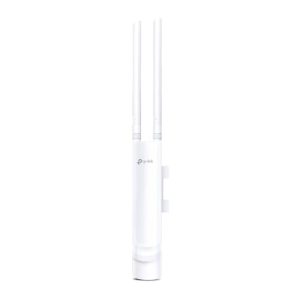
A dedicated business router is designed for small and medium offices. It usually has strong wired performance, VPN support, VLAN support, QoS controls, and multiple WAN ports. It may have limited built-in Wi-Fi, in which case it is paired with separate wireless access points.
This type suits offices that need wired reliability, remote access, and network segmentation. It is also a good choice when the office already has structured cabling or plans to add access points in meeting rooms and open areas.
A High-Performance Standalone Router
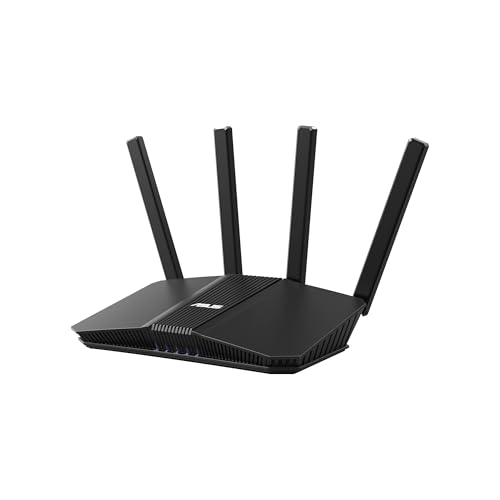
A high-performance standalone router combines routing and Wi-Fi in one device. It is simpler to set up than a business router plus access points, and it can work well for a medium office in a single open space.
This type suits smaller medium offices, typically at the lower end of the 10 to 50 person range, where the floor plan is open and the router can be placed centrally. It is less suitable for offices spread across multiple rooms or floors, where one wireless signal cannot cover everything evenly.
A Mesh Wi-Fi System
A mesh system uses several units that work together to create one wireless network. One unit connects to the internet, and the other units extend coverage to other parts of the office. Devices move between units without needing to reconnect manually.
Mesh systems suit offices with awkward layouts, multiple rooms, or areas where a single router leaves dead zones. They are easier to expand than a single router, because an extra unit can be added where coverage is weak. The trade-off is that mesh units need good placement and, ideally, a wired backhaul connection between units for the best performance.
A Router Plus Access Points
A router plus access points is the most scalable option. The router handles internet access, security, and traffic management, while separate access points provide Wi-Fi in different areas. Each access point can be placed where it is needed, such as a meeting room, a reception area, or a far corner of an open floor.
This approach suits larger medium offices, offices with thick walls, and offices that expect to grow. It requires more planning and cabling, but it delivers the most consistent coverage and the clearest upgrade path.
Comparison Table: Router Types for a Medium Office
| Router type | Best for | Strengths | Watch out for |
|---|---|---|---|
| Dedicated business router | Wired offices, VPN, segmentation | Strong security, VPN, VLANs, dual WAN | May need separate Wi-Fi units |
| High-performance standalone router | Single open space, smaller teams | Simple setup, strong Wi-Fi in one unit | Limited coverage in divided spaces |
| Mesh Wi-Fi system | Multiple rooms, dead zones | Easy expansion, seamless roaming | Needs good unit placement |
| Router plus access points | Larger offices, future growth | Best coverage, scalable, flexible | More planning and cabling |
How to Plan Coverage
Good coverage starts with a floor plan, not a product page. Sketch the office, mark desks, meeting rooms, reception, and areas where people use laptops. Note thick walls, glass partitions, metal cabinets, and lifts, because these can block or reflect wireless signals.
Place the main router or access point centrally where possible, elevated and away from metal objects, mirrors, and large appliances. Avoid placing it in a cupboard, behind a television, or on the floor. In a mesh or access point system, place units in the rooms where people actually work, not just where a power socket happens to be.
If possible, connect access points and mesh units to the wired network. A wired backhaul leaves the wireless bands free for laptops and phones, which improves speed and reliability.
Test coverage after setup by walking through the office with a laptop or phone and checking signal strength in each area. Pay special attention to meeting rooms, corners, and areas near exterior walls. A small adjustment in placement can make a large difference.
Frequently Asked Questions
How many devices can a medium office router handle?
It depends on the router, but a medium office should plan for at least two to three devices per person, plus shared printers, displays, and cameras. A router designed for busy small business use, with support for many simultaneous connections and additional access points, is a safer choice than a basic home model.
Is a mesh system better than a single router for a medium office?
A mesh system is often better when the office has multiple rooms, thick walls, or dead zones. A single high-performance router can work well in one open space, but it cannot cover a divided floor as evenly as several well-placed mesh units or access points.
Do medium offices need a VPN router?
Many do, especially if staff work from home or travel. A VPN router provides secure remote access to office resources and encrypts traffic between remote devices and the office network. If all work is done in the office and no remote access is needed, a VPN is less urgent.
Should office Wi-Fi and guest Wi-Fi be separate?
Yes. A separate guest network gives visitors internet access without exposing office files, printers, or internal systems. It also makes it easier to change the guest password regularly without disrupting staff.
How often should office router firmware be updated?
Check for updates at least once a month, and apply security updates as soon as they are available. Enable automatic updates if the router supports them and the office can tolerate a brief restart outside working hours.
Conclusion
The best medium office routers are not the ones with the biggest numbers on the box. They are the ones that match the size of the team, the layout of the space, and the way the office works every day. A good choice provides enough capacity for many devices, strong wired connections for core equipment, reliable Wi-Fi across the whole floor, and the security and management features that protect office data.
Start by understanding the office, then choose between a dedicated business router, a standalone router, a mesh system, or a router plus access points. Plan coverage carefully, separate staff and guest networks, prioritise real-time traffic, and keep firmware updated. With that approach, calls stay clear, files move quickly, and the router supports the work instead of getting in its way.
FAQ
How many devices can a medium office router handle?
Is a mesh system better than a single router for a medium office?
Do medium offices need a VPN router?
Should office Wi-Fi and guest Wi-Fi be separate?
How often should office router firmware be updated?
More from Amazon
Programs that pair well with the guide above. Offers and eligibility are set by Amazon and may change.
Free shipping on eligible items, Prime Video and more. Eligible new members can start with a free trial.
Start a Prime free trialAd-free music streaming. Eligible new subscribers can start with a free trial.
Try Music Unlimited freeA Prime membership for ages 18-24 with a trial period. Eligibility is set by Amazon.
See Prime for Young AdultsAudiobooks and podcasts to listen to on the go. Eligible new members can start with a free trial.
Try Audible freeAs an Amazon Associate we earn from qualifying purchases.