Key takeaways
- Find the best wallpapers for gaming laptops: dark, neon, minimal and game-art styles in the right resolution, plus safe places to download them.
As an Amazon Associate we earn from qualifying purchases.
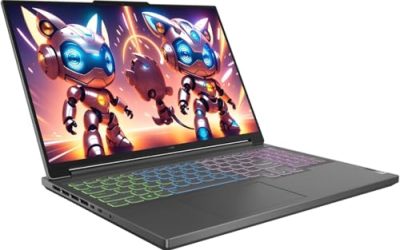
Your gaming laptop screen is the first thing you see when you open the lid, and the last thing you see before you shut it down. A good wallpaper makes the machine feel personal: a moody dark scene that matches your RGB keyboard, a clean gradient that keeps your desktop calm, or official art from your favorite game. A bad one does the opposite, with a stretched low-resolution image, a busy photo that hides your icons, or a bright white background in a dark room.
This guide is for gamers who want a desktop that looks as good as the hardware underneath it. It covers the wallpaper styles that work best on gaming laptops, how to match an image to your screen, what dark and bright images do to OLED panels, and where to download high-quality files without watermarks or shady download buttons. No single style wins for everyone, so this guide helps you pick the one that fits your screen, your setup, and how you use the laptop.
How to Choose
Match the resolution to your screen
Start with your screen, not the image. A 1080p wallpaper on a 4K panel looks soft and slightly blurry, while a 4K image downscaled to a 1080p screen still looks sharp, so going bigger is always safer than going smaller. Check your display settings first: most gaming laptops run 1920 x 1080, 2560 x 1440, or 2560 x 1600, and many newer models use a 16:10 aspect ratio instead of the older 16:9. An image made for 16:9 will crop or stretch on a 16:10 screen, cutting off the top and bottom of the scene. Look for files labeled with your exact resolution, and when in doubt, download the largest size available and let Windows scale it down.
Dark or bright: what your panel prefers
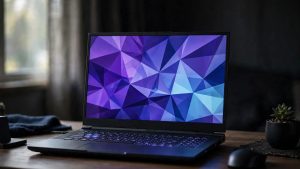
Dark wallpapers are the natural pick for gaming laptops, and not just because they look cool. On an OLED screen, dark pixels draw less power and reduce the risk of uneven wear over time, so a mostly black image is genuinely easier on the panel than a bright one. Dark backgrounds also make white desktop icons and text pop, and they are far more comfortable during late-night sessions. Bright wallpapers have their place too: they suit well-lit rooms, show off colorful art better, and can make a small screen feel more open. If you play mostly at night or own an OLED laptop, lean dark; if your desk sits by a window, a brighter image works fine.
Pick a style that fits your setup
A wallpaper looks best when it belongs with the rest of your desk. If your keyboard and mouse glow in one accent color, a wallpaper built around that same color pulls the whole setup together; a neon blue scene next to a red-lit keyboard just looks accidental. Minimal gradients and abstract shapes suit clean desks and people who keep many icons on the desktop, since there is nothing competing for attention. Game art and anime scenes are the right call when you want the laptop to show what you love, especially official key art. Nature and space photography works well if you use the laptop for both work and play, because it never feels out of place.
Get your files from safe, high-quality sources
Where a wallpaper comes from matters as much as how it looks. Wallpaper Engine on Steam is the most popular source for animated and live wallpapers, with a huge community library and built-in resolution filters. For static images, official game websites and publisher art pages offer free key art at full resolution, and stock sites like Unsplash and Pexels carry high-quality photography with clear licensing. Artist pages on DeviantArt and ArtStation are great for original work, and many artists offer free downloads. Avoid random search results and aggregator sites full of pop-up download buttons, since those files are often compressed, watermarked, or bundled with unwanted software. Always save the original file, not a thumbnail, and check the file size.
Which One Fits Your Situation
You play at night on an OLED laptop
Pick a dark wallpaper with deep blacks and a single accent color. OLED panels light each pixel on their own, so dark scenes use less power and keep the screen comfortable in a dark room. A moody landscape, a neon cityscape, or official dark key art from your favorite game all work well here. Avoid bright white or pastel images at full brightness, since they glare and wash out the contrast that makes OLED special.
You want a clean desktop for work and play
Go minimal. A smooth gradient, a simple geometric pattern, or a soft abstract image keeps your icons readable and your desktop calm, whether you are gaming or working. Minimal wallpapers also age well: you will not get tired of a plain gradient the way you might tire of a loud scene after a few weeks. Pick a color that matches your taskbar and window theme for the cleanest result, and your whole desktop will feel intentional.
You want to show off your favorite game
Use official key art from the game itself. Publisher sites and game launchers often release free wallpapers at full resolution, and these images are composed to look great as a desktop, with the main subject off to one side so your icons stay visible. Fan-made edits can look great too, but official art is sharper, correctly licensed, and sized for common screens. If your game has seasonal art, rotating it every few months keeps the desktop fresh and fun.
You dock to a monitor or use two screens
Choose an ultrawide or dual-monitor pack instead of stretching a single image across both displays. Ultrawide files are made for 3440 x 1440 and wider, and dual-monitor packs give each screen its own image so nothing looks squashed or stretched. Wallpaper Engine handles multi-monitor setups well, and Windows lets you set a different image per screen. Matching the two images by color or theme, rather than using the exact same picture twice, looks far more deliberate and polished.
Common Mistakes
- Using a 1080p image on a 1440p or 4K screen, which leaves the whole desktop looking soft and blurry instead of sharp, so text and fine details turn to mush on a sharp panel.
- Picking a busy image with bright details behind your icons, so shortcuts and text become hard to read at a glance, especially white text on a bright sky or clouds.
- Downloading from sketchy aggregator sites, which often serve compressed, watermarked, or unsafe files full of pop-up ads, and some even try to install extra software.
- Ignoring aspect ratio: a 16:9 image on a 16:10 screen gets cropped or stretched and loses part of the scene at the edges, and faces or logos can get cut off at the edges.
- Setting a bright white wallpaper on an OLED laptop at full brightness, which glares at night and wears the panel unevenly over time, especially if you leave the screen on all day long.
Frequently Asked Questions
What resolution should a gaming laptop wallpaper be?
Match your screen’s native resolution exactly. For a 1080p laptop, use 1920 x 1080; for a 1440p screen, use 2560 x 1440; for a 16:10 panel, look for 2560 x 1600. If you cannot find your exact size, download a larger image and let Windows scale it down, since shrinking keeps detail while stretching a small image blurs it and ruins fine lines. Confirm the size in display settings first.
Do dark wallpapers really save battery?
On OLED laptops, yes, because each pixel produces its own light and dark pixels draw less power. The saving is modest on its own, but it adds up during long unplugged sessions, especially combined with a dark theme and lower brightness. On IPS and LCD screens, the backlight stays on regardless, so a dark wallpaper changes comfort and glare more than battery life. Lower brightness helps even more at night.
Where can I download free gaming wallpapers safely?
Wallpaper Engine on Steam is the safest bet for animated wallpapers, with community ratings and resolution filters to help you find the right size. For static images, try official game and publisher websites, Unsplash, Pexels, and artist pages on DeviantArt or ArtStation. Skip aggregator sites covered in pop-up ads, and always save the original full-size file rather than a small thumbnail. Look for the highest resolution file the source offers.
How do I set a different wallpaper on each monitor?
On Windows 11, right-click the desktop, open Personalize, then Background, and set the background type to Picture. Right-click any image in the recent list and choose Set for monitor 1 or Set for monitor 2, and Windows will remember the choice. Wallpaper Engine also supports per-monitor wallpapers and can sync animated scenes across screens if you want a matching pair. You can also use different images on the lock screen.
FAQ
What resolution should a gaming laptop wallpaper be?
Do dark wallpapers really save battery?
Where can I download free gaming wallpapers safely?
How do I set a different wallpaper on each monitor?
More from Amazon
Programs that pair well with the guide above. Offers and eligibility are set by Amazon and may change.
Free shipping on eligible items, Prime Video and more. Eligible new members can start with a free trial.
Start a Prime free trialAd-free music streaming. Eligible new subscribers can start with a free trial.
Try Music Unlimited freeA Prime membership for ages 18-24 with a trial period. Eligibility is set by Amazon.
See Prime for Young AdultsAudiobooks and podcasts to listen to on the go. Eligible new members can start with a free trial.
Try Audible freeAs an Amazon Associate we earn from qualifying purchases.