Key takeaways
- Your Router’s Wi-Fi Generation: Your wireless connection is a two-way street. If you purchase a cutting-edge Wi-Fi 6E or Wi-Fi 7 card, but your home network is powered by an older dual-band Wi-Fi 5 (802.11ac) router provided by your ISP, your system will default to the slower speed. Match your card to your router’s generation, or buy one tier higher if you plan to upgrade your home network soon.
- Antenna Placement and Desk Layout: Where does your PC tower sit? If your computer is tucked inside a wooden desk cabinet or sits flat on the floor behind a metal filing cabinet, direct-attached rear antennas will struggle. You will need a card that includes an external, magnetized antenna base with extension cables so you can position the receivers on top of your desk for a clear line of sight.
- Motherboard Header Availability: Almost all PCIe Wi-Fi cards also provide Bluetooth connectivity. However, while the Wi-Fi runs directly through the PCIe slot, the Bluetooth chip requires a separate cable that plugs into an open 9-pin USB 2.0 header on your motherboard. You must check inside your PC case to ensure you have a free USB header before buying.
We spend weeks curating our home workspaces. We select solid white oak desks, ergonomic task chairs, and custom-built desktop PCs with clean, glass-paneled enclosures. Yet, many homeowners and remote professionals treat their internet connectivity as an afterthought, relying on cheap, unsightly USB Wi-Fi dongles that constantly overheat, or running 50 feet of blue Ethernet cable across their pristine baseboards.
If you want a fast, stable connection without ruining your home’s aesthetic, an internal expansion card is the absolute best solution. However, learning how to choose a pcie wifi card requires navigating a maze of technical jargon, exaggerated speed ratings, and physical installation clearances. The biggest mistake buyers make is purchasing a card based purely on the theoretical maximum speed printed on the box, only to find it physically conflicts with their graphics card, lacks the correct cables, or cannot penetrate the heavy plaster walls of their home office. Here is how to cut through the marketing noise and choose the perfect card for your space.
Our top picks
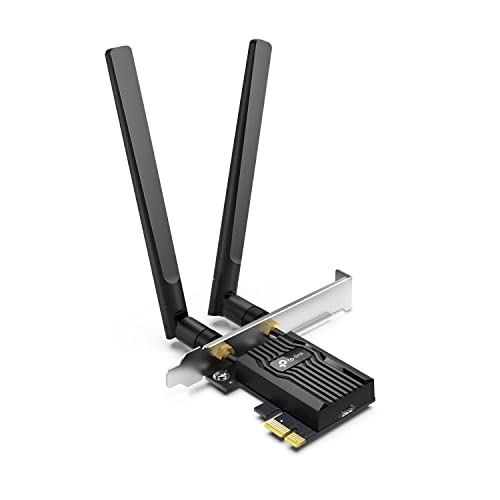 TP-Link WiFi 6 PCIe WiFi Card for
- 𝐍𝐞𝐱𝐭 𝐆𝐞𝐧 𝐖𝐢𝐅𝐈 𝟔 - Reach incredible speeds…
- 𝐌𝐢𝐧𝐢𝐦𝐢𝐳𝐞𝐝 𝐋𝐚𝐠 𝐟𝐨𝐫 𝐘𝐨𝐮𝐫 𝐏𝐂 - The networking…
- 𝐁𝐫𝐨𝐚𝐝𝐞𝐫 𝐑𝐚𝐧𝐠𝐞 - 2 powerful signal-boost, high-gain antennas…
 TP-Link WiFi 6 PCIe WiFi Card for
- 𝐖𝐢-𝐅𝐢 𝟔 𝐓𝐞𝐜𝐡𝐧𝐨𝐥𝐨𝐠𝐲 Powered by Intel: The latest…
- 𝐍𝐞𝐱𝐭-𝐠𝐞𝐧 𝐬𝐩𝐞𝐞𝐝𝐬 up to 2.4Gbps: Reach incredible speeds…
- 𝐌𝐢𝐧𝐢𝐦𝐢𝐳𝐞𝐝 𝐥𝐚𝐠 for your PC: Revolutionary OFDMA reduces…
 TP-Link WiFi 6 PCIe WiFi Card for
- WiFi 6 PCIe Card - Reach incredible speeds…
- Reliable Connections
- Minimized Lag for Your PC - The networking…
| Product | Key specs | |
|---|---|---|
| TP-Link WiFi 6 PCIe WiFi Card for | 𝐍𝐞𝐱𝐭 𝐆𝐞𝐧 𝐖𝐢𝐅𝐈 𝟔 - Reach incredible speeds… 𝐌𝐢𝐧𝐢𝐦𝐢𝐳𝐞𝐝 𝐋𝐚𝐠 𝐟𝐨𝐫 𝐘𝐨𝐮𝐫 𝐏𝐂 - The networking… 𝐁𝐫𝐨𝐚𝐝𝐞𝐫 𝐑𝐚𝐧𝐠𝐞 - 2 powerful signal-boost, high-gain antennas… | Check price |
| TP-Link WiFi 6 PCIe WiFi Card for | 𝐖𝐢-𝐅𝐢 𝟔 𝐓𝐞𝐜𝐡𝐧𝐨𝐥𝐨𝐠𝐲 Powered by Intel: The latest… 𝐍𝐞𝐱𝐭-𝐠𝐞𝐧 𝐬𝐩𝐞𝐞𝐝𝐬 up to 2.4Gbps: Reach incredible speeds… 𝐌𝐢𝐧𝐢𝐦𝐢𝐳𝐞𝐝 𝐥𝐚𝐠 for your PC: Revolutionary OFDMA reduces… | Check price |
| TP-Link WiFi 6 PCIe WiFi Card for | WiFi 6 PCIe Card - Reach incredible speeds… Reliable Connections Minimized Lag for Your PC - The networking… | Check price |
 TP-Link AC1200 PCIe WiFi Card for Desktop TP-Link AC1200 PCIe WiFi Card for Desktop | Optimized Speed Dual-Band Wi-Fi - Up to 1200… Bluetooth 5.0 - With reliable Bluetooth technology, enjoy… Broad Wireless Range - Two external antennas enables… | Check price |
As an Amazon Associate we earn from qualifying purchases at no extra cost to you.
Decide These 3 Things First
Before you start comparing brand names and prices, you must establish three baseline parameters of your home ecosystem. Answering these questions first will instantly narrow down your choices and prevent a frustrating return process.
- Your Router’s Wi-Fi Generation: Your wireless connection is a two-way street. If you purchase a cutting-edge Wi-Fi 6E or Wi-Fi 7 card, but your home network is powered by an older dual-band Wi-Fi 5 (802.11ac) router provided by your ISP, your system will default to the slower speed. Match your card to your router’s generation, or buy one tier higher if you plan to upgrade your home network soon.
- Antenna Placement and Desk Layout: Where does your PC tower sit? If your computer is tucked inside a wooden desk cabinet or sits flat on the floor behind a metal filing cabinet, direct-attached rear antennas will struggle. You will need a card that includes an external, magnetized antenna base with extension cables so you can position the receivers on top of your desk for a clear line of sight.
- Motherboard Header Availability: Almost all PCIe Wi-Fi cards also provide Bluetooth connectivity. However, while the Wi-Fi runs directly through the PCIe slot, the Bluetooth chip requires a separate cable that plugs into an open 9-pin USB 2.0 header on your motherboard. You must check inside your PC case to ensure you have a free USB header before buying.
1. Form Factor and Physical Case Clearance
A PCIe (Peripheral Component Interconnect Express) card must physically fit inside your computer chassis. Standard desktop PCs use ATX motherboards, but smaller home offices often feature compact Micro-ATX or Mini-ITX builds to save desk space.
First, check the bracket height. Most standard PCIe cards come with a pre-installed 120mm (4.7-inch) metal bracket designed for full-sized tower cases. If you are running a slim, small-form-factor (SFF) home theater PC or a compact desktop, you will need an 80mm (3.15-inch) low-profile bracket. Premium and mid-range cards almost always include both brackets in the box, but ultra-budget options may force you to choose one or the other at checkout.
Second, look at the thickness and slot placement. While a Wi-Fi card itself is incredibly thin (usually under 18mm or 0.7 inches deep), it must sit in a PCIe x1 slot on your motherboard. On many modern motherboards, these small x1 slots sit directly beneath the main PCIe x16 slot where your graphics card (GPU) is installed. If your GPU has a thick, multi-slot cooling shroud or a heavy backplate, it can physically block the adjacent slots. Measure the clearance between your components to ensure you have at least 20mm of breathing room for air circulation.
2. Materials, Heatsinks, and Thermal Management
As we design modern home offices in 2026, keeping workspace aesthetics clean while maintaining multi-gigabit speeds is a top priority. High-speed wireless networking chips generate a surprising amount of heat when transferring large files, streaming 4K video, or running video conferences. Without proper thermal management, these chips will undergo thermal throttling, dropping your connection speed to protect the hardware.
Look at the physical construction of the card. Budget cards often feature bare green or black printed circuit boards (PCBs) with the main chip exposed to the open air. While acceptable for basic web browsing, these are prone to overheating in warm rooms or compact cases.
Mid-range and premium cards feature dedicated aluminum heatsinks mounted directly over the wireless chipset. An aluminum heatsink weighing between 8 to 15 grams acts as a thermal buffer, drawing heat away from the delicate silicon and dissipating it into your case’s airflow. If your PC case has limited active cooling (fewer intake fans), choosing a card with a robust, anodized aluminum heatsink is non-negotiable for long-term stability.
3. Antenna Construction and Signal Gain
The physical design of your wireless antennas dictates how well your PC can communicate with a router located several rooms away. Antenna signal strength is rated in decibels relative to isotropic (dBi). Most standard PCIe cards feature dual multi-directional antennas with a gain rating of 2 dBi to 5 dBi.
There are two primary antenna configurations to choose from:
- Direct-Attached Antennas: These screw directly into the gold-plated RP-SMA connectors on the back bracket of the card. They are incredibly clean and eliminate desk clutter entirely. However, because they sit at the back of your metal PC case, the computer chassis itself acts as a massive shield, blocking signals coming from the front or opposite side of the house.
- External Magnetized Bases: These systems connect to the back of your PC via a shielded RF cable (typically 1 to 1.5 meters, or 3.3 to 5 feet in length). The cable leads to a weighted, magnetized base holding the antennas. This allows you to mount the antennas on top of your desk, on a nearby shelf, or on the side of your metal monitor arm, bypassing physical obstructions and dramatically improving signal reception.
4. Throughput, Bandwidth, and Wireless Generations
When shopping, you will see alphanumeric codes like AC1200, AX1800, and AX3000. These represent the wireless standard and the theoretical combined bandwidth of the card across all supported frequency bands.
AC1200 (Wi-Fi 5): This older standard operates on the 2.4 GHz and 5 GHz bands. It maxes out at roughly 867 Mbps on the 5 GHz band. While affordable, it lacks modern traffic management features like OFDMA and MU-MIMO, meaning it struggles in households with dozens of smart home devices, tablets, and streaming TVs running simultaneously.
AX1800 and AX3000 (Wi-Fi 6): This is the modern sweet spot for most homes. Wi-Fi 6 introduces superior congestion management. An AX3000 card can deliver theoretical speeds of up to 2402 Mbps on the 5 GHz band and 574 Mbps on the 2.4 GHz band. In real-world home environments with walls and distance, you can expect actual throughput of 400 Mbps to 900 Mbps, which easily handles gigabit fiber internet connections.
5. Price Tiers and Value Propositions
The market for PCIe Wi-Fi cards is highly competitive, and you do not need to spend a fortune to get a premium experience. Understanding the price tiers helps you avoid overpaying for features you won’t use.
- The Budget Tier ($15 to $25): In this price range, you will find AC1200 and some basic AX1800 cards. They feature simple green PCBs, direct-attached antennas, and basic green or blue circuit designs. They are perfect for secondary guest room PCs, basic office work, and budget-conscious builds.
- The Mid-Range Tier ($25 to $45): This is the absolute sweet spot for 90% of buyers. Here, you will find fully featured AX3000 Wi-Fi 6 cards. For around $28 to $30, you can choose between cards with built-in aluminum heatsinks and direct-attached antennas, or models that include a dedicated, magnetized desktop antenna base for maximum signal routing. These cards almost always feature reliable Intel chipsets (such as the Intel AX200).
- The Premium Tier ($45 to $80+): These cards feature the latest Wi-Fi 6E or Wi-Fi 7 chipsets, which open up the ultra-wide, interference-free 6 GHz wireless band. They feature massive, custom-designed heatsinks, high-end multi-layered PCBs, and advanced high-gain directional antennas. If you are a competitive online gamer, stream 8K video, or regularly transfer massive media files across a local home server, this tier is worth the investment.
6. Installation, Cable Routing, and OS Compatibility
Installing a PCIe Wi-Fi card is a straightforward process, but it requires a gentle hand and attention to detail. The card slides into an open PCIe x1 (or larger) slot on your motherboard and is secured to the case chassis with a single screw.
To enable Bluetooth, you must route the included 9-pin USB header cable from the back of the Wi-Fi card, along the bottom edge of your motherboard, and plug it into an open internal USB 2.0 header. This cable is typically 30cm (12 inches) long. For a clean look, route this cable behind the motherboard tray using zip ties, keeping it hidden from view through your case’s tempered glass window.
Before purchasing, confirm operating system compatibility. Most modern cards natively support Windows 10 and Windows 11. If you are building a custom Linux-based media server or a home automation hub, look specifically for cards utilizing Intel-based chipsets (like the AX200 or AX210), as their open-source drivers are pre-compiled directly into the Linux kernel, ensuring plug-and-play operation without manual terminal configuration.
Spec Checklist
Use this quick-reference table to compare key specifications across the three main market tiers before making your final purchase.
| Specification | Budget Tier | Mid-Range Tier | Premium Tier |
|---|---|---|---|
| Wi-Fi Generation | Wi-Fi 5 (802.11ac) / Wi-Fi 6 (AX1800) | Wi-Fi 6 (802.11ax / AX3000) | Wi-Fi 6E or Wi-Fi 7 (802.11be) |
| Frequency Bands | Dual-Band (2.4 GHz & 5 GHz) | Dual-Band (2.4 GHz & 5 GHz) | Tri-Band (2.4 GHz, 5 GHz, & 6 GHz) |
| Bluetooth Version | Bluetooth 4.2 or 5.0 | Bluetooth 5.2 or 5.3 | Bluetooth 5.4+ |
| Antenna Type | Direct-Attached (Fixed or 2 dBi) | Direct-Attached or Magnetized Desktop Base | Premium Magnetized Multi-Angle Base |
| Thermal Management | Bare PCB (No Heatsink) | Standard Aluminum Heatsink | Heavy-Duty Shielded Heatsink |
| Price Range | $15.00 – $25.00 | $25.00 – $45.00 | $45.00 – $80.00+ |
Red Flags to Avoid
When browsing online marketplaces, look out for these common warning signs of low-quality or frustrating products:
- No Mention of the Internal Chipset: Reputable manufacturers will openly state if they use an Intel, Broadcom, or Realtek wireless chip. Avoid listings that hide the chipset manufacturer behind generic marketing terms, as these often use recycled, unstable silicon that suffers from frequent connection drops.
- Missing Bluetooth Cable: Some ultra-budget listings omit the internal 9-pin USB cable required for Bluetooth. If the product description does not explicitly list this cable in the box contents, you will be left with a card that only supports Wi-Fi.
- Non-Standard, Fixed Antennas: Avoid cards where the antennas are permanently soldered to the rear bracket. If an antenna is accidentally bent or snapped during a move, or if you want to upgrade to a high-gain desktop base later, a soldered card must be completely replaced. Look for standard, threaded gold RP-SMA connectors.
- Unshielded PCBs on High-Speed Cards: If you are buying an AX3000 card or faster, avoid cards that lack any metal electromagnetic interference (EMI) shielding over the main chip. The high-frequency components inside your PC (like your RAM and GPU) can create electrical noise that degrades wireless performance if the card lacks proper shielding.
FAQ
Do I need to connect the internal USB cable if I only want Wi-Fi?
No. The Wi-Fi portion of the card receives all its power and data transfer capabilities directly through the physical motherboard PCIe slot. If you do not care about Bluetooth connectivity, you can leave the 9-pin USB cable unplugged and out of your case entirely for a cleaner look.
Can I install a PCIe x1 Wi-Fi card into a larger PCIe x16 slot?
Yes. PCIe slots are backward compatible physically and electrically. A smaller PCIe x1 card will fit and function perfectly inside a larger PCIe x4, x8, or full-sized x16 graphics card slot. The motherboard will automatically route the correct number of lanes to the card.
Is a PCIe Wi-Fi card really better than a USB Wi-Fi adapter?
Yes, by a wide margin. USB adapters are severely limited by their small physical size, which prevents them from housing effective heatsinks or large high-gain antennas. They run incredibly hot and are prone to thermal throttling. PCIe cards have direct access to system power, use superior external antennas, and feature dedicated heatsinks for sustained, high-speed performance.
How do I know if my motherboard already has Wi-Fi built-in?
Look at the rear I/O panel of your computer (where you plug in USB devices on the back of the case). If you see two gold, threaded brass posts sticking out of the metal plate, your motherboard has an integrated wireless chip. You only need to buy a PCIe Wi-Fi card if your motherboard lacks these ports, if your internal chip has failed, or if you want to upgrade an older computer to a newer wireless standard.