Key takeaways
- The right drive: Confirm your motherboard has a free M.2 slot and buy a 2280-length drive like the Samsung 990 PRO 2TB unless your board specifies otherwise.
- A mounting screw or standoff: Many boards include these, but a cheap M.2 screw kit is worth having if yours are missing.
- A Phillips screwdriver: A small #0 or #1 is ideal for the tiny M.2 screw.
- Your motherboard manual: It tells you which slot to use first and which slots share bandwidth with SATA ports.
Installing an M.2 NVMe SSD is one of the easiest and most rewarding PC upgrades you can do, turning minutes of work into dramatically faster boot times, game loads, and file transfers. There is no messy cabling like a SATA drive, just a single slot, a tiny screw, and a few careful steps. If you can hold a screwdriver, you can do this.
This guide covers the full process for a modern drive like a Samsung 990 PRO or WD_Black SN8100, including the small details, screws, standoffs, and heatsinks, that trip up first-timers. Read it through once, then upgrade with confidence.
Our top picks
 Samsung SSD 990 PRO 2TB
- Consider this a cheat code
- Gen4 steps up with faster transfer speeds and…
- The speed you need for any occasion
 ASTARON M.2 SSD Screws Kit
- 【Widely Compatible】- The kit is compatible with various…
- 【NVMe SSD Quantity】-Studs of different heights*8、Screws*8,Black Carabiner*2, Magnetic…
- 【Magnetic screwdriver】-Since M2 screws are too small, we…
 46PCS NVME M.2 SSD Mounting Screws M.2
- 【M.2 computer screw】:easy installation with motherboard screw,standoff to…
- 【Ssd screw with screwdriver】:magnetic screwdriver prevent tiny screw,standoff…
- 【Durable material】:computer screw,standoff and screwdriver are made of…
| Product | Key specs | |
|---|---|---|
| Samsung SSD 990 PRO 2TB | Consider this a cheat code Gen4 steps up with faster transfer speeds and… The speed you need for any occasion | Check price |
| ASTARON M.2 SSD Screws Kit | 【Widely Compatible】- The kit is compatible with various… 【NVMe SSD Quantity】-Studs of different heights*8、Screws*8,Black Carabiner*2, Magnetic… 【Magnetic screwdriver】-Since M2 screws are too small, we… | Check price |
| 46PCS NVME M.2 SSD Mounting Screws M.2 | 【M.2 computer screw】:easy installation with motherboard screw,standoff to… 【Ssd screw with screwdriver】:magnetic screwdriver prevent tiny screw,standoff… 【Durable material】:computer screw,standoff and screwdriver are made of… | Check price |
 SANDISK 500GB Optimus 5100 NVMe SSD SANDISK 500GB Optimus 5100 NVMe SSD | SPEED UP PROJECTS CREATE AND STORE MORE IT GOES WHERE YOU GO | Check price |
 WD_Black SN8100 2TB NVMe SSD WD_Black SN8100 2TB NVMe SSD | This product has been replaced by our latest… EXPERIENCE PCIe Gen 5: Drastically enhance your gaming… Your drive reaches sequential read speeds up to… | Check price |
 SIX NVME M.2 SSD PCIe 4.0-1TB m.2 SIX NVME M.2 SSD PCIe 4.0-1TB m.2 | Unleash Upgraded power - Employing PCIe Gen4x4 High… Work and Play - Whether you pursue science… Match ur Next-level M.2 SSD - Compatibility ready… | Check price |
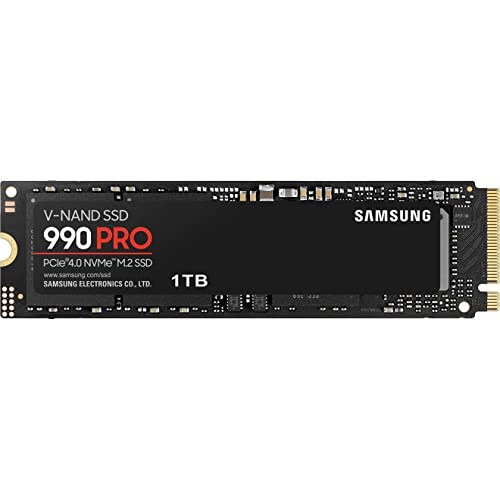 Samsung SSD 990 PRO 1TB Samsung SSD 990 PRO 1TB | Get random read/write speeds that are 40%/55% faster… Use less power and get more performance Samsung's own nickel-coated controller delivers effective thermal control | Check price |
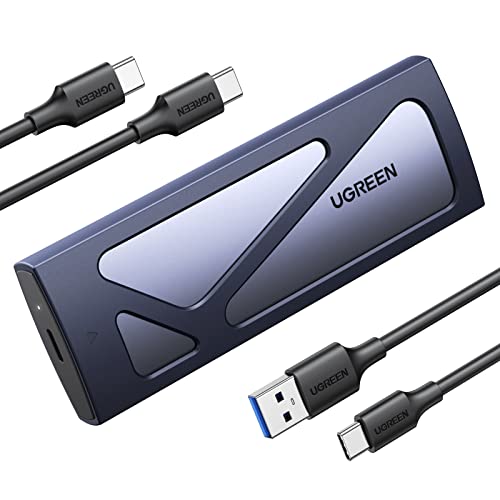 UGREEN SSD Enclosure Tool-Free USB C External UGREEN SSD Enclosure Tool-Free USB C External | 10Gbps NVMe Enclosure: With the latest USB 3.2… Tool-free SSD Enclosure: Tool-free NVMe SSD enclosure for… Broad Compatibility: The UGREEN M.2 NVMe SSD enclosure… | Check price |
As an Amazon Associate we earn from qualifying purchases at no extra cost to you.
⚡ Save on Your Next PC — Amazon Prime
Prime members get fast free shipping on the systems above, plus early access to Prime Day & Black Friday PC deals. New members get a 30-day free trial.
Watch: How to Install an M.2 NVMe SSD — Video Review
What You Need Before You Start
- The right drive: Confirm your motherboard has a free M.2 slot and buy a 2280-length drive like the Samsung 990 PRO 2TB unless your board specifies otherwise.
- A mounting screw or standoff: Many boards include these, but a cheap M.2 screw kit is worth having if yours are missing.
- A Phillips screwdriver: A small #0 or #1 is ideal for the tiny M.2 screw.
- Your motherboard manual: It tells you which slot to use first and which slots share bandwidth with SATA ports.
Step-by-Step Installation
- Power down fully: Shut off and unplug the PC, then hold the power button to discharge residual current.
- Locate the M.2 slot: Find the horizontal slot on the motherboard, often under a heatsink cover near the CPU or PCIe slots.
- Fit the standoff: Ensure the brass standoff sits at the 2280 position so the drive will be supported correctly.
- Insert at an angle: Slide the SSD into the slot at about 30 degrees until the contacts seat, then press it flat.
- Secure it: Fasten the single screw gently; do not overtighten. Reattach any heatsink with its thermal pad film removed.
After Installation
- Boot and verify: Enter BIOS to confirm the drive is detected before loading Windows.
- Initialize in Windows: If it is a secondary drive, use Disk Management to initialize (GPT) and format it.
- Update firmware: Use the maker’s tool (Samsung Magician for a 990 PRO) to check for SSD firmware updates.
Tips
- Use the primary slot first: The top M.2 slot usually runs at full CPU-connected speed; lower slots may share bandwidth.
- Keep the heatsink: Fast Gen4/Gen5 drives like the WD_Black SN8100 run hot; use the motherboard heatsink to avoid throttling.
- Do not lose the tiny screw: Work over a table, not carpet; a magnetic screwdriver helps.
- Ground yourself: Touch the metal case to discharge static before handling the drive.
Frequently Asked Questions
How do I know which M.2 slot to use?
Check your motherboard manual. The top slot is usually wired directly to the CPU for full speed, while secondary slots may run slower or disable certain SATA ports when populated.
Do I need a heatsink for my NVMe SSD?
For fast Gen4 and Gen5 drives, yes; sustained loads can cause thermal throttling without one. Most modern motherboards include an M.2 heatsink, so just use it. Slower Gen3 drives rarely need one.
Why isn’t my new SSD showing up in Windows?
A brand-new drive must be initialized and formatted in Disk Management before it appears in File Explorer. Also confirm it is detected in BIOS; if not, reseat it and check the slot.
Can I clone my old drive to the new M.2?
Yes. Use cloning software or an external NVMe enclosure like a UGREEN adapter to copy your OS and files, then set the new drive as the boot device in BIOS.
Conclusion
Installing an M.2 SSD takes about ten minutes: seat the drive at an angle, secure the single screw, reattach the heatsink, and verify in BIOS. Use the primary slot for full speed, initialize secondary drives in Windows, and update the firmware. It is the simplest upgrade with one of the biggest everyday payoffs.