If you want the best 4K capture cards for Switch 2, start with a card that can actually record 3840 × 2160 at 60 frames per second—not one that merely passes a 4K signal through to your TV. The Elgato Game Capture 4K S is the strongest all-around match for a dedicated Switch 2 setup: it captures 4K60, supports 4K60 HDR passthrough, and works with Windows, Mac, and supported iPads. AVerMedia’s Live Gamer ULTRA S costs less at its currently listed US sale price, while Elgato’s 4K X and AVerMedia’s HDMI 2.1 models make more sense when your capture card will also serve a gaming PC or another high-refresh-rate console.
For context, Nintendo specifies up to 4K at 60Hz in Switch 2 TV mode. Games and displays can also support up to 120Hz at 1080p or 1440p. That distinction matters more to this purchase than an advertised 8K passthrough figure. The seven picks below are real products with manufacturer-documented capture specifications; pricing and US online-store availability were checked on October 27, 2026. These are evidence-based buying recommendations, not claims of detailed research by Geek Gaming Tricks.
Quick verdict: Which 4K capture card should you buy?
Best overall for Switch 2: Elgato Game Capture 4K S. Its 4K60 recording ceiling matches Nintendo’s 4K TV-mode output, its USB interface suits a laptop or desktop, and its simpler HDMI 2.0 signal path avoids paying for high-refresh-rate features the Switch 2 cannot use at 4K. Choose the AVerMedia Live Gamer ULTRA S GC553Pro instead if minimizing the purchase price matters most and your host computer meets its capture-mode requirements.
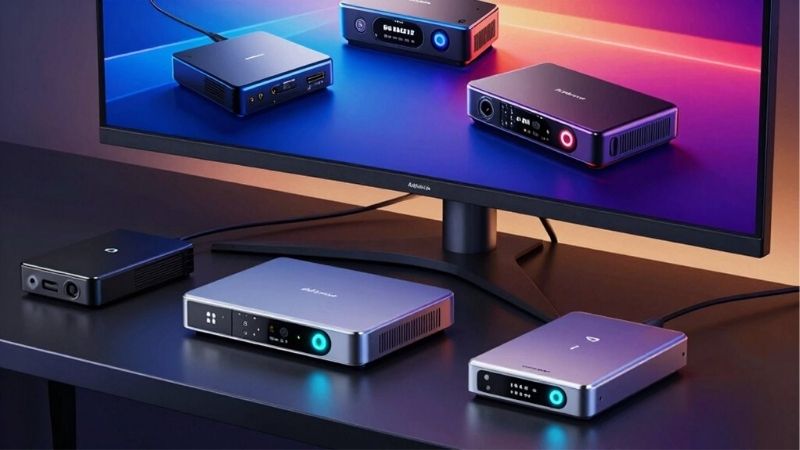
Best for multiple high-end systems: Elgato 4K X. Its HDMI 2.1 passthrough and USB 10Gbps interface create room for PC and newer console capture beyond a Switch-only workflow. For a permanent Windows desktop studio, AVerMedia’s GC575 provides a compelling PCIe alternative. Do not buy either expecting Nintendo games to suddenly run at 4K120; the console’s 4K output is capped at 60Hz.
| Capture card | Verified capture / passthrough | Best use and host connection | US price (seller, checked Oct. 27, 2026) | Stock status (Oct. 27) | Main drawback |
|---|---|---|---|---|---|
| Elgato Game Capture 4K S | Up to 4K60 SDR capture; 4K60 HDR passthrough | Best overall; USB-C 5Gbps, Windows/Mac/supported iPad | $159.99 — Elgato | In stock — Add to cart | 4K HDR recording is not supported; HDR capture tops out at 1080p60 on Windows |
| AVerMedia Live Gamer ULTRA S GC553Pro | Up to 4K60 capture; 4K60 HDR/VRR passthrough | Lowest-priced 4K60 pick; USB-C 5Gbps | $139.99 sale — AVerMedia US | In stock — 3 units shown | 4K60 MJPEG capture on macOS requires much higher-end hardware |
| Elgato Game Capture 4K X | Up to 4K144 capture and passthrough in supported modes | Best versatile premium USB card; HDMI 2.1, USB-C 10Gbps | $249.99 — Elgato | In stock — Add to cart | Extra 4K high-refresh support exceeds Switch 2’s 4K output |
| AVerMedia Live Gamer ULTRA 2.1 GC553G2 | Up to 4K144 capture on supported Windows software; 4K144 passthrough | Alternative HDMI 2.1 USB card with headset/gamepad audio jacks | $209.99 sale — AVerMedia US | In stock — 3 units shown | USB 10Gbps and software/firmware conditions matter |
| AVerMedia Live Gamer 4K GC573 | Up to 4K60 HDR capture and passthrough | Value PCIe card; Windows desktop, PCIe Gen 2 x4 | $159.99 sale — AVerMedia US | In stock — 24 units shown | Desktop installation; HDMI 2.0 ceiling |
| AVerMedia Live Gamer 4K 2.1 GC575 | 4K60 standard capture; up to 4K144 with compatible Streaming Center setup; 4K144 passthrough | Future-ready PCIe; HDMI 2.1, Windows, PCIe Gen 3 x4 | $209.99 sale — AVerMedia US | In stock — 25 units shown | Requires a suitable PCIe slot; advanced recording modes depend on software |
| Elgato Game Capture 4K Pro | Up to 4K60 HDR recording; up to 8K60 passthrough | Premium Windows PCIe studio; PCIe 2.0 x4 | $299.99 — Elgato | In stock — Add to cart | Expensive overkill for Switch 2 alone; not for laptops |
Prices are US manufacturer-store listings, not guaranteed checkout totals, and AVerMedia discounts are promotional. Availability can change after the stated check. A listed capture maximum does not guarantee every color format, operating system, and frame-rate combination; use each manufacturer’s mode matrix before choosing an HDR workflow.
What Switch 2 actually needs from a capture card
True 4K60 recording is different from 4K60 passthrough
A passthrough specification tells you what reaches the television through the capture card’s HDMI OUT port. A recording specification tells you what the connected computer can receive and save. Those are separate signal paths. A budget device may send 4K60 to your display but only deliver 1080p60 or 4K30 to OBS Studio. Such hardware can still be excellent for regular livestreams, but it does not satisfy a buyer who intends to archive native 4K60 footage.
The Switch 2 also does not render every title internally at native 4K, even when the system outputs a 2160p signal. A 4K recording captures the output signal, not proof that every game is natively rendered at that resolution. For creators who edit gameplay tutorials or comparison footage, this distinction prevents inflated quality claims. For most streamers who broadcast at 1080p60, a 4K60 capture card is valuable primarily for clean local recordings and convenient output flexibility.
HDMI 2.0 is enough for 4K60, but not every future setup
A properly implemented HDMI 2.0 card supporting 4K60 input and passthrough can match Switch 2’s maximum 4K TV signal. HDMI 2.1 is worth considering if you also capture a gaming PC or another console at 4K120, intend to preserve higher refresh rates on your main display, or need a capture device for several systems. Even then, read the exact manufacturer’s supported-resolution table: the HDMI version alone does not promise every HDR, VRR, color-depth, or refresh-rate combination.
Nintendo added TV-mode VRR support with a September 2026 system update, so older articles saying docked VRR is categorically unavailable are outdated. Actual VRR operation still depends on the game, TV, console settings, and device chain. If you troubleshoot a blank screen, starting with fixed 4K60 SDR and adding HDR and VRR back individually is a practical way to identify which link is refusing the signal.
Best 4K capture cards for Switch 2 reviewed
Elgato Game Capture 4K S — best overall for Switch 2
The 4K S earns the top recommendation because its capabilities are aligned with Nintendo’s output rather than with a spec-sheet competition. Elgato identifies Switch 2 as a supported target, documents 3840 × 2160 capture at 60fps in SDR, and provides 4K60 HDR passthrough to a television or monitor. It connects to the recording computer through a USB 3.2 Gen 1 Type-C interface rated for 5Gbps, with HDMI and USB-C cables in the box. That combination is easy to recommend to a creator who moves between a desktop and a compatible laptop without opening a PC case.
There is an important color-format limit: although the device passes a 4K HDR signal through, Elgato’s current mode matrix says HDR capture itself is limited to 1080p60 on Windows. If you need a 4K HDR master file, this should not be your pick. Another less-obvious detail is that the supported 4K60 USB capture path uses MJPEG; other formats have lower maximum resolutions or frame rates. Recording software and host capability therefore still matter, even when the box prominently says 4K60.
Choose it if: your main job is reliable 4K60 SDR Switch 2 capture with straightforward USB connectivity. Skip it if: 4K HDR recording is a requirement or you primarily capture 4K120 PC gameplay. At Elgato’s verified $159.99 US listing, its extra cost over the currently discounted GC553Pro buys a clear Switch-focused software and support path rather than a higher 4K refresh-rate ceiling.
AVerMedia Live Gamer ULTRA S GC553Pro — best budget 4K60 choice
The Live Gamer ULTRA S is the budget pick that does not make the usual 4K passthrough/1080p capture compromise. Its manufacturer specifications give it 4K60 video capture and 4K60 HDR/VRR passthrough through HDMI 2.0, using a USB 3.2 Gen 1 Type-C host connection. It can also handle up to 1440p144 or 1080p240 in supported modes. For a Switch 2-only workflow, that is a sensible ceiling: there is no need to purchase HDMI 2.1 simply to preserve a 4K60 console signal.
At AVerMedia’s checked US sale price of $139.99 for the black model, it is the least expensive verified 4K60 option among our seven primary picks. Unlike a generic unbranded dongle, it comes with a documented capture-format table and named manufacturer utilities. The trade-off is compatibility nuance. AVerMedia says 4K60 MJPEG capture on macOS requires M1 Ultra or M2 Ultra-class hardware or better; buyers with ordinary MacBook configurations should not assume 4K60 recording from the headline alone. On Windows, also confirm your software’s selected pixel format and capture mode before troubleshooting supposed hardware failure.
Choose it if: you stream from a supported Windows PC, want 4K60 capture at the lowest verified cost in this comparison, and do not need HDMI 2.1. Skip it if: you need effortless 4K60 capture on a modest Mac or want an analog party-chat jack; its specifications and included connections differ from the more expensive GC553G2.
Elgato Game Capture 4K X — best premium external option
4K X is the better long-term USB investment for someone whose Switch 2 is only one of several sources. Its HDMI 2.1 input and output support high-refresh-rate passthrough, and Elgato lists capture and passthrough modes up to 4K144 where the display, host and format allow them. The interface to your Windows or Mac computer is USB 3.2 Gen 2 at 10Gbps; Elgato warns that older 5Gbps connections can reduce capture resolution. Its bundled high-bandwidth HDMI cable also saves you from guessing whether the cable in a drawer meets a future PC’s requirements.
For Switch 2, these performance ceilings do not create better-than-4K60 game output. They do offer options when you later add a PC, PS5 Pro or another source, especially if you do not want a capture device to reduce what your display can show. There are still caveats: Elgato limits HDR recording to Windows, and its highest modes vary by display and USB connection. A monitor using Display Stream Compression can also reduce the documented maximum passthrough to 4K120 instead of 4K144. None of those constraints should be hidden behind a simple “HDMI 2.1” claim.
Choose it if: you need a powerful, portable capture unit for several modern systems. Skip it if: you only record docked Switch 2 footage, since the $249.99 Elgato listing pays for considerable unused headroom.
AVerMedia Live Gamer ULTRA 2.1 GC553G2 — best for flexible audio routing
The GC553G2 is a credible alternative to 4K X for streamers who want more physical audio flexibility. It has HDMI 2.1 input and output, USB-C 10Gbps connectivity, up to 4K144 HDR/VRR passthrough, and both headset and gamepad 3.5mm connections. AVerMedia also documents 5.1-channel audio support under its specified software conditions. Those ports may help with certain party-chat arrangements on other consoles; they do not guarantee that every Nintendo Switch 2 voice-chat configuration can be recorded, so test the exact audio path before relying on it for live content.
AVerMedia now advertises capture up to 4K144 on Windows through its Streaming Center environment, while its macOS maximum is listed as 4K60. This is not the same as guaranteeing 4K144 in every third-party app. The manufacturer’s host requirements specifically call for a USB 3.2 Gen 2 port, and its macOS notes give a demanding requirement for 4K60 MJPEG capture. The safest buying strategy is to confirm your host computer, chosen recording software, and firmware support the format you need, rather than treating a high advertised maximum as universal.
Choose it if: you want an HDMI 2.1 USB capture card with extra physical audio routing and have a capable Windows host. Skip it if: you want the easiest entry-level Switch 2-only setup. AVerMedia listed it at a $209.99 US sale price on our check date, subject to stock and promotion changes.
AVerMedia Live Gamer 4K GC573 — best-value PCIe 4K60 card
The GC573 is the practical option for a creator with a Windows tower and an available PCIe slot. Its HDMI 2.0 signal path records up to 4K60 HDR and passes through up to 4K60 HDR, matching the Switch 2’s 4K60 output ceiling without the price of an HDMI 2.1 internal card. AVerMedia specifies a PCIe Gen 2 x4 interface, Windows compatibility, and OBS/Streaming Center recording support. It is not a plug-and-play USB device: you will need to shut the PC down, install the card in a suitable slot and check the motherboard manual for lane-sharing or disabled-slot limitations.
The biggest buying caveat is not resolution but platform and GPU support. AVerMedia’s requirements distinguish different capture workloads and state that 4K, HDR and high-frame-rate recording require supported NVIDIA graphics hardware. This deserves attention if your streaming desktop uses an older GPU or an all-AMD configuration. It also means a successful 1080p capture test does not, by itself, validate the more demanding 4K HDR mode.
Choose it if: you already own a compatible Windows desktop and want an internal 4K60 option at AVerMedia’s checked $159.99 promotional price. Skip it if: you use a Mac, laptop, or plan to pass 4K120 from another system; the GC573’s HDMI 2.0 output tops out at 4K60.
AVerMedia Live Gamer 4K 2.1 GC575 — best PCIe for future upgrades
The GC575 makes more sense than the GC573 when your streaming PC will outlast your Switch 2-only phase. AVerMedia documents a PCIe Gen 3 x4 interface and HDMI 2.1 passthrough up to 4K144 HDR/VRR. Standard 4K60 capture is part of the specification, and newer AVerMedia Streaming Center support can enable higher capture modes when firmware, software and the input format match. This extra headroom is relevant to a future 4K high-refresh gaming PC; it is not additional resolution or frame rate you can extract from a Switch 2 game running in 4K mode.
Compared with a USB device, an internal card eliminates the question of whether your laptop USB port delivers 5Gbps or 10Gbps—but substitutes motherboard compatibility checks. A PCIe x16 physical slot is not automatically free to use if its lanes or clearance are occupied, and a desktop GPU can block adjacent slots. Consult the motherboard manual before ordering. AVerMedia also documents software-specific multi-channel-audio functions; its 5.1-channel features should not be assumed to work identically with every Switch audio format or streaming application.
Choose it if: you already capture on a compatible Windows desktop, value HDMI 2.1 passthrough and are expanding beyond Nintendo hardware. Skip it if: you need portability. The $209.99 AVerMedia US sale listing makes it particularly competitive while that promotion lasts, but availability should be reconfirmed before checkout.
Elgato Game Capture 4K Pro — best high-end Windows studio card
Elgato’s 4K Pro is a premium internal capture solution rather than the economical recommendation for a Switch 2. Its strongest distinction is the separation between up to 4K60 HDR recording and much higher display passthrough capability, including 8K60 on supported sources and displays. Elgato explicitly labels it a Windows-only PCIe capture card, and its requirements specify a PCIe 2.0 x4-capable slot and a supported desktop computer. That design can suit someone building a permanent multi-console studio with a dedicated capture PC.
Its passthrough headroom is not the same thing as recording Switch 2 above 4K60. An 8K60 claim does not make Nintendo output 8K or remove per-game limitations. Equally, the phrase “lag-free passthrough” refers to the direct HDMI display path, not to instantaneous playback inside your OBS preview. If you usually play through the capture preview instead of a television, evaluate preview latency separately and do not mistake a card’s passthrough specification for a latency benchmark.
Choose it if: your Windows studio also captures more demanding PC/console sources, you need 4K HDR recordings and a robust internal signal path. Skip it if: Switch 2 is your only source or you use a laptop. Elgato’s checked $299.99 US price is difficult to justify for a dedicated 4K60 Nintendo setup when less expensive options meet its output specifications.
How we selected these capture cards
We prioritized manufacturer-published input, recording and passthrough modes over retailer headline labels. Every primary pick has a documented route to actual 4K capture, not merely 4K output. We compared connection type, capture-format restrictions, operating-system requirements, included cables, HDR/VRR behavior, and whether a US manufacturer storefront displayed an available purchase option on October 27, 2026. The lower-cost AVerMedia Live Gamer Extreme 3 GC551G2 was considered but did not make the seven primary picks: it captures 4K only up to 30fps even though it passes 4K60 through. That can be fine for lower-frame-rate archives but is a poor fit for buyers specifically seeking 4K60 Switch 2 footage when faster cards are available.
These recommendations do not imply laboratory measurements, personally tested input lag, or long-session thermal benchmarks. Where an advertised mode depends on firmware or a vendor-specific application, we call out the dependency. Prices were checked on the actual US storefronts cited in the accompanying research log, rather than copied from generic shopping snippets. We do not rank devices by unverified warranty claims or temporary review-star differences.
Buying checklist: Avoid the expensive compatibility mistakes
Confirm the recording computer before comparing capture modes
USB-C is a connector shape, not a guarantee of 10Gbps data. An older USB port, USB hub, low-spec cable, or congested controller can prevent a card from offering its higher capture modes. For Elgato 4K S and GC553Pro, check for the manufacturers’ specified USB 5Gbps host connection; for Elgato 4K X and GC553G2, budget for a direct USB 10Gbps port if you want maximum capability. On macOS, read the manufacturer-specific 4K60 requirements rather than assuming a device works identically because it is USB Video Class-compatible.
PCIe cards avoid USB bandwidth constraints but require free motherboard lanes, a supported operating system and a physically accessible slot. The internal picks here are aimed at Windows desktops, not MacBooks or gaming laptops. If you share a capture device between rooms or consoles, an external USB card is usually the simpler choice even if an internal card carries a comparable manufacturer price.
Choose between SDR and HDR recording deliberately
4K60 SDR capture is a straightforward target for most creators. True HDR recording demands an HDR-capable card mode, compatible software, a suitable encoding workflow, and careful handling of colors when viewers watch on SDR displays. Elgato 4K S, for example, passes 4K HDR to a display but records HDR only at up to 1080p60 on Windows. The GC573 and 4K Pro document 4K60 HDR recording within their system requirements, making them more relevant to a creator who specifically needs HDR master files.
If colors look washed out, do not assume the capture card is defective. First verify the console’s HDR Output setting, the display’s HDMI input mode, and whether your recording project is configured for SDR or HDR. Keep RGB Range set consistently with the connected equipment; mismatched full/limited range can crush blacks or wash out contrast. For first setup, a 4K60 SDR recording is the most useful control test.
Plan for audio, local files and the real display connection
At minimum, a two-monitor or monitor-plus-PC arrangement needs the Switch 2 dock, an HDMI cable to capture-card HDMI IN, another HDMI cable from capture-card HDMI OUT to the television, and a data connection between the card and the recording computer. Most featured products include at least one HDMI cable, but verify the contents for your particular SKU. Avoid buying a generic “USB-C charging cable” as the host data lead: it may not meet the card’s bandwidth requirement.
When using docked Nintendo output, HDMI normally carries game audio to the capture card. Connecting headphones directly to the console can divert that sound and leave OBS with a silent feed. For voice commentary, a separate microphone connected to the recording computer is generally the easiest starting point. Check storage before recording long sessions: local 4K footage can occupy far more space than a heavily compressed 1080p livestream, and the final size depends on the recording codec and bitrate you select.
How to connect Switch 2 to a 4K capture card
- Build the signal chain. Place Switch 2 in its official dock. Connect the dock’s HDMI OUT to the capture card’s HDMI IN. Connect the card’s HDMI OUT to the TV or monitor. Connect the capture device to the recording computer using the manufacturer’s specified USB data cable, or install a PCIe card with the desktop unplugged and follow the card’s installation guide. The TV should display the console through HDMI passthrough before you worry about OBS.
- Verify Nintendo’s output. On Switch 2, open HOME Menu > System Settings > Display. Set TV Resolution to Automatic or 2160p (4K) if the display chain supports it. Open Video Output Information to inspect the negotiated signal. For a first test, set HDR Output to Off and 120 Hz Output to Off; then re-enable features separately once you have a stable recording. Nintendo notes that 120Hz output is limited to 1080p and 1440p.
- Add the capture source in OBS. In OBS Studio on Windows or macOS, go to Sources > + > Video Capture Device, create the source, and select the specific capture-card model in the Device dropdown. If a 4K60 mode does not appear, check the card’s manufacturer mode table and the computer interface before forcing a custom value. On macOS, an additional Audio Input Capture source may be required for the capture card’s sound, depending on the device and application.
- Make a controlled local recording. Set a supported capture resolution and frame rate, such as 3840 × 2160 at 60fps for a verified 4K60 SDR configuration. Record 30–60 seconds of movement and audio. Inspect the saved file’s resolution, frame rate, sound, and timing. A visible 4K signal on the TV does not prove the saved file is 4K60.
- Test the advanced options only afterward. Enable Nintendo’s HDR Output and, where your game and TV support it, VRR Settings. Recheck Video Output Information and record another sample. If the display goes black or the capture feed disappears, return to fixed 4K60 SDR, verify both HDMI cables and the card’s supported formats, and add back one feature at a time. Play on the passthrough monitor for the most direct response, not through a delayed preview window.
Common Switch 2 capture problems and first checks
| Symptom | Likely mismatch | First safe action |
|---|---|---|
| TV shows 4K, but saved file is 1080p | Recording resolution differs from passthrough | Inspect OBS source and recording settings; verify the card’s actual capture maximum |
| Black screen after enabling HDR or VRR | Unsupported mode somewhere in the HDMI chain | Switch off HDR and VRR temporarily under System Settings > Display, then re-enable separately |
| 4K60 absent from available USB formats | Port, cable, codec, software or host limitation | Use a direct manufacturer-specified USB port/cable; consult the supported format table |
| Video records but there is no game sound | Audio routed to console headphones, or missing OBS audio source | Disconnect console headphones for a test; check HDMI audio and the capture device’s input |
| Gameplay feels delayed in the preview | Capture preview processing instead of HDMI passthrough | Play on the card’s HDMI OUT-connected monitor/TV |
Do not bypass HDCP or use an unknown firmware download as a troubleshooting shortcut. Capture cards are intended for supported, unencrypted gameplay signals; protected media may legitimately display a blank capture feed. If a supported mode fails, check the card’s current official firmware and the Nintendo video output information before changing drivers or replacing hardware.
Frequently asked questions
Can Switch 2 record gameplay in 4K60?
A compatible external capture device can record a docked Switch 2’s 4K60 HDMI output, provided the game, console settings, display chain, capture format and host computer support that mode. Nintendo’s maximum 4K signal is 60Hz. The recording does not necessarily represent internally native-4K game rendering.
Do I need an HDMI 2.1 capture card for Switch 2?
No, not for a standard 4K60 Switch 2 capture workflow. HDMI 2.0 cards that explicitly support 4K60 capture and 4K60 passthrough can meet the console’s 4K requirements. HDMI 2.1 becomes more valuable when the card also serves a separate 4K120 or higher-refresh-rate source.
Will any 4K capture card work with a MacBook?
No. External connection does not guarantee that every capture mode works on every Mac. Elgato 4K S supports macOS 14.2 or later on a supported host, while several AVerMedia 4K60 MJPEG modes have more demanding Apple Silicon hardware requirements. Check the exact model and your Mac’s USB bandwidth, OS, codec and software requirements before ordering.
Is 4K capture worth it if I livestream at 1080p?
It can be, especially if you want higher-resolution local archives to crop, edit and upload later. But if all your output is 1080p60 and you never save 4K files, you may not benefit from paying for the highest-end HDMI 2.1 capture hardware. Prioritize a stable 1080p workflow, understandable audio routing and low-latency display passthrough over impressive unused numbers.
Final thoughts
For a dedicated Nintendo Switch 2 setup, buy the Elgato Game Capture 4K S if you want a balanced, clearly documented 4K60 SDR USB solution. Choose the AVerMedia Live Gamer ULTRA S GC553Pro to spend less on a compatible Windows setup, or step up to Elgato 4K X only when you also need faster HDMI 2.1 sources. If you capture from a Windows tower, compare GC573 for 4K60 value against GC575 for more advanced passthrough. Before purchasing, check your computer’s USB or PCIe compatibility and decide whether your recordings must be 4K HDR or simply 4K60 SDR; that single decision rules out more bad purchases than a headline maximum resolution.